
Set up Staff Members in GymMaster
When adding staff into GymMaster, you define what they can access, what they can do, and how they interact with your system.
- Invite the Staff Member
- Add Staff Details
- Set Permissions
- Set Up Login Security
- Enable as Trainer
- Add Profile Photo
- Additional Options
Invite the Staff Member
Start the process of adding staff into GymMaster;
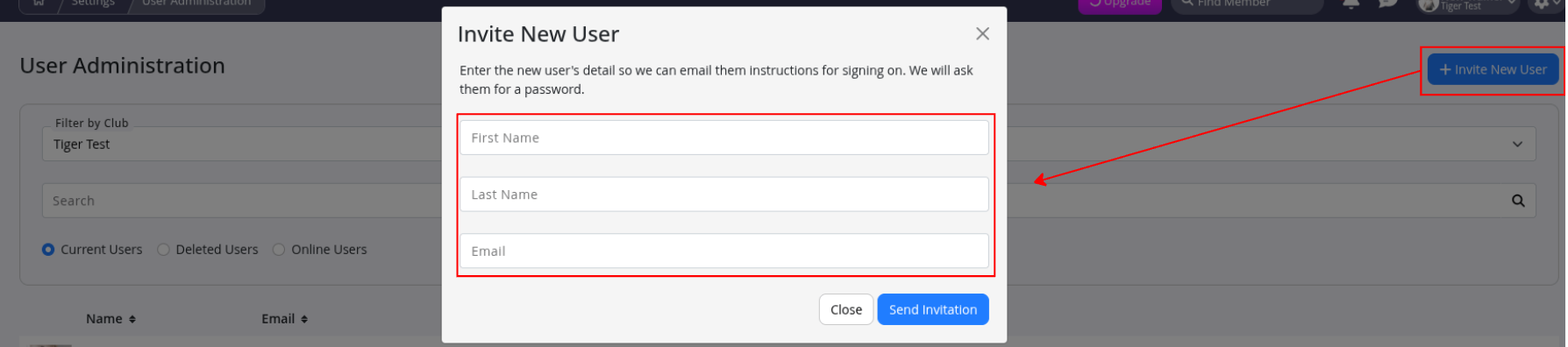
- Go to Settings > User Administration
- Click + Invite New User
- Enter their name and email address
- Click Send Invitation
Once they accept the invite, you’ll be able to configure the rest of their details.
Add Staff Details
Open the staff profile and complete the Details tab:
- Add basic info (name, contact details, date of birth)
- Assign a Key Fob (optional) by clicking the field and swiping the fob
- Set an Access Roster to control when they can enter the facility
(this is separate from their working hours)
You can also:
- Mark them as a Sales Rep
- Upload documents (e.g. First Aid Certificate)
- Add an email signature
Set Permissions
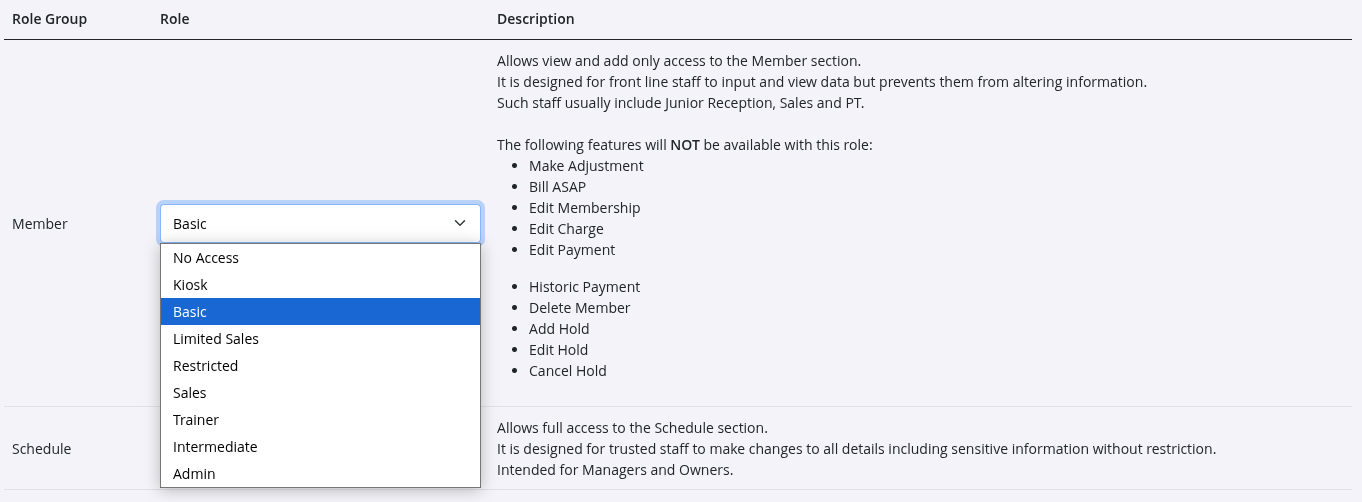
Permissions control what staff can see and do in GymMaster.
- Use a Permission Template or customise access per role
- Adjust access levels across different areas of the system
- Keep access levels appropriate to the role (avoid giving full admin access unless needed)
- If unsure, start with lower access and increase if required
Important: Staff must log out and back in for permission changes to apply.
Set Up Login Security
In the Security tab:
- Set or reset their password
- Enable Two-Factor Authentication (2FA) for extra security
Enable as Trainer
Optional
If the staff member runs training sessions or will be bookable for one-on-one sessions;
- Tick Is a Trainer
- Enable them as a Staff Resource
This allows them to be booked for training sessions.
Add Profile Photo
- Upload a square image (~350 x 350px recommended)
- This will appear in the Member App and Portal for trainers/instructors
Additional Options
From the staff profile, you can also:
- Enable or disable pop-up notifications
- Allow timesheet editing
- Set up automated email alerts (e.g. billing issues, low stock)
Pro Tip: Use the Mimic User button (at the bottom of the staff profile) to log in as that user and check everything looks right.
Common Questions this Covers
- How to add users into GymMaster
- How to set access rights to GymMaster
- How to add new staff member
- How to set staff member as a trainer

 2026 © Treshna Enterprises Ltd.
