
Setting up GoHighLevel with GymMaster
GoHighLevel (GHL) is a sales and marketing platform used by many gyms to capture leads, run follow-up campaigns and manage their sales pipeline. GymMaster doesn’t have a dedicated GoHighLevel integration, but the two can be connected with webhooks, with no coding required. GoHighLevel’s Workflows can both receive webhooks from GymMaster and send requests to the GymMaster Member Portal API. If you’re new to webhooks, see Webhooks for an overview.
Once connected you can, for example:
- Create a GymMaster prospect whenever a new contact is created in GoHighLevel (e.g. from a Facebook lead form or a GHL funnel)
- Create or update a GoHighLevel contact whenever a member is added in GymMaster
- Update a GoHighLevel contact when a member checks in, so GHL can follow up with members who stop visiting
- Before you start
- GoHighLevel to GymMaster
- GymMaster to GoHighLevel
- Track when a member last visited
- Block out GymMaster classes in your GHL calendar
- Multi-step workflows
- Avoiding duplicates
- Troubleshooting
Before you start
You will need:
- A GoHighLevel account with access to Automation > Workflows
- Access to Settings > Integrations in GymMaster
- Your GymMaster Member Portal API key, found under Settings > Integrations > Member Portal API. Use the standard member API key, not the high-permission (server-side) key, as it will be stored in GoHighLevel.
- Your GymMaster club ID (companyid) if you have more than one club
Note: GoHighLevel’s Inbound Webhook trigger and Custom Webhook action are premium features, and GoHighLevel charges a small fee each time they run. Check your GoHighLevel plan before setting this up.
GoHighLevel to GymMaster
Create a GymMaster prospect when a GoHighLevel contact is created. New GoHighLevel contacts are sent to GymMaster as prospects, so they appear in your Prospect Funnel.
Create the workflow
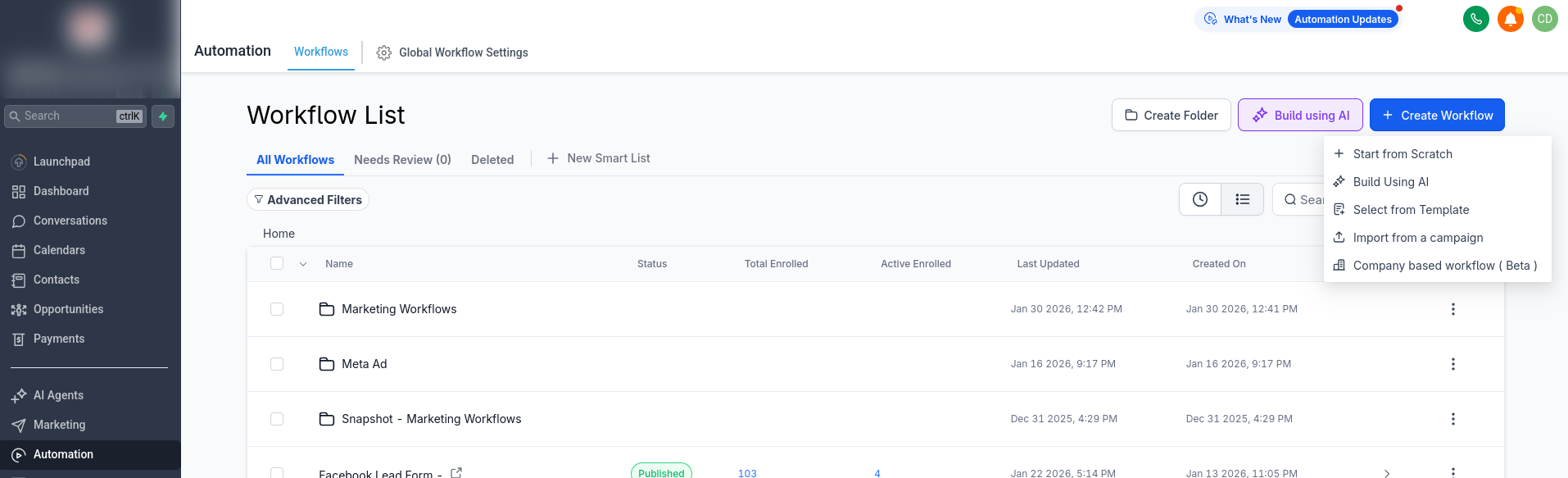
- In GoHighLevel, go to Automation > Workflows
- Select Create Workflow, then Start from Scratch
- Rename the workflow to something you’ll recognise, e.g. GymMaster ← GoHighLevel
Setup Trigger
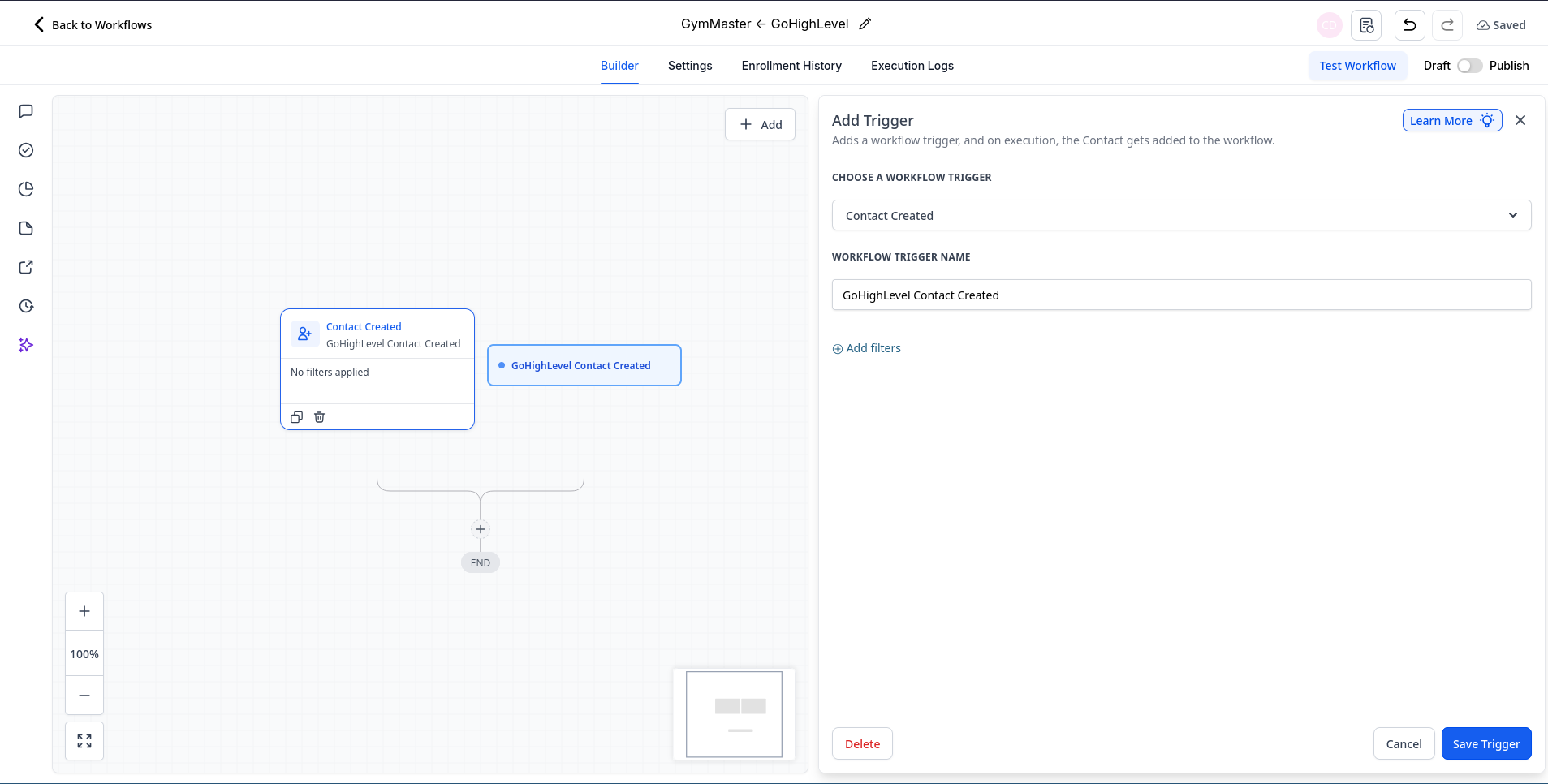
- Select Add New Trigger
- Choose Contact Created
- Name the trigger, e.g. GoHighLevel Contact Created
- Optionally, use Add filters to only send some contacts to GymMaster (e.g. contacts with a particular tag, or from a particular form)
- Select Save Trigger
Setup Action
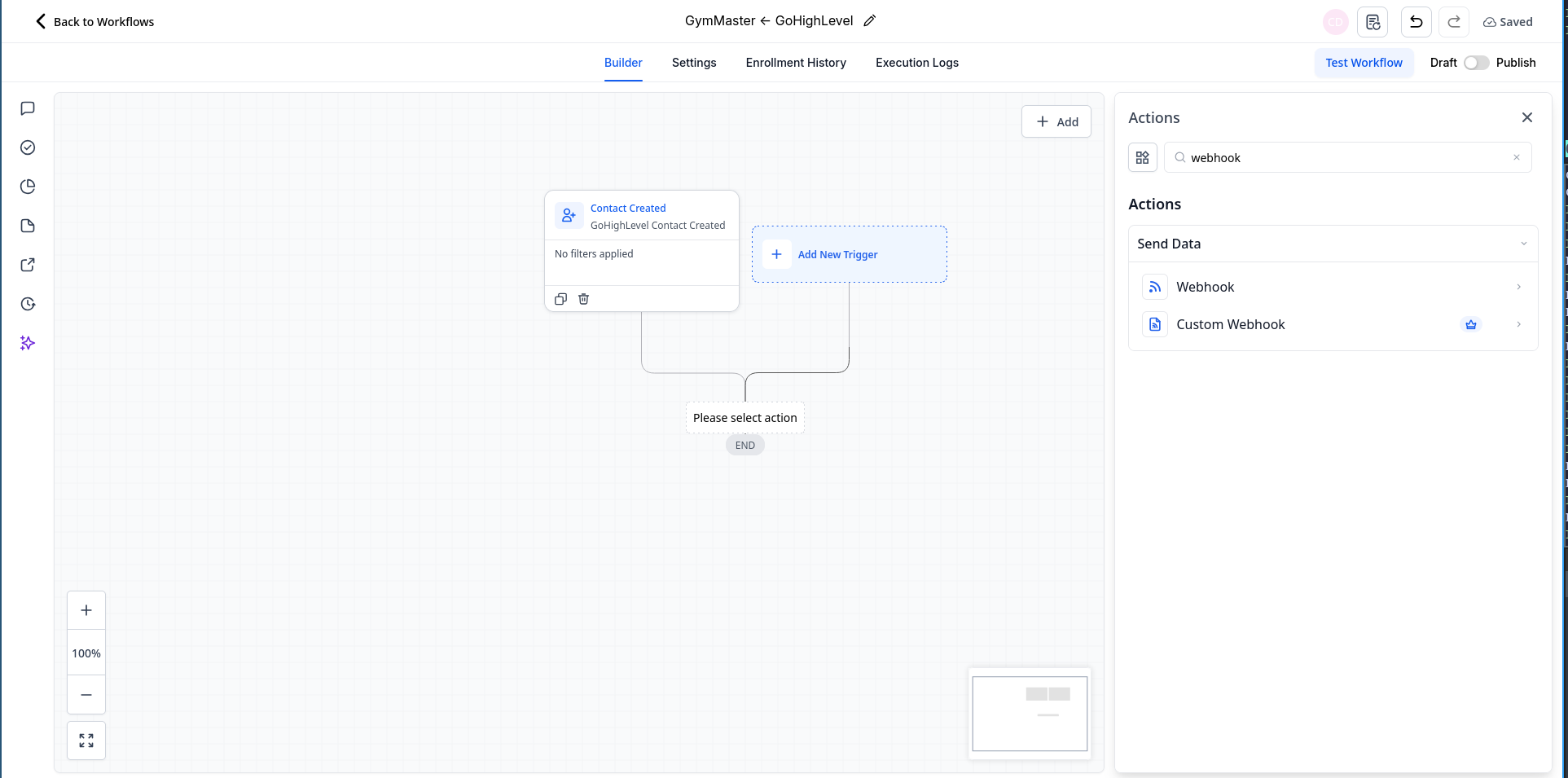
- Select the + below the trigger to add an action
- Search for webhook and choose Custom Webhook
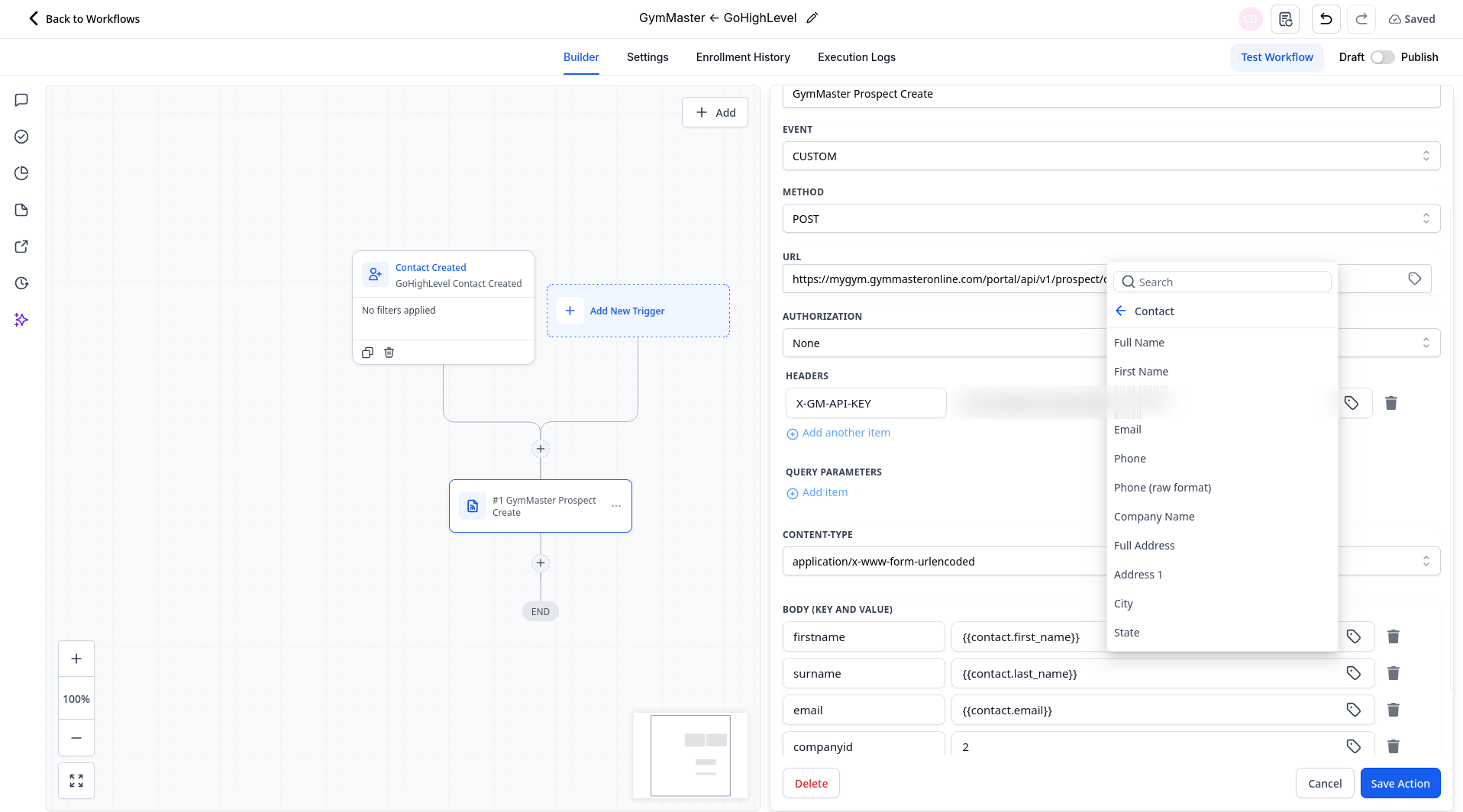
- Fill in the action as follows:
| Field | Value |
|---|---|
| Action Name | GymMaster Prospect Create |
| Event | CUSTOM |
| Method | POST |
| URL | https://yourclub.gymmasteronline.com/portal/api/v1/prospect/create (replace yourclub with your GymMaster club name) |
| Authorization | None |
| Headers | Key X-GM-API-KEY, with your Member Portal API key as the value |
| Content-Type | application/x-www-form-urlencoded |
- Under Body (Key and Value), add the details to send to GymMaster. Use the tag icon to pick GoHighLevel contact fields:
| Key | Value |
|---|---|
| firstname | {{contact.first_name}} |
| surname | {{contact.last_name}} |
| {{contact.email}} | |
| phonecell | {{contact.phone}} |
| companyid | Your GymMaster club ID, e.g. 2 |
First name, surname and email are required by GymMaster. If your GoHighLevel forms don’t ask for a last name, make it a required field on your forms so the prospect can be created.
If you have more than one club, create a separate workflow for each club with its own companyid, and use trigger filters (e.g. by tag) to send each contact to the right club.
- Select Save Action
- Toggle the workflow from Draft to Publish
Test
- Create a test contact in GoHighLevel
- Check that a matching prospect appears in GymMaster
- If it doesn’t, open the workflow’s Execution Logs in GoHighLevel to see GymMaster’s response
GymMaster to GoHighLevel
Create a GoHighLevel contact when a member is added in GymMaster. New GymMaster members are sent to GoHighLevel as contacts.
Create the workflow and trigger
- In GoHighLevel, go to Automation > Workflows and create a new workflow from scratch, e.g. GymMaster Member Add
- Select Add New Trigger, search for webhook and choose Inbound Webhook
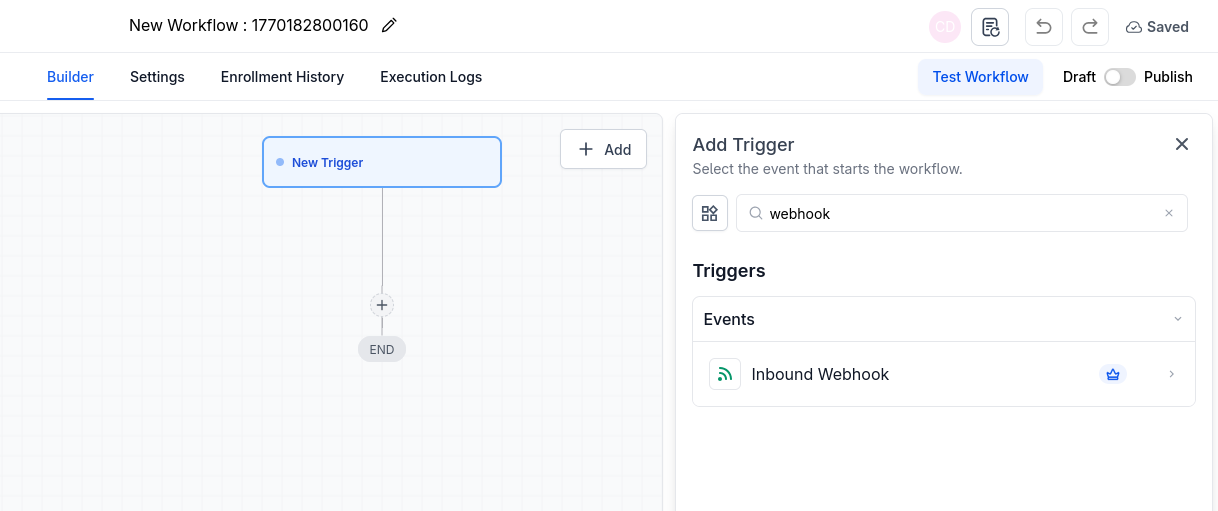
- Name the trigger, e.g. GymMaster Member Add
- GoHighLevel will generate a URL starting with _https://services.leadconnectorhq.com/hooks/_. Copy this URL.
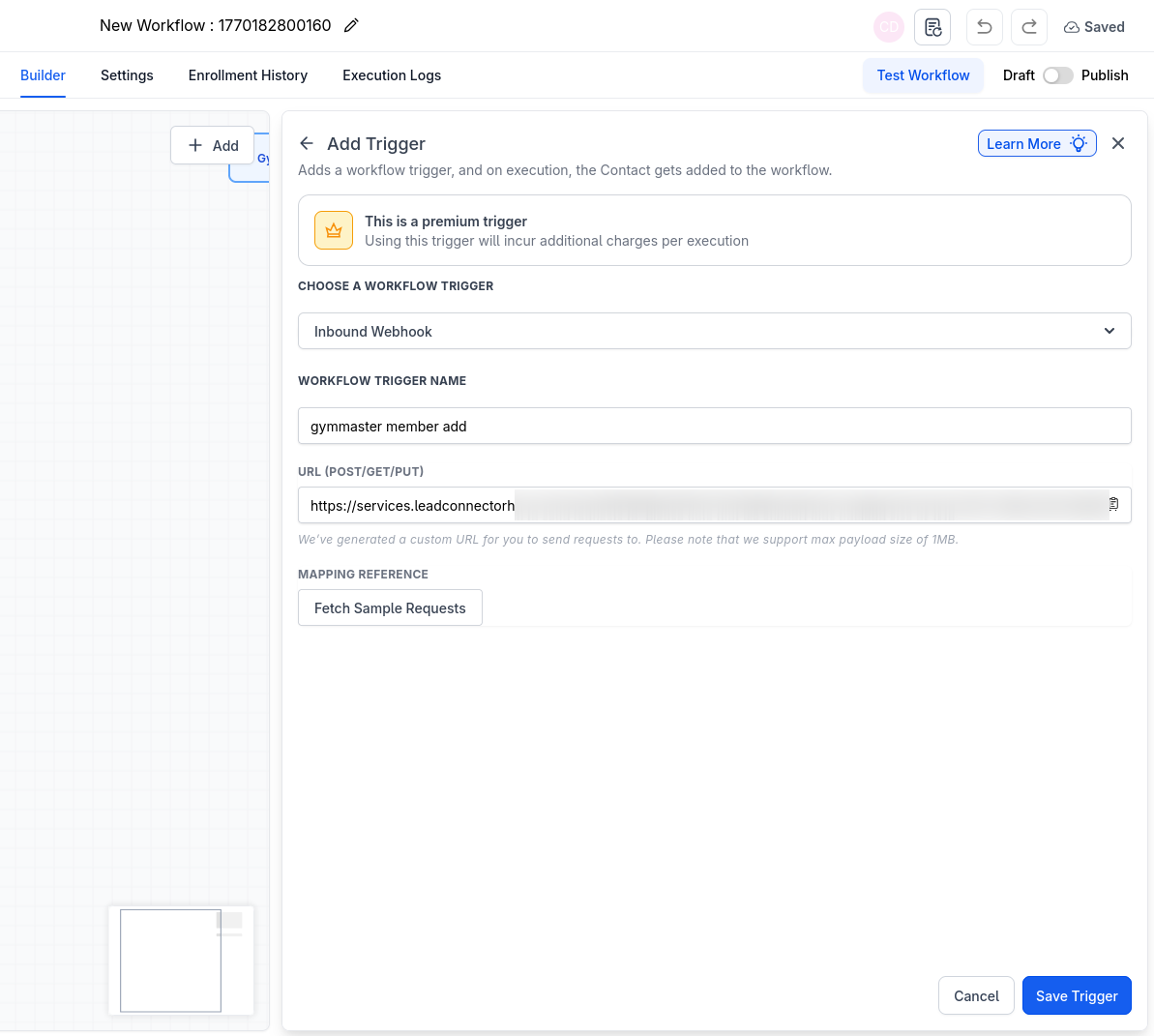
Leave this window open. GoHighLevel needs to receive a sample webhook from GymMaster before the trigger can be saved.
Add the webhook in GymMaster
- In GymMaster, go to Settings > Integrations > Webhook Manager
- Find the Member Add event, paste in the GoHighLevel URL and save
Send a sample to GoHighLevel
- Add a test member in GymMaster, or use Test Send on the Webhook Manager page. This sends a webhook to GoHighLevel.
- Back in GoHighLevel, under Mapping Reference, open the dropdown and select Check for new requests
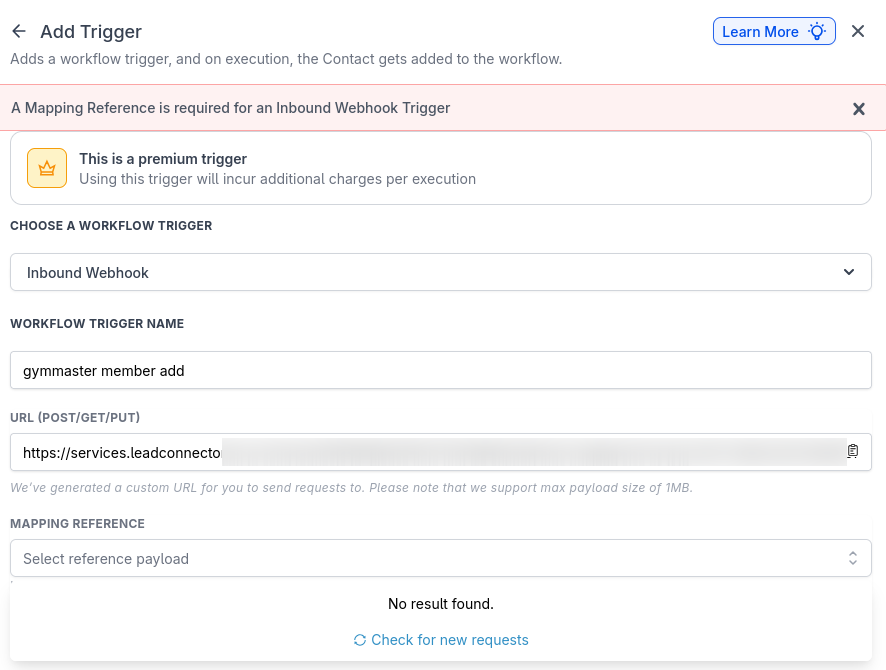
- Select the request that appears. GoHighLevel will show the details GymMaster sent.
- Select Save Trigger
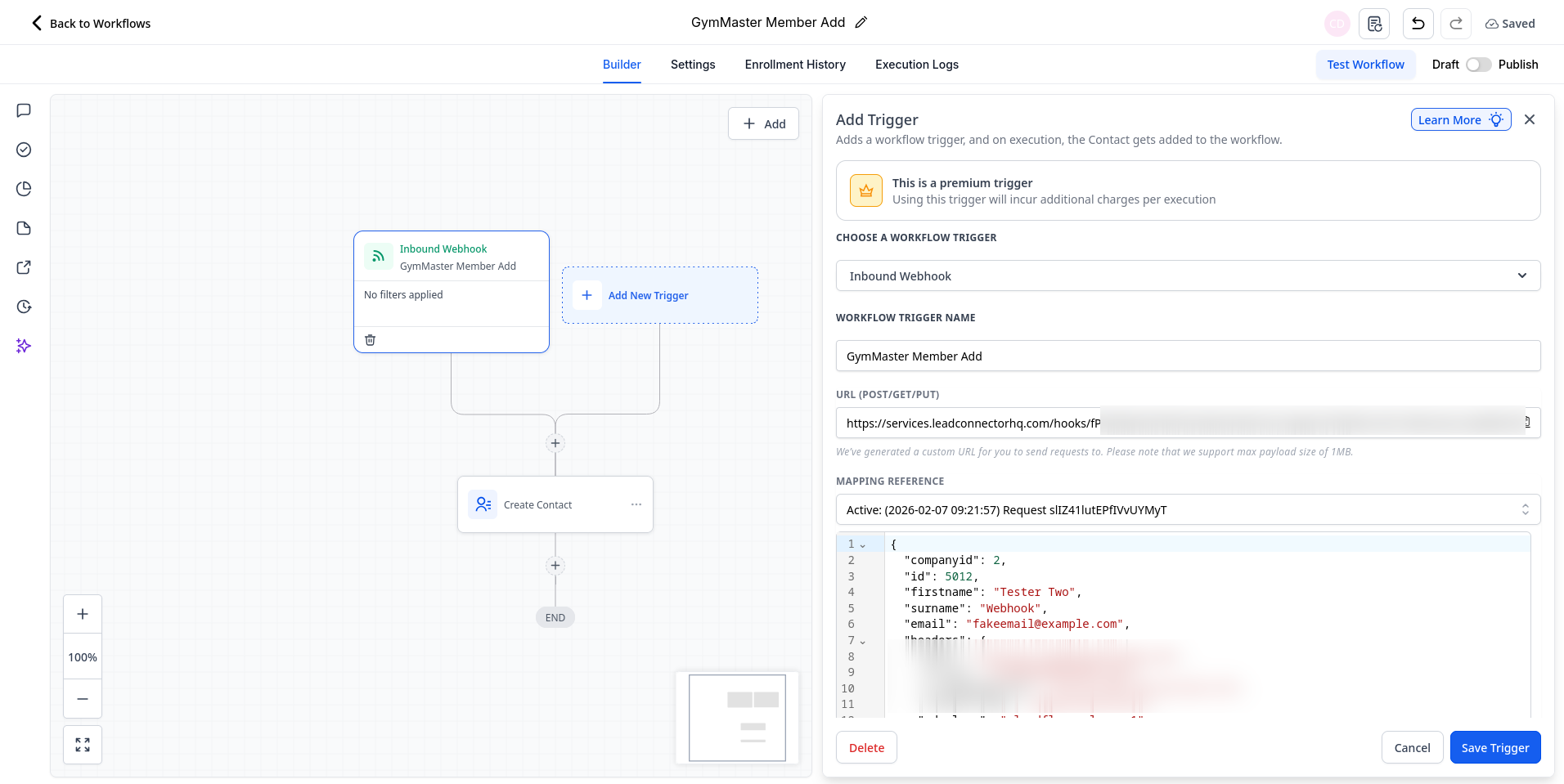
Setup Action
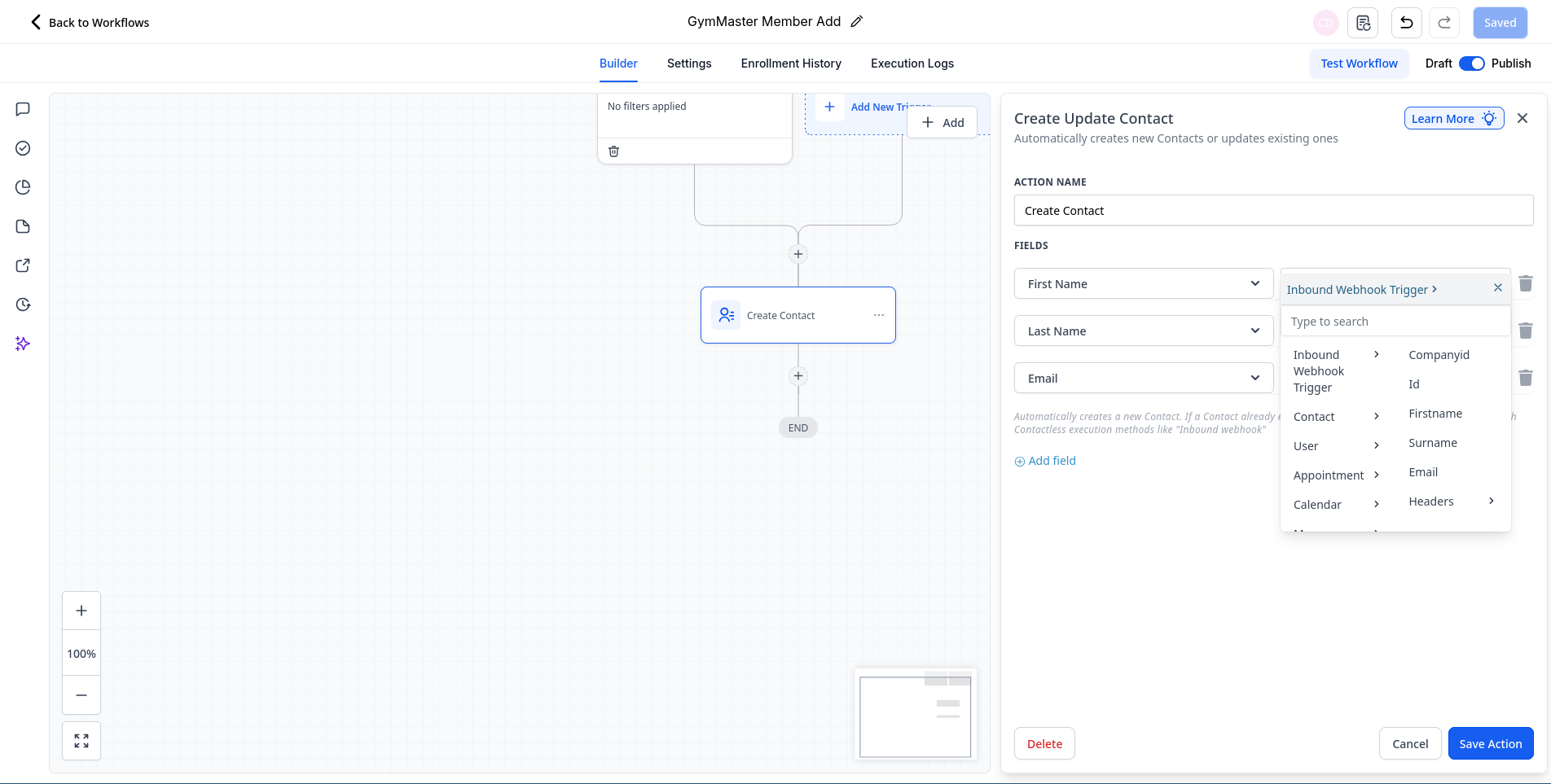
- Select the + below the trigger and choose Create Contact
- Map each GoHighLevel contact field to the matching value from the webhook, by selecting Inbound Webhook Trigger and then the field:
| GoHighLevel field | Inbound Webhook Trigger field |
|---|---|
| First Name | Firstname |
| Last Name | Surname |
| Phone | Phonecell |
- Select Save Action, then toggle the workflow to Publish
The same steps work for other GymMaster webhook events, such as Member Update or Membership Add. Create a workflow for each event you want GoHighLevel to act on. See Webhooks for the full list of events.
By default, GymMaster’s webhooks contain IDs rather than details like the member’s name or email. If the webhook you receive doesn’t include the fields you need to map, see Getting more data.
Track when a member last visited
GoHighLevel can keep a “last visited” date on each contact. You can then use GoHighLevel workflows to follow up with members whose visits have dropped off.
- In GoHighLevel, create custom date fields on your contacts, e.g. Last Visited and Last Booking Attended
- Create a workflow with an Inbound Webhook trigger, and add its URL to the Member Checkin event in GymMaster’s Webhook Manager
- Add a Find Contact action, and match Email to {{inboundWebhookRequest.email}}
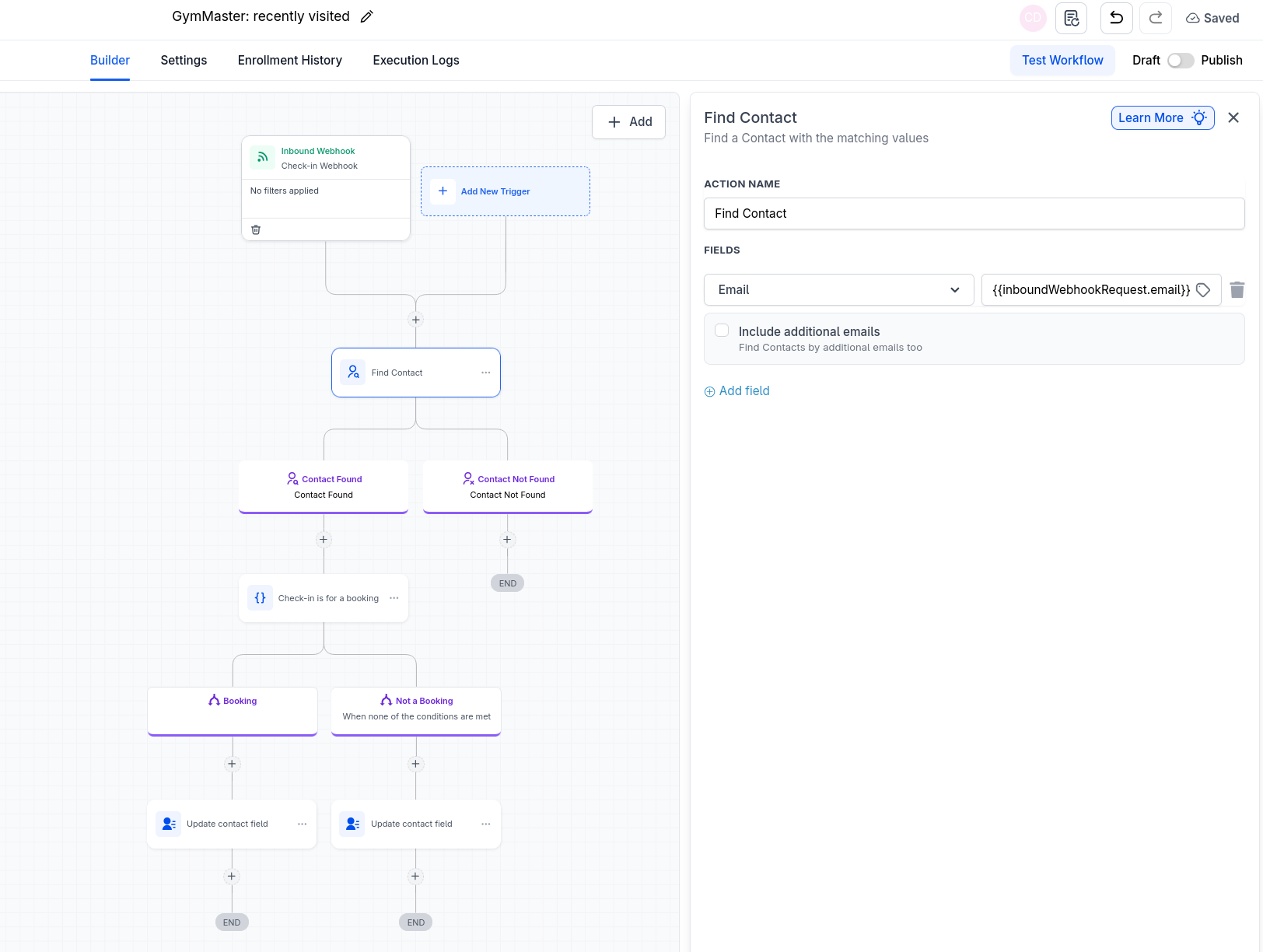
- Under Contact Found, add an Update Contact Field action that sets Last Visited to Current Date
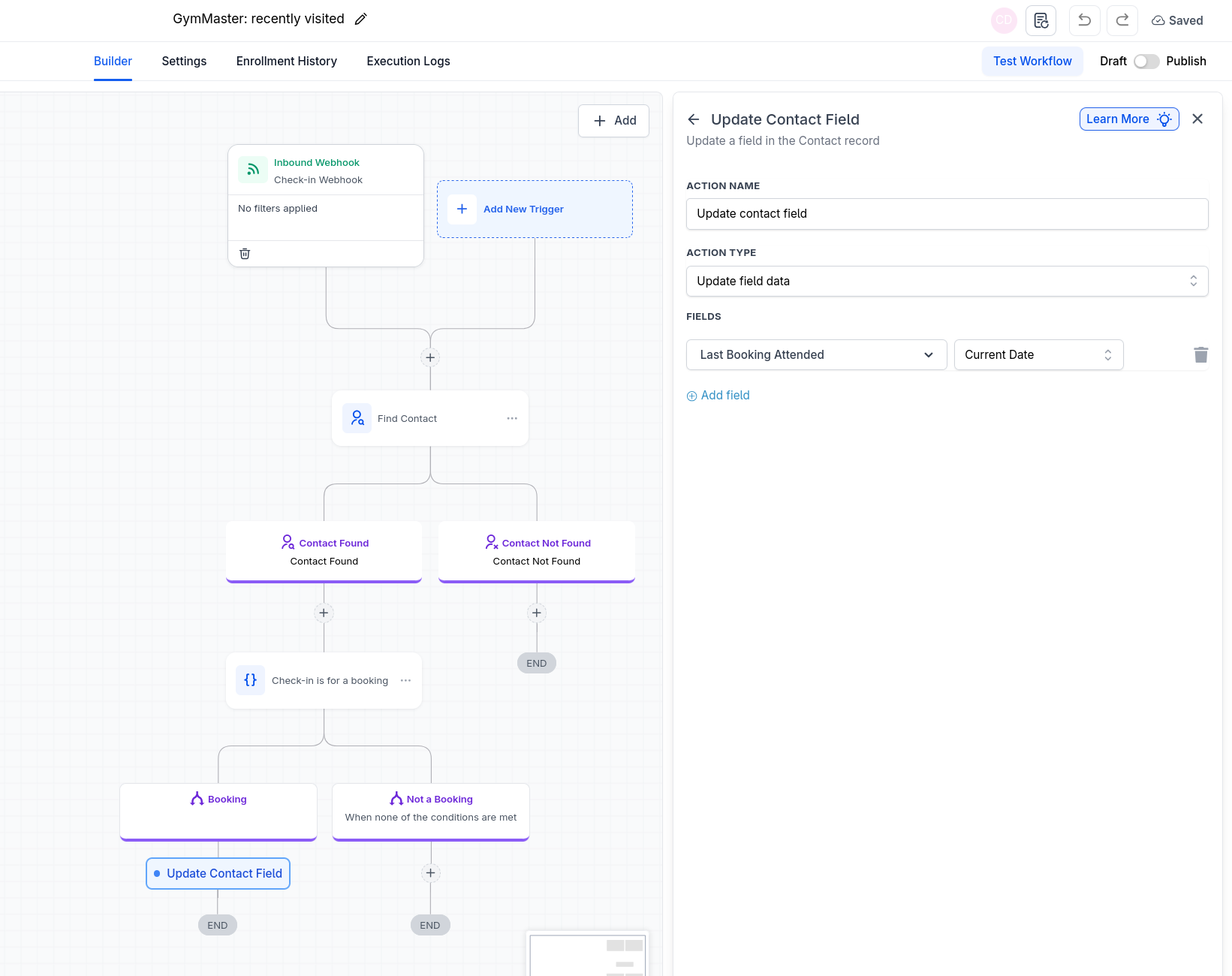
- To track class attendance, create a second workflow the same way using the Booking Checkin event, which updates Last Booking Attended. Door check-ins and booking check-ins are separate events in GymMaster.
You can then build GoHighLevel workflows that act when these dates go stale, e.g. send a “we miss you” message after 14 days without a visit.
Block out GymMaster classes in your GHL calendar
If leads book appointments (e.g. tours or trial sessions) through a GoHighLevel calendar, you can stop them booking over your GymMaster classes. To do this, sync your GymMaster schedule into GoHighLevel as a conflict calendar, using Google Calendar in between.
Add your GymMaster schedule to Google Calendar
- In GymMaster, go to Schedule and switch to Week or Month view
- Select the calendar feed button and Copy the link
- In Google Calendar, go to Settings > Add calendar > From URL, paste the link and select Add calendar
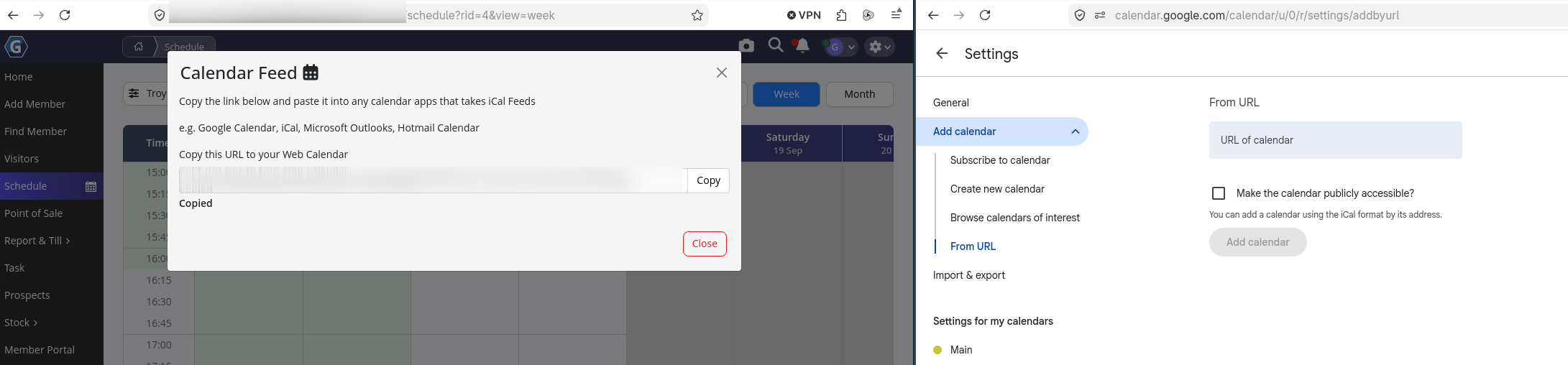
Keep this link private. Anyone with the link can view your schedule.
Connect Google Calendar to GoHighLevel
- In GoHighLevel, go to Settings > Calendars > Connections
- Under Connected calendars, select Connect next to Google calendar and log in to your Google account
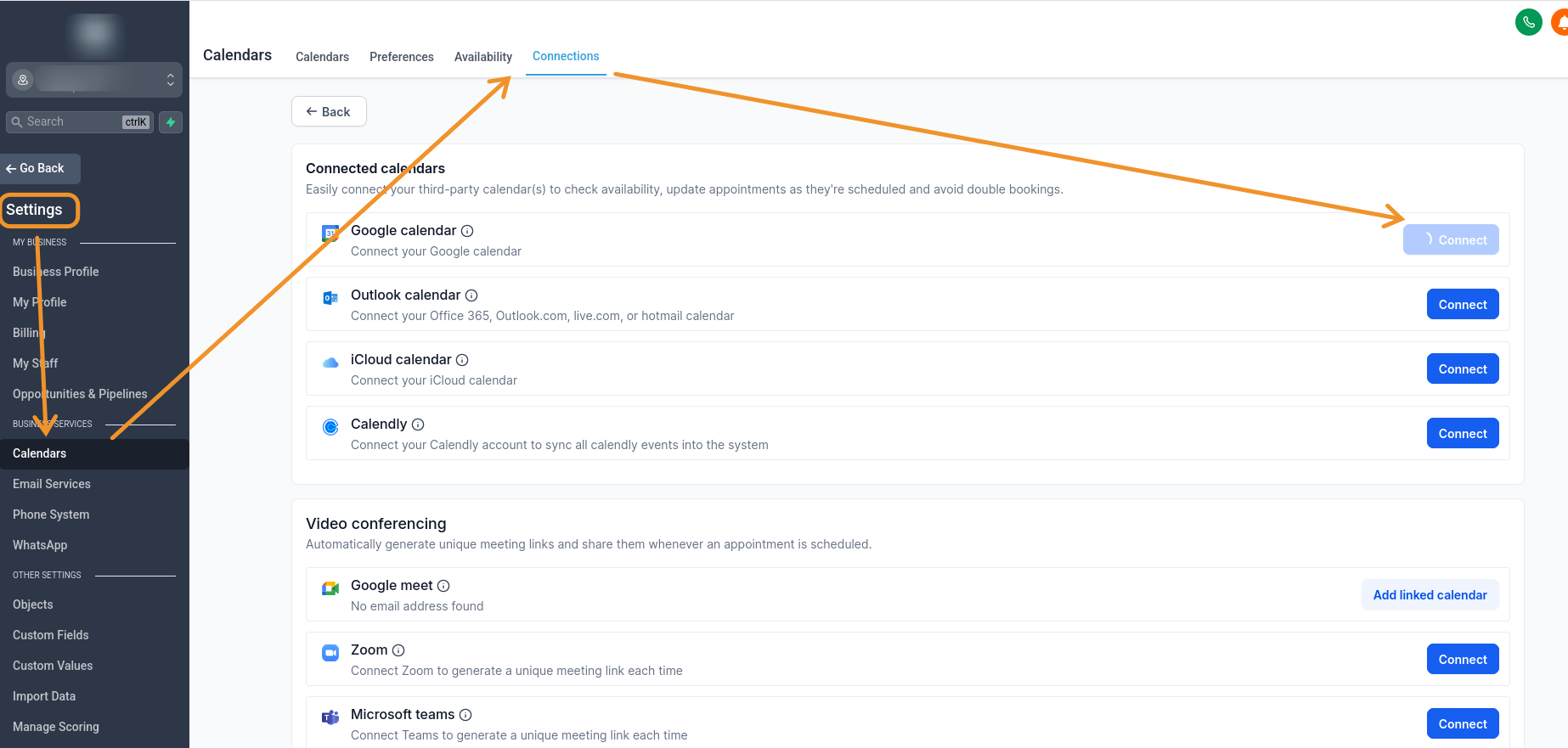
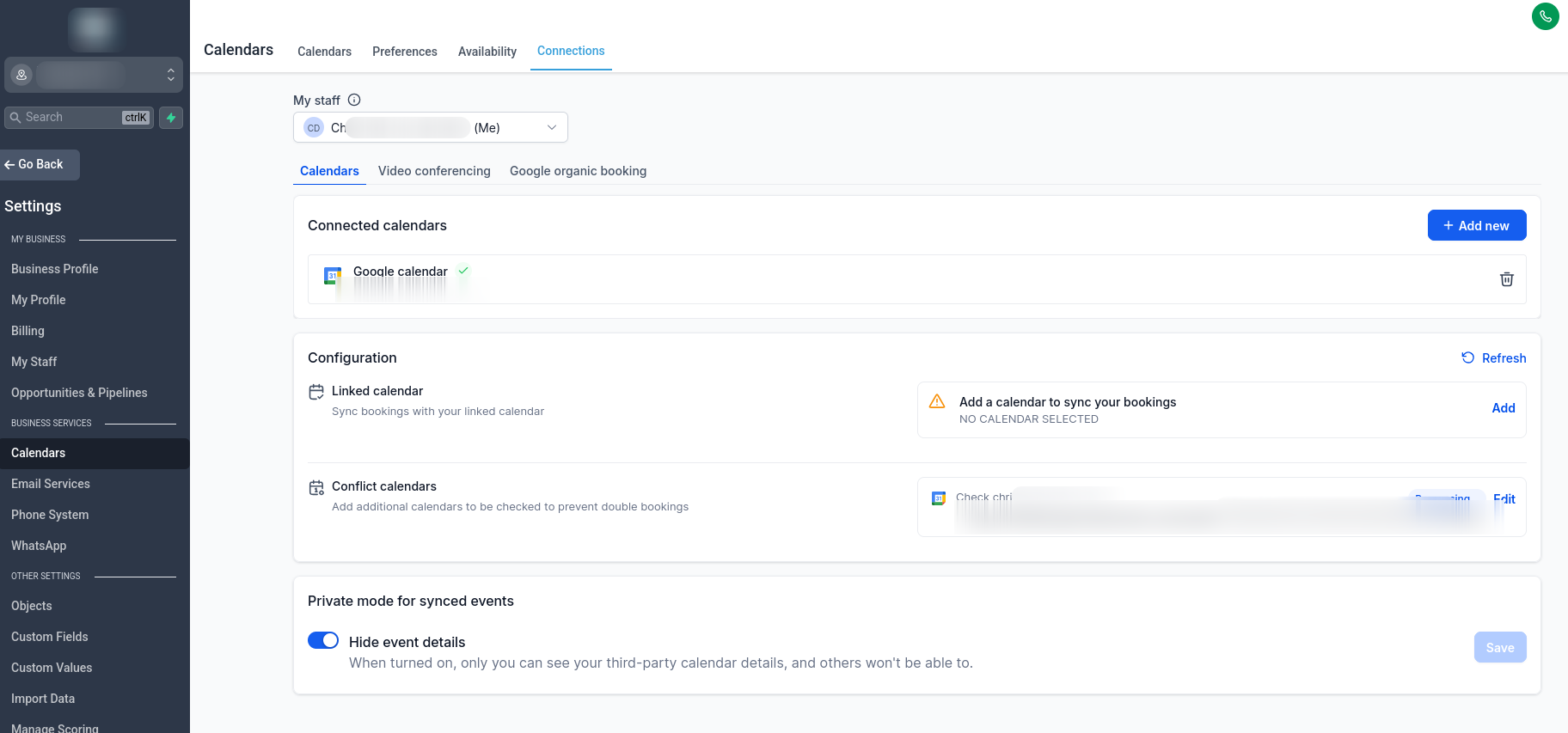
Set your GymMaster schedule as a conflict calendar
- Under Configuration > Conflict calendars, select Edit
- Pick the GymMaster calendar (it’s named after your GymMaster calendar link). It can take a few minutes to appear after it is added to Google Calendar, so refresh the page if it isn’t listed yet.
- Leave Linked calendar empty, unless you also want GoHighLevel appointments to sync to your Google Calendar
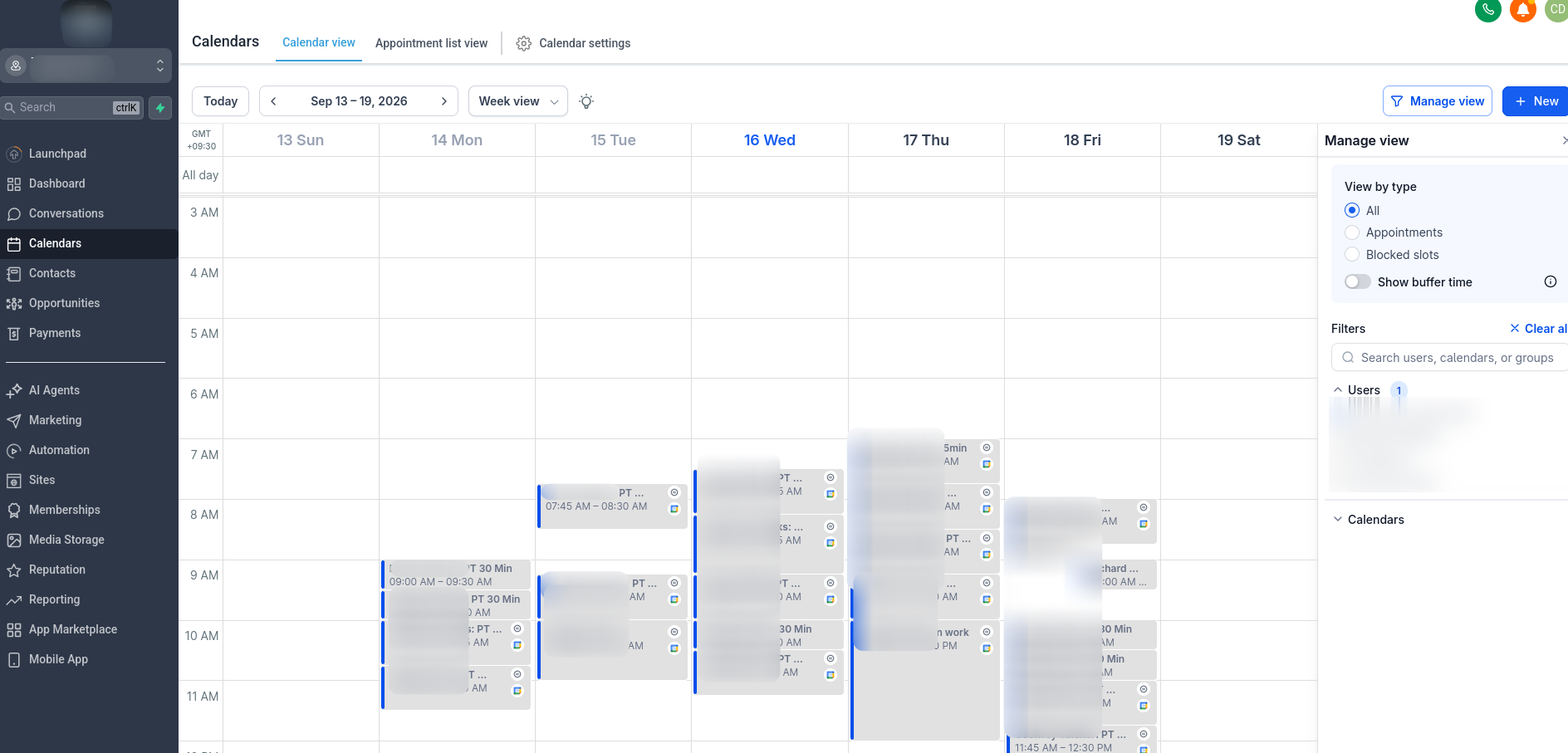
Your GymMaster classes will now show as busy in your GoHighLevel calendar, so leads can’t book over them.
Multi-step workflows
A GoHighLevel workflow can save the response from a Custom Webhook action and use it in later steps. This lets you chain several GymMaster requests together. For example:
- Create the prospect in GymMaster
- Add a Condition that checks GymMaster’s response, e.g. whether a new prospect was created, the contact already exists in GymMaster, or there was an error
- If a new prospect was created, use the token GymMaster returns to book them into a class
- If they already exist, request a login token for the existing member and use that to book the class instead
- If there was an error, notify a GoHighLevel user so they can follow it up
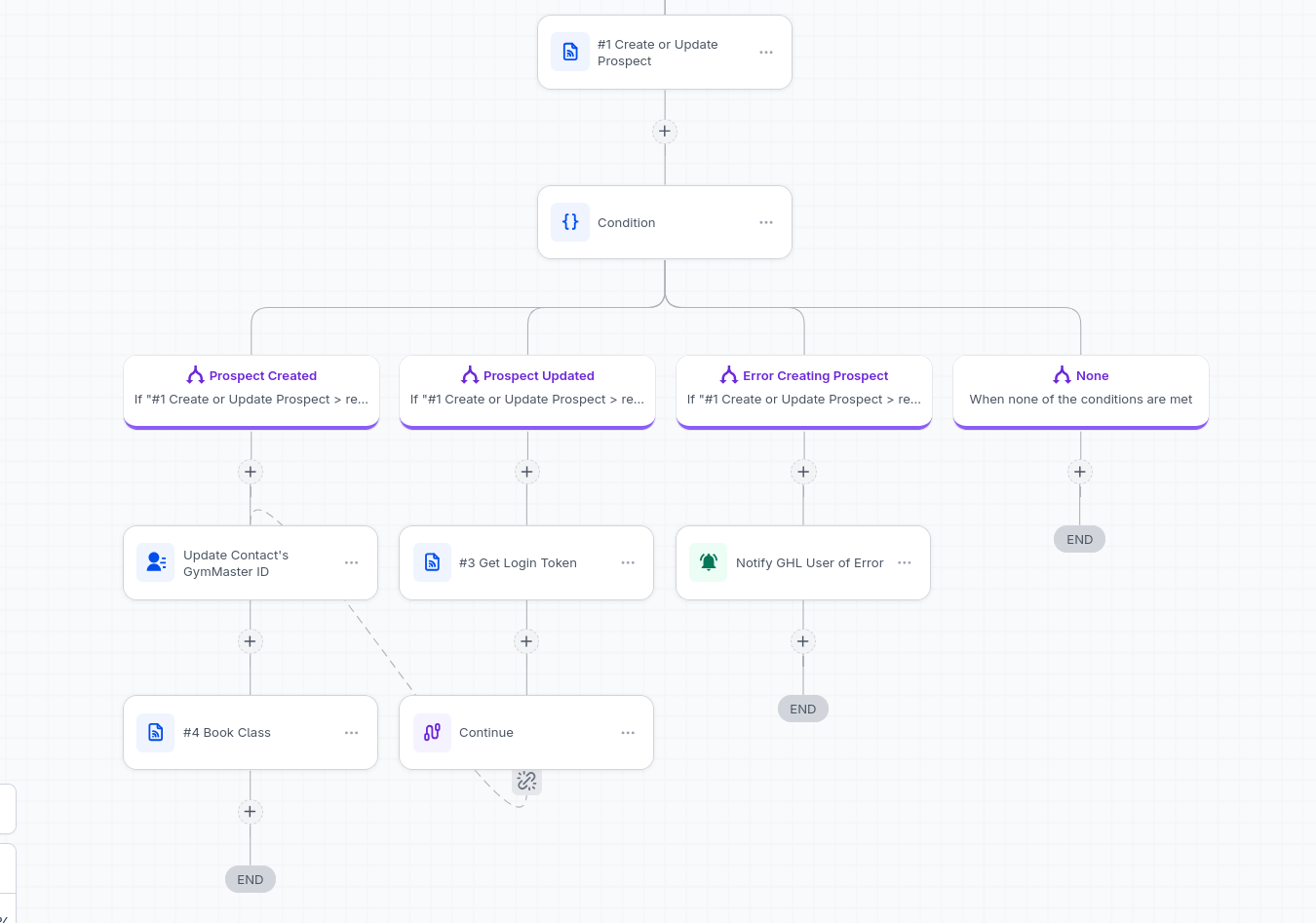
GoHighLevel can’t combine a value from one branch with a value from another branch. If two branches need to finish with the same step (like booking the class above), add that step to each branch separately.
Saving an action that uses an earlier response
When a Custom Webhook action uses a value saved from an earlier step, GoHighLevel’s test doesn’t fill that value in. The test request goes to GymMaster without it and fails. GoHighLevel won’t save a Custom Webhook action until its test succeeds, so the action can’t be saved as it is.
The values are filled in when the workflow runs for real, so the workaround is to save the action with a temporary value first:
- Set up the action as normal, but put a real value in place of the saved-response field. For example, copy a token from the earlier step’s test response.
- Test the action. Once the test succeeds, select Save Action.
- Edit the action again, replace the real value with the saved-response field, and save again.
- Publish the workflow and run it with a test contact. Check the workflow’s Execution Logs in GoHighLevel to confirm each step received the values it needed.
Use a test contact for the temporary value, and make sure no real member’s details are left in the action after it’s saved.
Avoiding duplicates
If you set up both directions, a contact can be passed back and forth: a GoHighLevel contact creates a GymMaster prospect, which then triggers the Member Add webhook back to GoHighLevel.
- GoHighLevel’s Create Contact action updates an existing contact with the same email, so this normally results in an update rather than a duplicate
- On the GymMaster side, keep duplicate prospects turned off so a returning contact isn’t added twice
- Use trigger filters (e.g. a tag such as from-gymmaster) if you want to stop contacts that came from GymMaster being sent back
Troubleshooting
- “A Mapping Reference is required for an Inbound Webhook Trigger”: GoHighLevel hasn’t received a webhook from GymMaster yet. Check that the URL is saved in GymMaster’s Webhook Manager, trigger the event (e.g. add a test member), then select Check for new requests.
- Prospect not created in GymMaster: Check the workflow’s Execution Logs in GoHighLevel for GymMaster’s response. Common causes are the wrong club name in the URL, an incorrect API key, or a missing first name, surname or email.
- The webhook doesn’t include the member’s name or email: By default, GymMaster’s webhooks only include IDs. Contact GymMaster support about expanding the webhook payload to include the details you need. See Getting more data for more information.
Use other platforms in the running of your business? Click here to learn more about other GymMaster integrations
Common Questions this Covers
- How to integrate GoHighLevel with GymMaster
- Can GymMaster connect to Go High Level, HighLevel or LeadConnector
- How to send leads from GoHighLevel to GymMaster
- How to send new members from GymMaster to GoHighLevel
- Can GoHighLevel see when members visit

 2026 © Treshna Enterprises Ltd.