
Repeat Bookings
2 min read
Updated
1 month ago
Most clubs run on a regular timetable of classes and services. The Repeats function makes it easy to schedule classes, services, and available or unavailable time across a term or the entire year, even when your timetable follows a more irregular pattern.
Repeat Classes or Services
Begin at the Schedule.
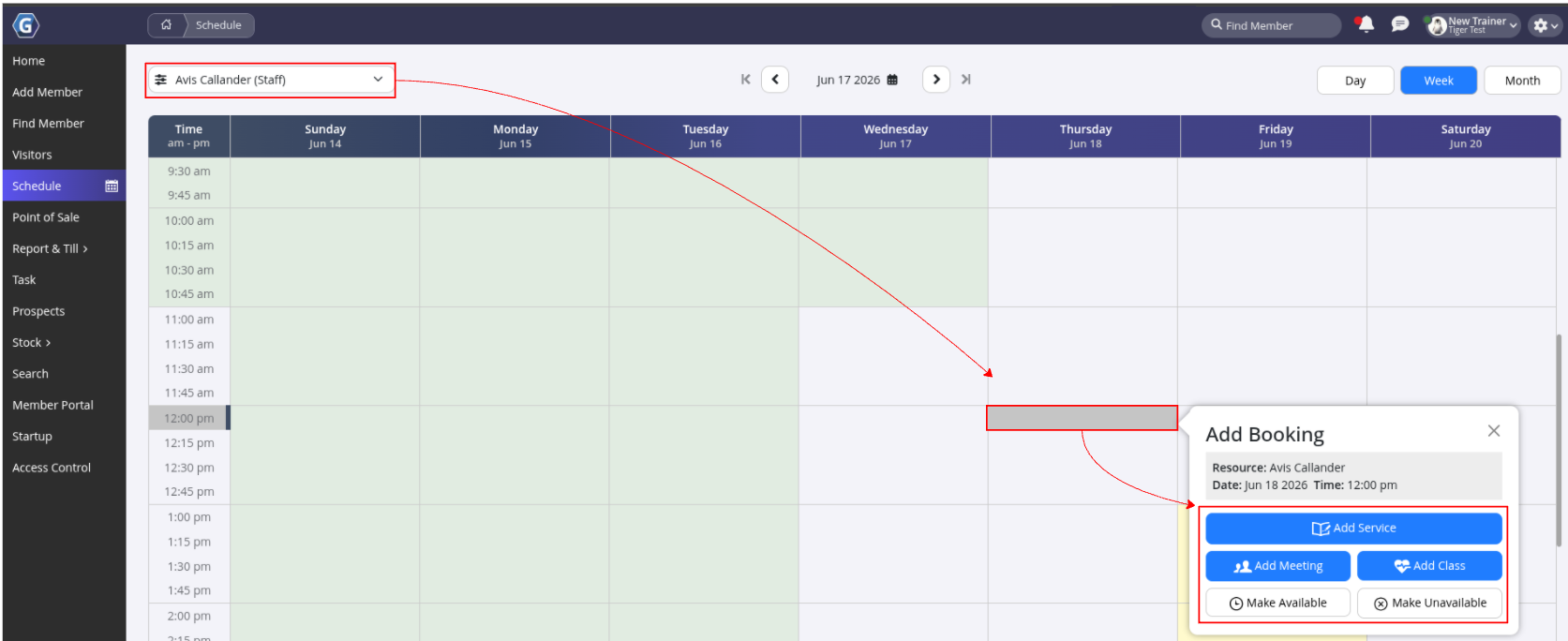
- Select your facility or trainer
- Select the first time-slot for the repeating booking
- Select the booking type
- Complete the booking details
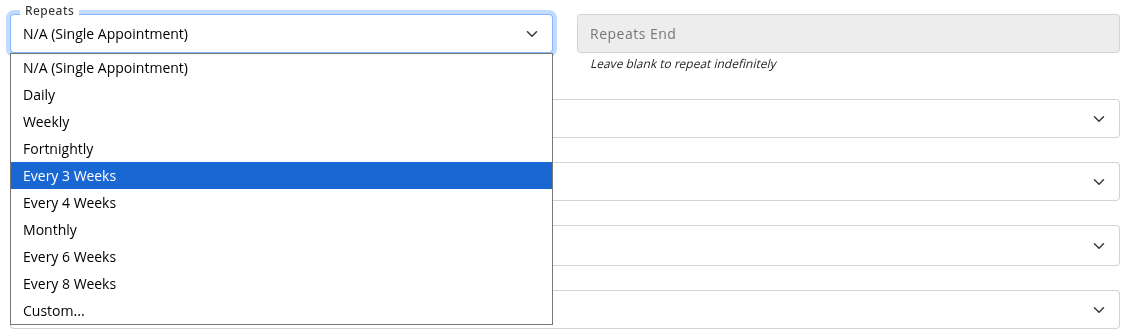
- Select Repeats, then choose the option that best matches your schedule
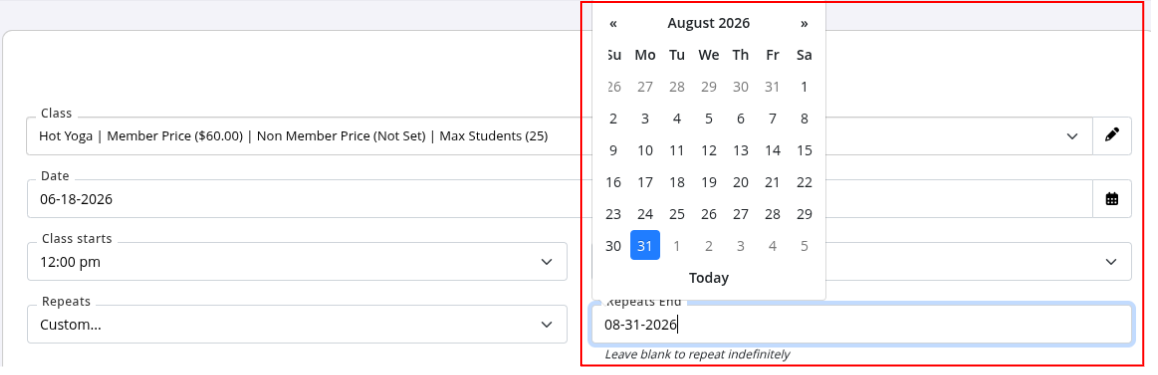
- Select the Repeats End date for this repeating cycle
- Leave the end date blank if you want the booking to continue indefinitely
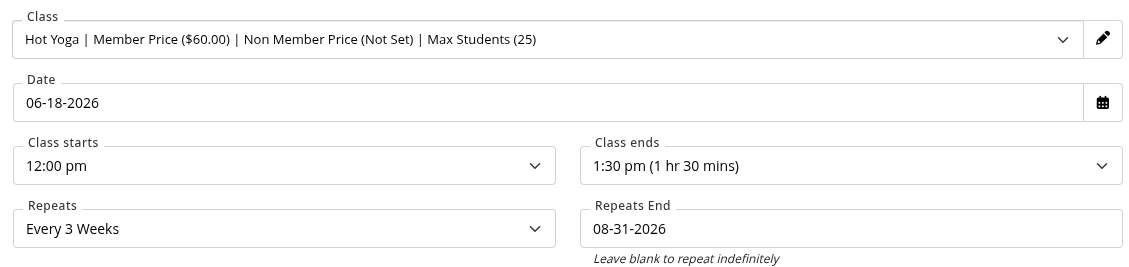
- In the example below, the Hot Yoga class repeats every third Thursday from 12:00 pm to 1:30 pm, continuing until 31 August 2026
Custom Repeats
Sometimes you’ll need more flexibility when scheduling repeating classes, services, or trainer availability.
In these cases, use the Custom repeat option.
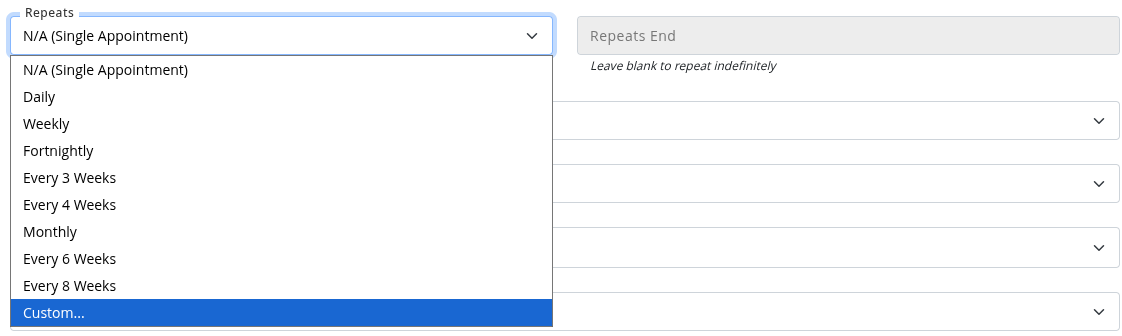
- Schedule classes across multiple days each week, weekends every fortnight, and more
- Select a Repeats End date, or leave it blank to allow the schedule to continue indefinitely
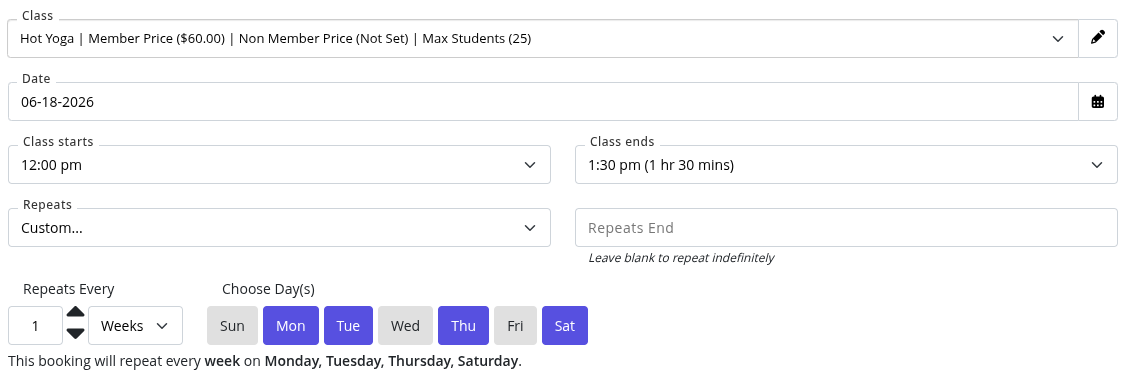
- In the example above, this Hot Yoga class runs from 12:00 pm to 1:30 pm every Monday, Tuesday, Thursday, and Saturday, with no end date set
Common Questions this Covers
- How do I schedule repeating classes
- How do I create recurring bookings in GymMaster
- How do I set a class to repeat every week
- How do I schedule classes for a whole term
- How do I repeat bookings on specific days of the week
- How do I use custom repeats in the Schedule
- How do I make a booking repeat every fortnight
- How do I set an end date for repeating classes
- How do I stop recurring classes from repeating indefinitely
- How do I create an irregular class timetable in GymMaster
Get started with a free, no-obligation chat, and see how we can help you grow

Awards and recognition
- Deloitte Master of Growth Index 2025
- Deloitte Master of Growth Index 2024
- Software Advice FrontRunners 2023
- GetApp Category Leaders 2023
- Capterra Best Value 2022
- GetApp Best Functionality & Features 2022
- Software Advice Most Recommended 2022
- SoftwareSuggest User Most Likely to Recommend Summer 2022
- Software Advice Best Customer Support 2021
- Deloitte Technology Fast 500 Asia Pacific 2018
 2026 © Treshna Enterprises Ltd.