
Refunding Payments
Before processing a refund, check that your billing provider supports refunds and that refunds are enabled on your merchant account.
Note that refund fees and settlement time-frames may apply, depending on your billing provider.
Refund Billing Payments
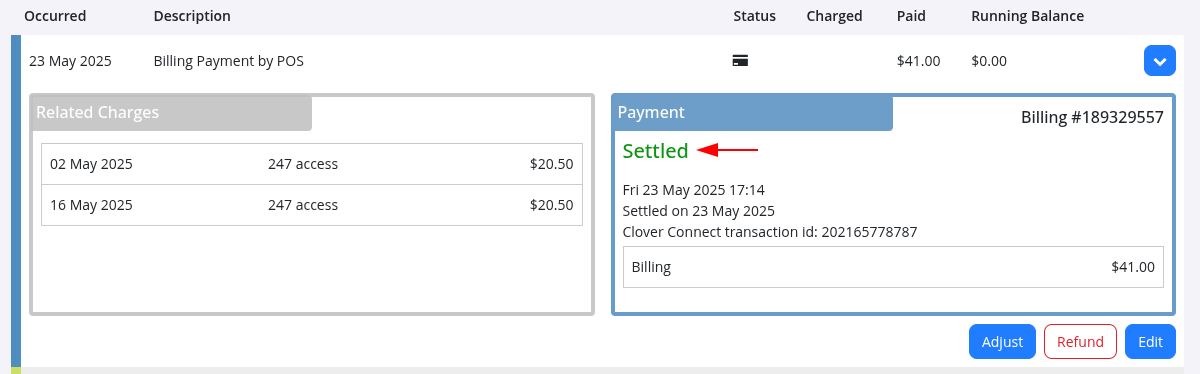
Billing payments must have a Settled status before they can be refunded.
To check the payment status:
- Go to the member’s profile Accounts and Billing tab
- Click once on the payment line item to expand the transaction details
- Review the payment status
- If the payment shows as Settled, a Refund button will be available
- Click Refund to open the refund window and process the refund
Refund Options
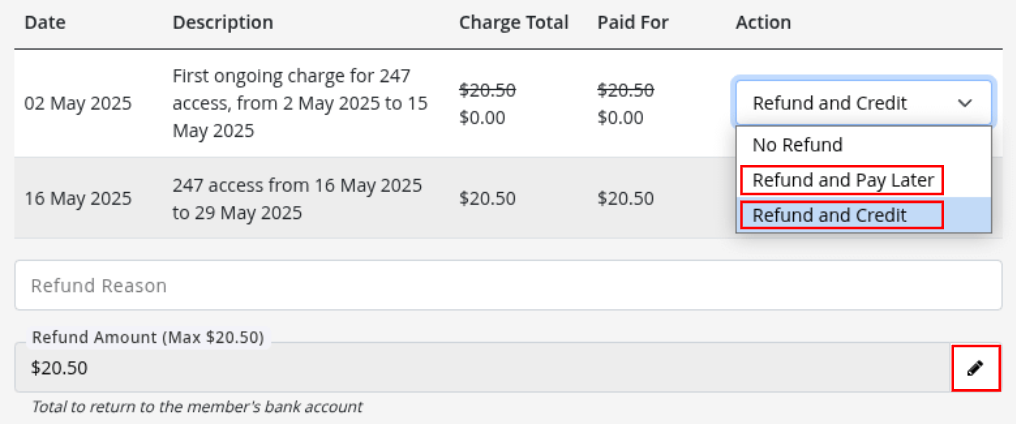
In the refund window, you’ll see a list of eligible charges linked to the payment.
From here, you can choose how the refund should be handled.
1. Refund and Credit
Use this when a charge was applied in error and should no longer be collected.
This will:
- Refund the payment
- Cancel the selected charge
2. Refund and Pay Later
Use this when you need to return the payment now, but still intend to collect the charge again later, for example if the wrong card was used.
This will:
- Refund the payment
- Keep the charge on the member’s account to be paid later
Refund Amounts
GymMaster will automatically calculate the refund amount based on:
- Any original unassigned credit
- The charges you’ve selected for refund
Need to refund a different amount? Click the pencil icon next to the amount to unlock and edit it manually.
After a Refund is Processed
Once the refund is completed, the member’s Account History will show:
- A negative payment line
- A negative charge (if Refund and Credit was used)
This keeps the account balanced, with no outstanding amount remaining after the refund.
Refund Non-Billing Payments
This creates the refund record in GymMaster only. You’ll still need to return the funds separately, for example by cash or bank transfer.
Manual payments, such as cash or EFTPOS, can also be refunded from the member’s Accounts tab.
To record a refund:
- Go to the member’s Accounts tab
- Click Adjustment
- Select Debit Note as the adjustment type
Then choose what to base the refund on;
- Payments - Use this when refunding the member using the same payment method they originally used. Example: paid cash, refunded cash
- Payment Methods - Use this when refunding via a different payment method. Example: paid cash, refunded by online banking
Want to refund using a payment method that isn’t listed in POS? Go to Settings > Financial Configuration > Point of Sale > Payment Methods
Further Questions? See our list of Frequently Asked Questions about Billing
Common Questions this Covers
- How to refund a charge or billed amount
- How to refund an n person payment
- How to record a refund
- How to undo a payment

 2026 © Treshna Enterprises Ltd.
