
Using Quick Sign-Up
Quick Sign-Up allows you to offer a simplified version of your online sign-up form for selected memberships.
It’s useful for situations where you only need a few key customer details, such as event registrations or day pass purchases.
You can customise the form to collect the information you need, then activate Quick Sign-Up for individual membership types.
- Customise Quick Sign-Up Form
- Add Custom Fields
- Activate Quick Sign-Up
- Direct Link / QR Code for Marketing
Customise Quick Sign-Up Form
You can customise the Quick Sign-Up form at any time to suit your club’s requirements.
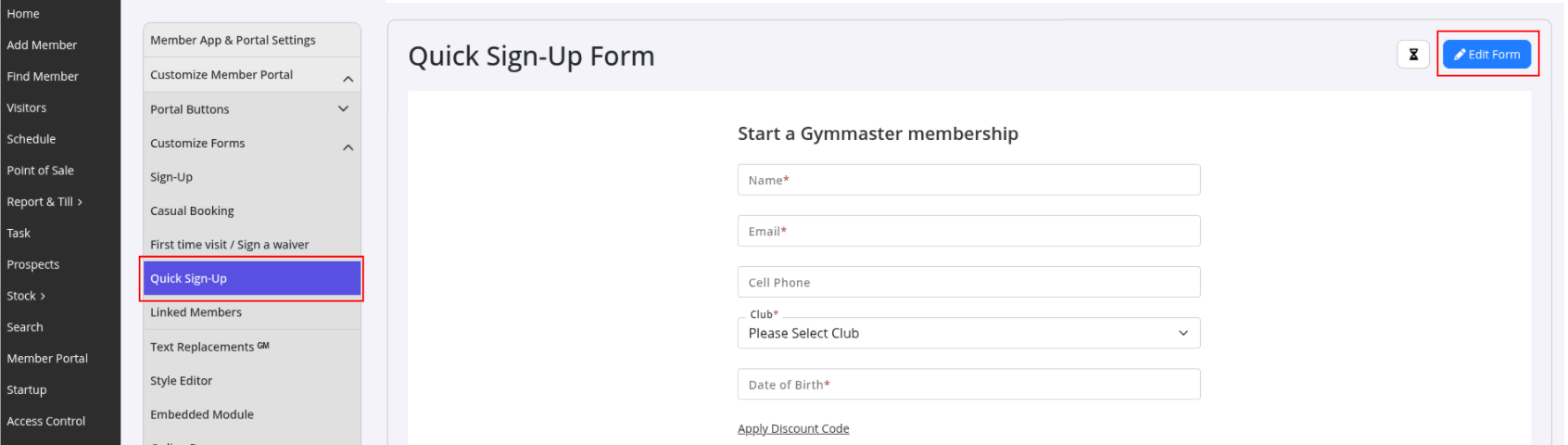
- Navigate to Settings > Member Portal > Customise Member Portal > Customise Forms > Quick Sign-Up
- The default form includes a basic selection of fields. You can use it as is or select Edit Form to customise it.
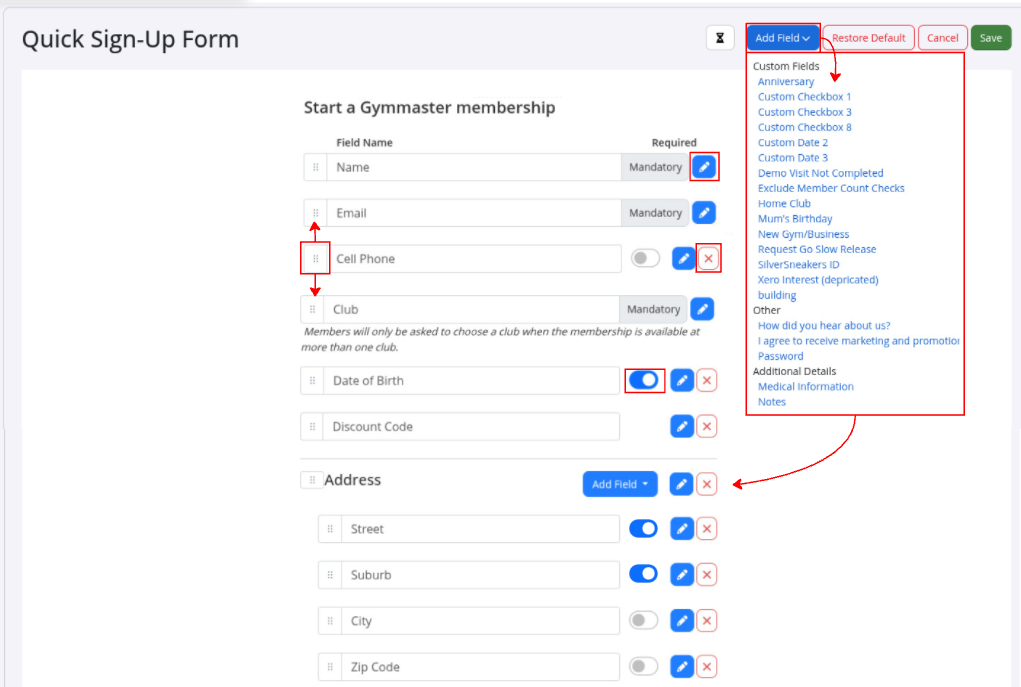
When editing the form:
- Edit Icon – Change the field label, placeholder text and add help text to guide customers.
- X Icon – Remove fields you don’t need.
- Drag and Drop – Click and hold the dots to the left of a field to change its position.
- Required Toggle – Select which fields customers must complete.
- Add Field – Add additional fields from the available options. These can be customised further.
- Save – Save your changes.
Add Custom Fields
When you need an additional field that doesn’t exist in the drop down box, you can create your own fields.
- Navigate to Settings > Custom Field
- There are four different types of input fields that can be added. See table for a description and example of each.
- Once created, these Custom Fields can then be added to your quick sign-up form by selecting Add Field
| Custom Field Type | Description | Examples |
|---|---|---|
| Text | Used to collect general information entered by the customer | Previous gym or club, Emergency Contact Name |
| Dropdown | Used when customers need to select from a predefined list of options | Preferred Training Time, How did you hear about us? |
| Checkbox | Used for yes/no questions or customer acknowledgements | Do you have any injuries or medical conditions? |
| Date | Used when the information needs to be entered as a date | Membership Start Date, Date of Previous Gym Membership |
Activate Quick Sign-Up
Quick Sign-Up is enabled individually for each membership type when configuring Selling Memberships Online.
- Navigate to Settings > Membership Types > Selected Membership Type > Sell Membership Online
- Tick Quick Sign-Up
- Select Online Sign-Up to configure any online sign-up rules for the membership.
- Click Save
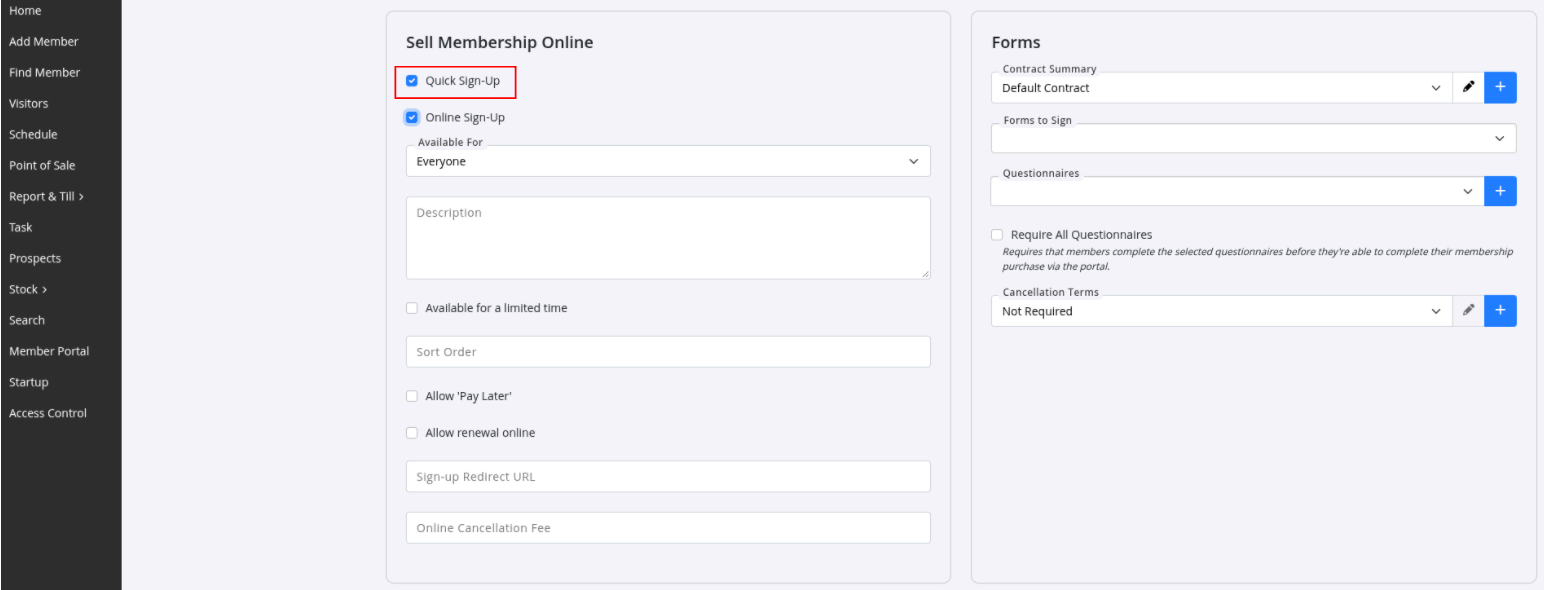
Once saved, the Quick Sign-Up QR code and direct link will become available.
Direct Link / QR Code for Marketing
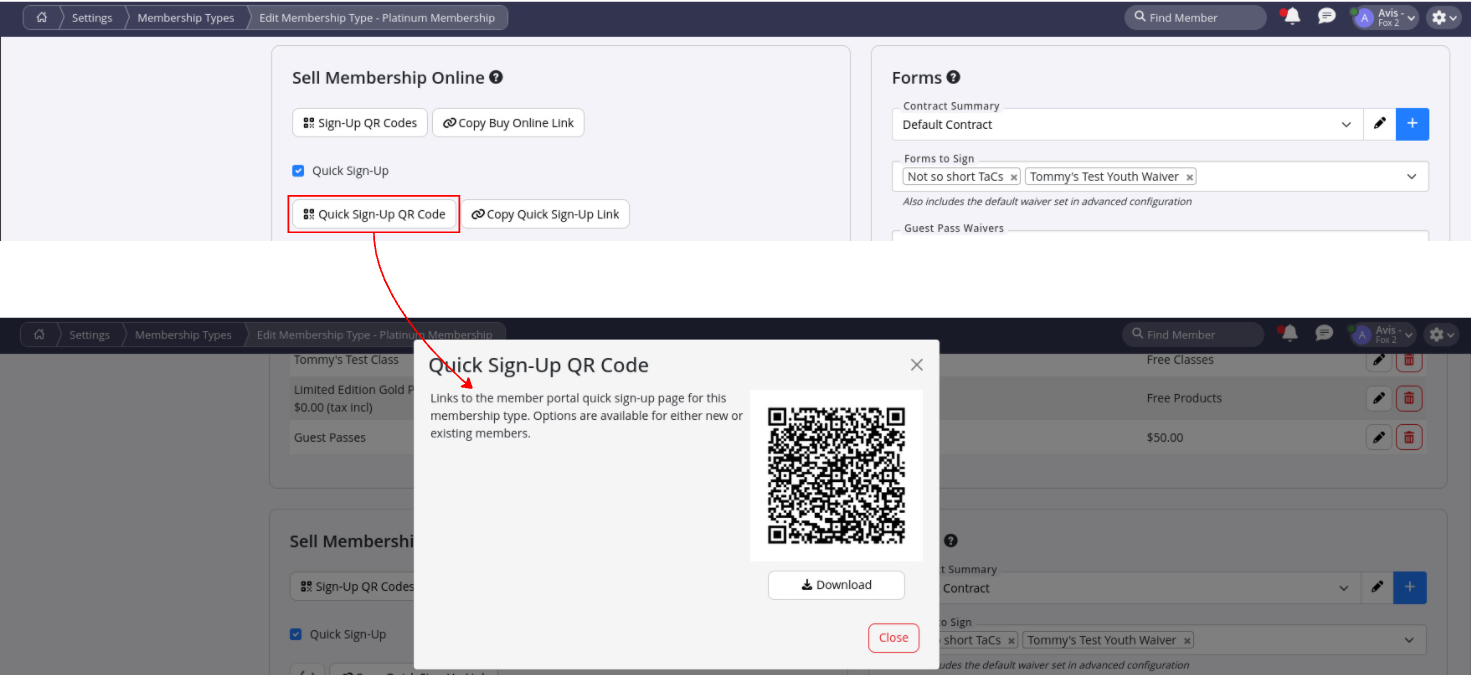
After saving the membership with Quick Sign-Up enabled, return to the Sell Memberships Online section.
You’ll find two options:
- Quick Sign-Up QR Code
- Copy Quick Sign-Up Link
Both options direct customers to the online purchase page for the selected membership.
Quick Sign-Up QR Code
Use the QR code to make purchasing a membership easier for customers.
- Download and print the QR code.
- Display it at entry points, reception or other prominent locations.
- Customers can scan the code using their phone camera to access the membership purchase page.
Quick Sign-Up Link
Select Copy Quick Sign-Up Link to generate a direct URL to the membership purchase page.
You can use this link in your marketing materials, including:
- Your club website
- Email or SMS campaigns
- Social media posts
- Other digital marketing campaigns
Common Questions This Covers
- How do I customise the Quick Sign-Up form
- Can I choose which fields are required
- How do I enable Quick Sign-Up for a membership
- Can I use Quick Sign-Up for day passes or event registrations
- Where do I find the Quick Sign-Up QR code
- How do I copy the Quick Sign-Up link
- Can I use the QR code and link in marketing materials
- Does each membership have its own Quick Sign-Up link and QR code

 2026 © Treshna Enterprises Ltd.