
Login to the Member's Portal as a Member
1 min read
Updated
2 months ago
As a staff member, you can simulate the Member Portal for any of your members.
This allows you to log into the Portal as the selected member and see exactly what they see. It’s especially useful for troubleshooting issues that the member may report when using the Portal.
Simulating the Portal helps you confirm:
- What member can do from the Portal
- If member can make a booking for a particular service or class
- What price member sees for a booking
How to log in as a member
- Navigate to the member’s profile
- Scroll down, then expand Member Actions on the left
- Select the Login as Member option
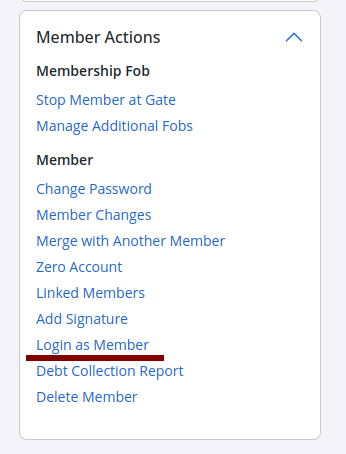
You’ll then be redirected to the Member’s Portal, logged in as that member. From there, you can check and confirm their pricing when making bookings, availability etc.
Once you have finished, it’s advised that you logout from the Member Portal.
Common Questions this Covers
- How do I see the Member Portal from a member’s perspective
- Can I check if a member can book a certain service or class
- How do I verify what pricing a member sees in the Portal
- Is there a way to troubleshoot member issues without asking them to log in
Get started with a free, no-obligation chat, and see how we can help you grow

Awards and recognition
- Deloitte Master of Growth Index 2025
- Deloitte Master of Growth Index 2024
- Software Advice FrontRunners 2023
- GetApp Category Leaders 2023
- Capterra Best Value 2022
- GetApp Best Functionality & Features 2022
- Software Advice Most Recommended 2022
- SoftwareSuggest User Most Likely to Recommend Summer 2022
- Software Advice Best Customer Support 2021
- Deloitte Technology Fast 500 Asia Pacific 2018
 2026 © Treshna Enterprises Ltd.