
Integrate SMS System with a Twilio Account
Twilio is an SMS service provider that allows you to send and receive text messages. When integrated with GymMaster, it enables SMS to be sent directly from your own dedicated Twilio number, giving your club greater control and consistency in member communication.
This guide references Twilio’s support centre articles where helpful, as their screenshots and platform details are maintained directly by Twilio and kept up to date.
Setup Integration
Follow steps;
Signup - Twilio Account
- If you haven’t already signed up for an account, you will need a paid version before you can begin the integration process. Go to Twilio.
Setup a Twilio Toll-free Number
Twilio Guide: Get your first Twilio phone number
This is the number that your SMS will come from, i.e. the number member’s will see when you send them a message. These cost a small amount per month, however your first month can be purchased using the free account credit.
We will be outlining how to set up a Toll-free number in this guide which has a simpler verification process, and is sufficient for integration purposes.
Setup Reply Hooks
This will allow any replies from your members to be pulled directly into GymMaster.
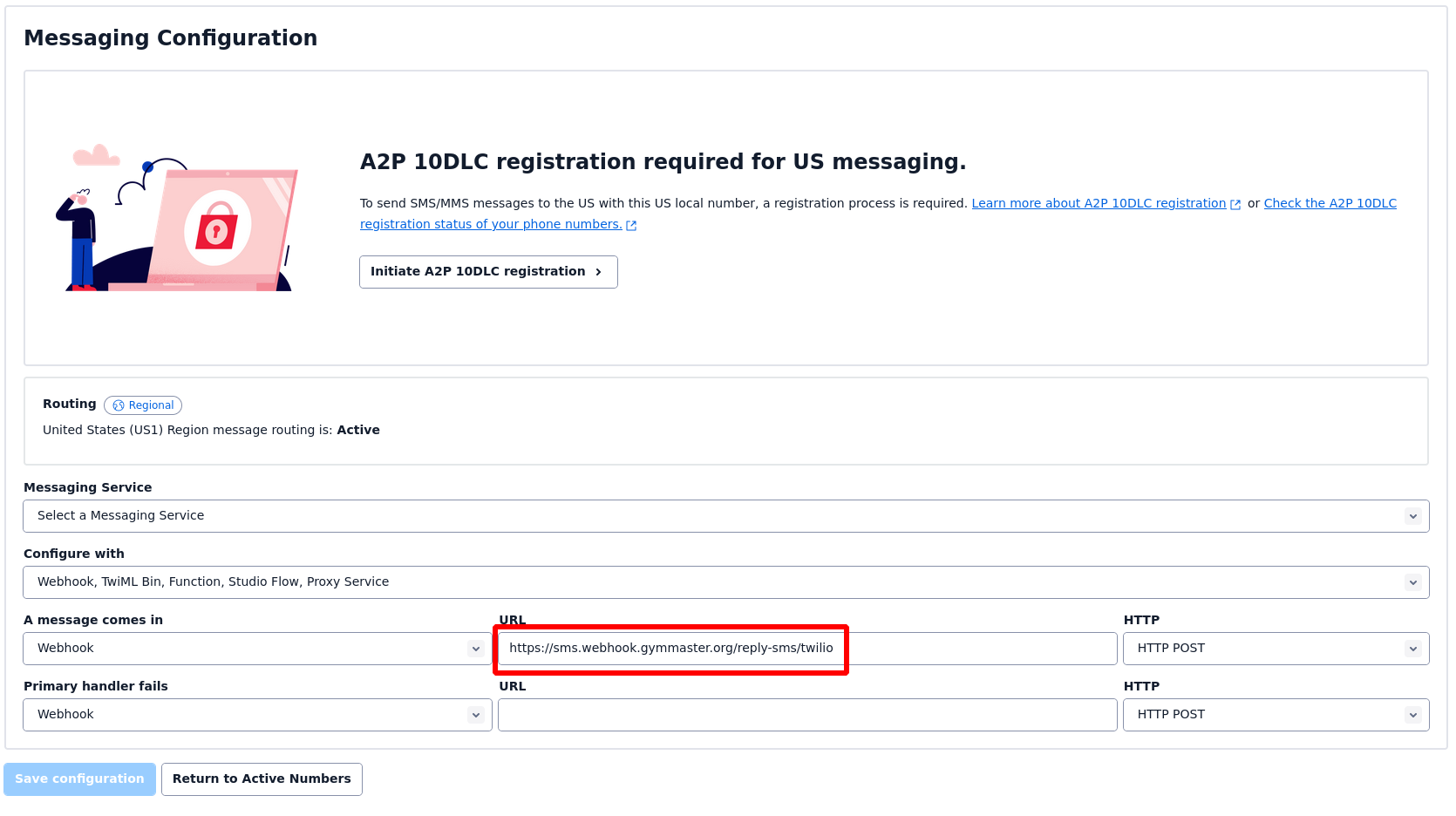
- Navigate to your Manage Numbers page, and click edit on your new phone number.
- Paste in the following URL where shown: https://sms.webhook.gymmaster.org/reply-sms/twilio
Integrate Twilio with GymMaster
The next step is to link your Twilio account to GymMaster. SMS wont work until you complete the rest of these steps, but doing this will make the necessary “Opt-in” options to start showing up in your GymMaster. This is required for approval in the next step.
To integrate your Twilio account with GymMaster;
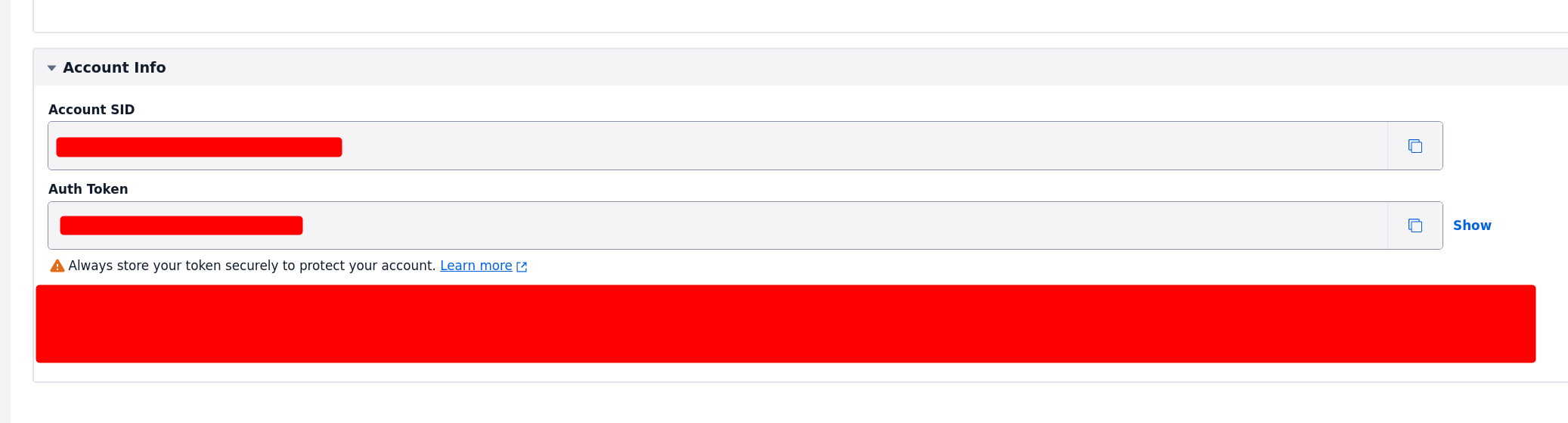
- Find the following details in the Account Info section of the Twilio Console, then enter these along with your toll-free purchased phone number in GymMaster under Settings > Integrations > Twilio.
- Account SID
- Auth Token
Twilio settings are configured per club within GymMaster. This means you can assign a separate Twilio account and phone number to each facility, or have multiple facilities share the same Twilio account if that better suits your setup.
To set one up for each club, just “Change Club” and re-fill in these fields for each facility.
Verify Your Number
Navigate to your numbers page of the Twilio Console, click the ‘Toll free verification required’ icon on the right hand side.
Twilio will take you through a multi-step process to verify your number. We will give some guidance on how to fill out certain sections below.
First section
- Fill out your Business name and personal contact details, then move on to the next step
- Select your right type of business and fill out the information. You will need to provide different details based on your business category, such as EIN number in the US, etc.
- For the Website URL, paste in your GymMaster URL as this is where you’ll be collecting the phone numbers, and will have the necessary opt-in examples for SMS regulations.
Second section
- Just fill out your business location here. If you are a multi-site, fill out where the main branch is registered, or you can also set up a separate number for each location if you wish. Just follow Steps 2 onward in the main guide.
Third section
- Estimated Monthly Volume: Add business specific information
- Opt-in type: Web Form
- Messaging use case categories: Customer Care, and then Marketing if you’re planning to send promotional texts.
- Proof of consent (opt-in) collected: For this, we recommend making sure you have at least one membership available for online sale, and paste in the following. “Head to {yourgymmasterurl.gymmasteronline.com/portal}, click Sign Up, chose a membership option, and you’ll see the opt-in check boxes underneath the phone field.”
- Use case description: Add business specific information
- Sample message: Add business specific information
- E-mail for notification: Add business specific information
- Additional information: Can skip
- Opt-in Confirmation Message: “You are successfully opted in for SMS messages from {your company name} for notifications regarding your account, as well as facility news and updates. Message frequency will vary. Message and data rates may apply.”
- Privacy Policy URL: This will help get through the approval process, so if you have one on your own website (not GymMaster), paste the link here.
- Terms & Conditions URL: “Once you enter your contact details in the signup-up process, the next page will show our T&Cs”. Or again if you have a page for these on your own website, paste the link here
- Opt-in Keywords: yes,yea,ok,yup,y
Upgrade Twilio Account
- All this requires is putting some money on the account, so that it gets upgrade out of Trial.
- The minimum top-up at the time of writing is $20 USD, and can be done from your Twilio Billing Page.
Wait for Verification
Now all thats left is to get the approval from Twilio for your number. Once thats received, SMS from GymMaster will just start sending. If the approval is denied and you’re not sure how to resolve the issues Twilio raises, please let out support team know the details of the rejection and we may be able to help.
Common Questions this Covers
- How to integrate Twilio with GymMaster
- What are steps to integrate Twilio
- Can we use Twilio with GymMaster
- SMS integration options
- How can we do bulk SMS messaging

 2026 © Treshna Enterprises Ltd.