
Enable and Manage Awards
When fully enabled and configured, the Awards system is a powerful way to acknowledge member achievements, helping keep members motivated to reach and exceed their goals. Awards are visible in both the Member Portal and the GymMaster App, and can be enhanced further through the Friends feature, where members can connect, view each other’s awards, and engage in friendly competition via friend-only leaderboards.
To get the most out of the system, Awards need to be enabled, configured, and connected correctly across both staff settings and the Member Portal. Once set up, awards can be automatically granted through system rules or tasks, or manually issued by staff when recognition is needed.
Enable Awards
System Awards
The first step is to activate Awards and configure how they operate across both staff settings and the Member Portal.
This is done via: Settings > Advanced Configuration > Awards
System Awards are automatically generated by GymMaster and typically include weekly, monthly, and yearly recognition for achievements such as highest class attendance, most visit days, or most service and booking activity.
Minimum participation thresholds can also be set to ensure awards are only issued when engagement levels are meaningful, rather than based on low activity counts.

Member Portal
Once Awards are enabled in the system, they also need to be made visible to members through the Member Portal and GymMaster App.
This is configured under: Member Portal Configuration > Awards
Here you can turn on Awards visibility across the portal and app, and ensure members can view their achievements. You can also enable the Awards widget and position it within the Member Portal layout so it is easy for members to find and engage with.
Create and Apply Custom Awards
Beyond system awards, you can create fully custom awards tailored to your club.
Custom awards are created via: Member Profile > Communication Tab > Awards > Manage Award Templates
From here, staff can create, edit, or delete award templates. These templates form the foundation for all custom awards, whether they are awarded manually or triggered automatically.
Automate Custom Award
Award templates can be automatically awarded to members by linking them into a Task: Task Automation > Add Task Type
When a task is triggered (for example, a 100th visit milestone), GymMaster can automatically assign the associated award to the member.

Manually Apply Custom Award
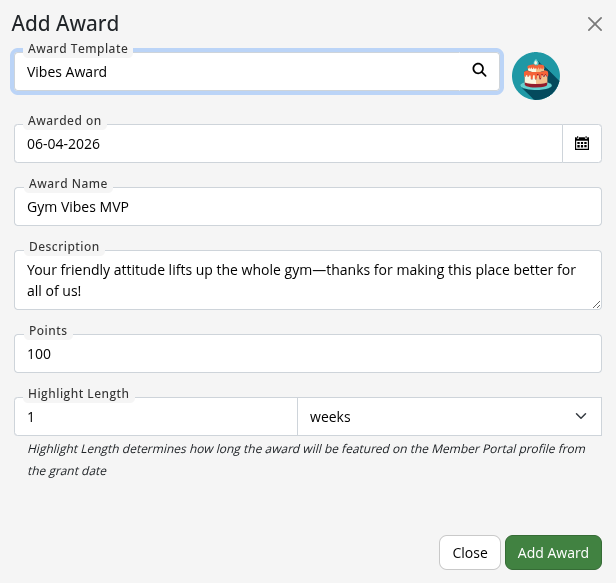
Manual awards can be one-off or generic custom awards, which don’t fit any task type to be easily awarded. These might be awards to do with attitude, contribution, recognising someone more personally.
Awards are added manually to members via: Member Profile > Communication Tab > Awards > Add Award
Manage Member Awards
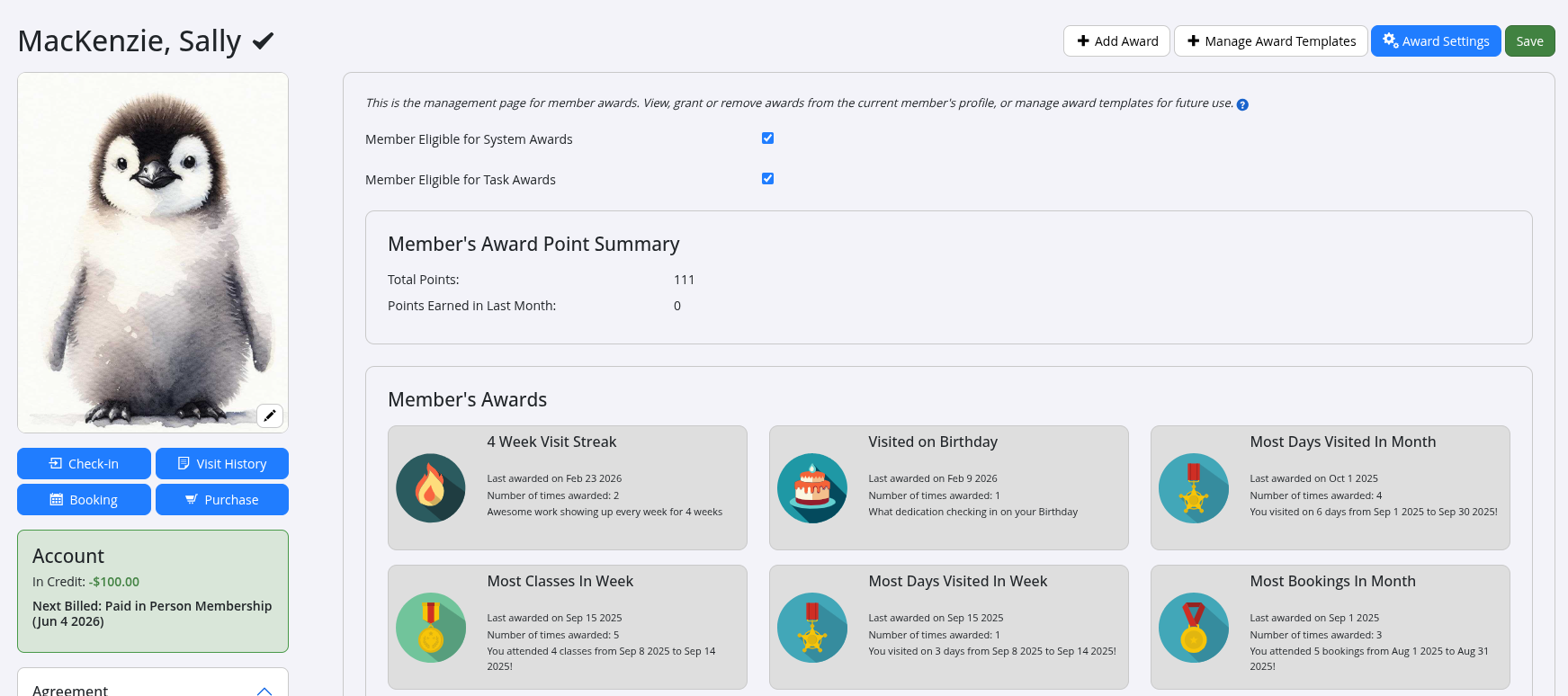
Once awarded, all achievements are stored on the member profile under the Communication > Awards tabs. Staff can view, add, or manage awards directly from here.
Awards are displayed with the most recent first, and may include a highlight period during which they are visually emphasised in the Member Portal. After this period, they remain visible but are displayed in a less prominent state.
Each award entry can be expanded to view its full history, including repeated awards of the same type. Staff can also delete awards or manually assign new ones directly from a member’s profile.
Common Questions this Covers
- How do I enable and configure the Awards system in GymMaster for my club
- What are System Awards in GymMaster and how are they automatically generated
- How do I set minimum thresholds for GymMaster Awards so they only trigger for meaningful activity
- How do I make Awards visible in the GymMaster Member Portal and mobile app
- Where do I enable the Awards widget in the Member Portal layout
- How do I create and manage custom award templates in GymMaster
- How do I automate custom awards using Task Automation in GymMaster
- What is the difference between automatic awards and manual awards in GymMaster
- How do staff manually add awards to a member’s profile in GymMaster
- How can I view and manage a member’s full award history in GymMaster

 2026 © Treshna Enterprises Ltd.