
Set Member Check-In Alert
You can set an alert if you have a message that you want your staff to tell a specific member.
For example, the member may have items they need to collect from their locker.
You can choose;
Alert and Block Access
When the member checks in to your facility, the GateKeeper will deny them entry, their Pop-up will show in red and any door associated with this reader will not unlock.
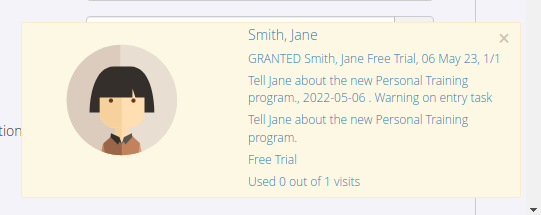
The Pop-up will also display the message to your staff.
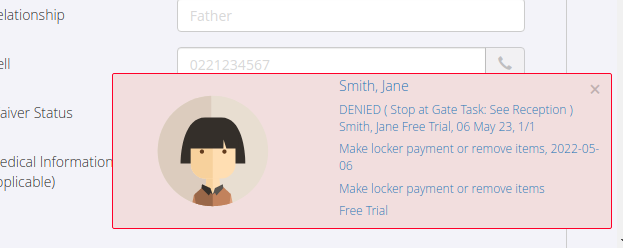
Individual Alert and Block
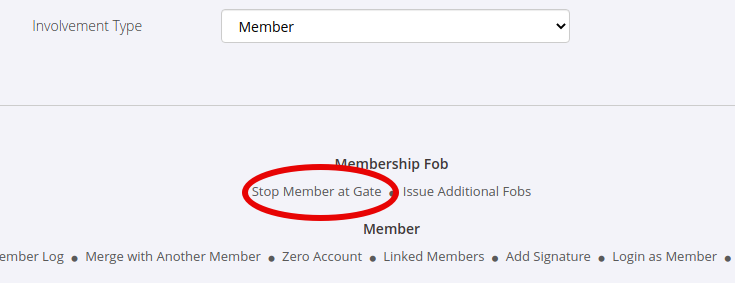
To create a personalized alert and block access, use the Stop Member At Gate functionality.
To do this:
- Navigate to the member profile and scroll to the bottom of the page
- Under Membership Fob select Stop Member At Gate
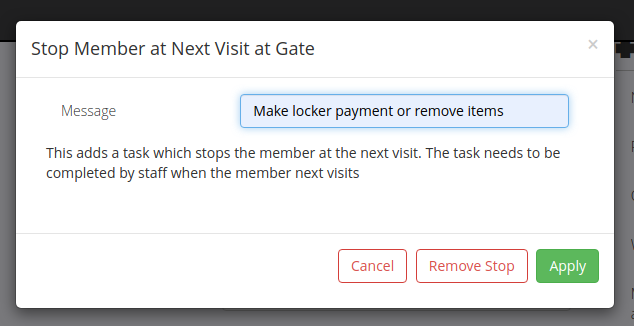
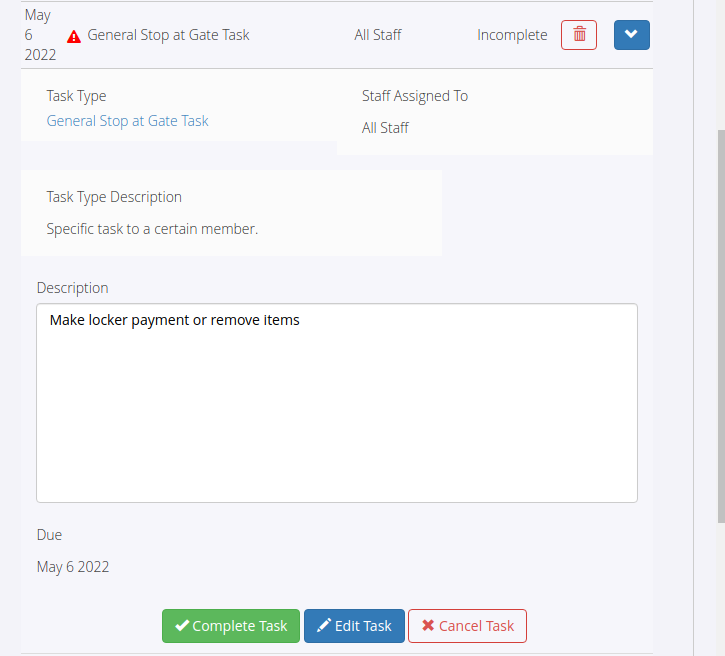
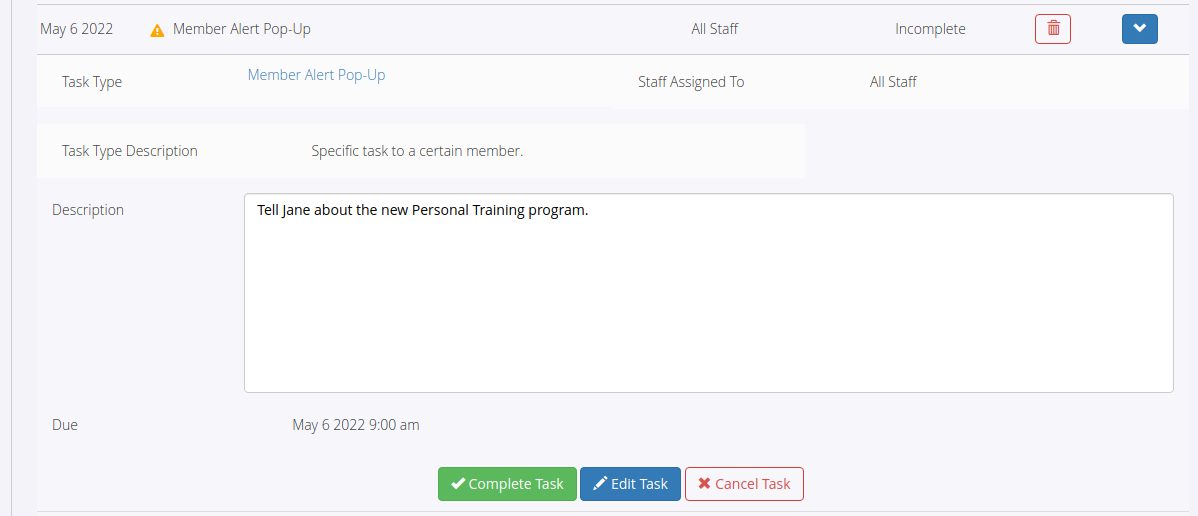
- When the member comes in, and the staff have passed on the message or resolved the issue with the member, it is time to remove the Stop Member At Gate task. To do this, navigate to the members Communication tab and select Complete Task. The member’s access will now be restored.
Alert Only
To set an Alert Only task, you will need to create a new Task Automation.
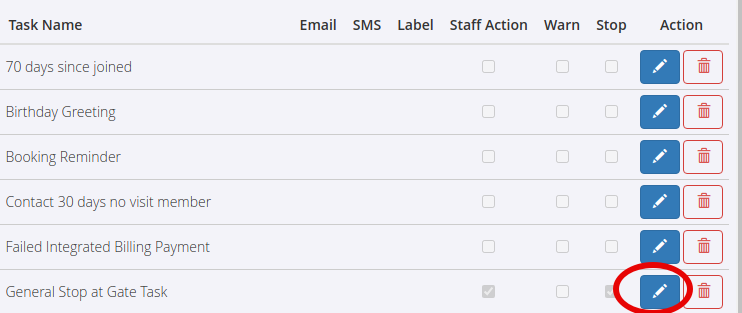
- Go to Settings > Task Automation > Edit General Stop At Gate Task
- Duplicate Task
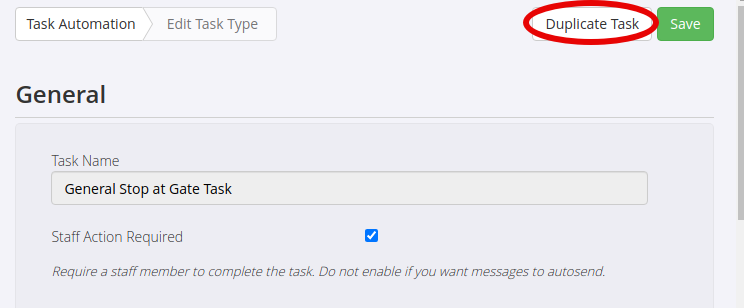
- You can now rename the task to your liking, for example, ‘Member Alert Pop-Up’, or ‘Alert Member’
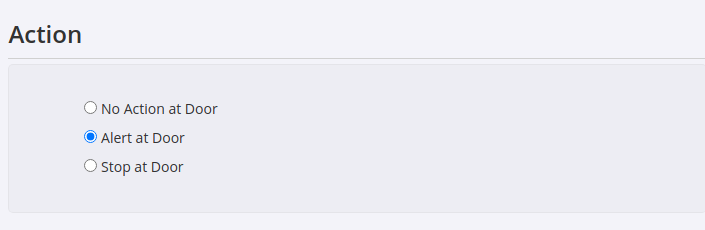
- Scroll down to Action and select Alert at Door.
- Save your changes
- To use the alert, navigate to Task > Add New Task
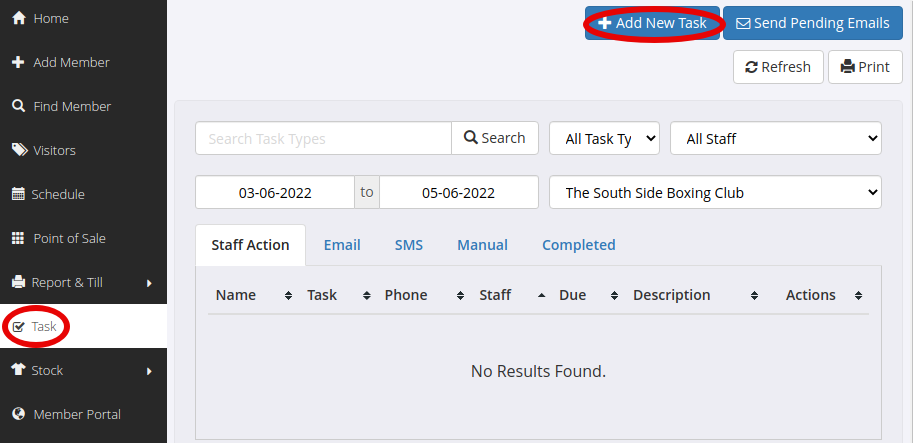
- You can now fill out the task modal with the member’s name, the task type name, and the message to create an alert.
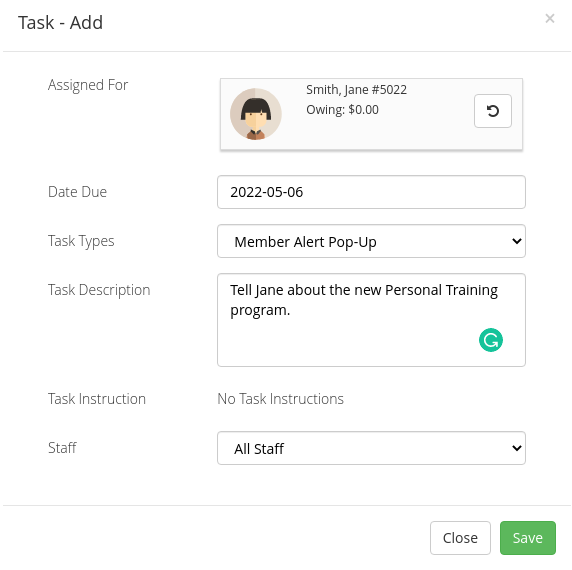
- Now when the member swipes in, access will not be blocked but the pop-up will show the message. To clear the message, go to the Communication tab and complete the task.
If you have other alerts for different members, go back to Step 6 and use the same Task Type with a different member and message. You can learn more about Tasks here
Common Questions this Covers
- How do I set a check-in alert for a specific member
- Can I show a pop-up message when a member swipes into the club
- What’s the difference between “alert only” and “alert and block access” at check-in
- How do I stop a member at the gate using GymMaster access control
- How do I remove or clear a check-in alert after it has been triggered
- Can I set a custom message to appear when a member enters the club
- How do task automations work for member entry alerts in GymMaster

 2026 © Treshna Enterprises Ltd.