
Reschedule Bookings
1 min read
Updated
1 month ago
If you need to move a booking to a different time or date, it’s easy to do right from the schedule.
Here’s how:
- Navigate to the Schedule
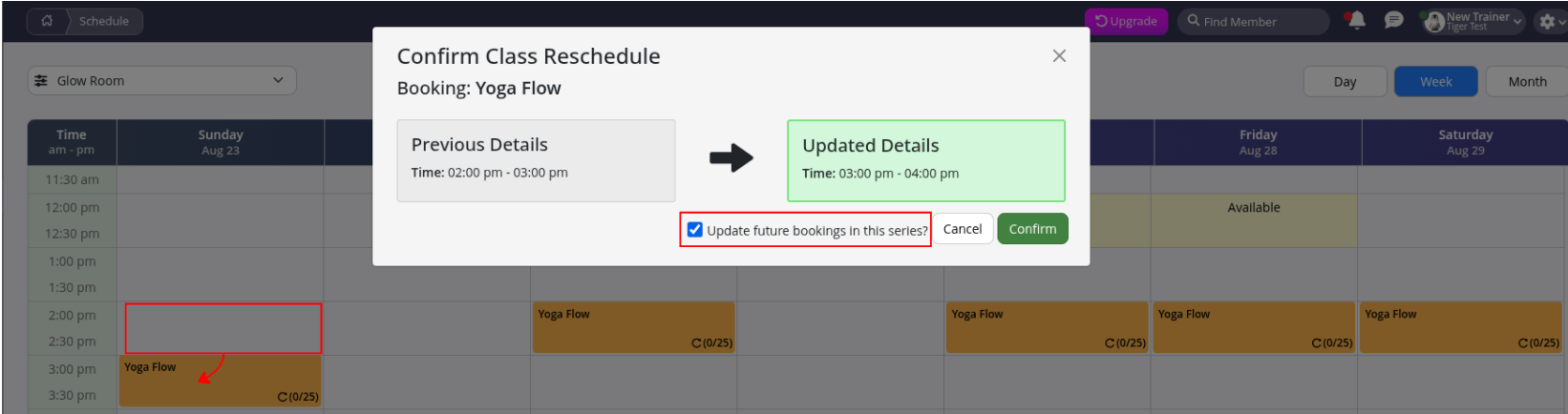
- Once you’ve located the booking, simply drag and drop it, then drag it over to the new time slot on the schedule
- If the booking is part of a repeating series, you’ll also see a tick box in the prompt
- Tick this if you wish to apply the change to all bookings in the series, otherwise, it’ll only move the one you dragged
Alternatively, open then Edit your class booking, to reschedule.
Common Questions this Covers
- How to change booking frequency
- How to shift booking times
- How to move booking times
- How to update Schedule
- What do I do to change class times
- Moving Classes on Schedule
- Editing class on schedule
Get started with a free, no-obligation chat, and see how we can help you grow

Awards and recognition
- Deloitte Master of Growth Index 2025
- Deloitte Master of Growth Index 2024
- Software Advice FrontRunners 2023
- GetApp Category Leaders 2023
- Capterra Best Value 2022
- GetApp Best Functionality & Features 2022
- Software Advice Most Recommended 2022
- SoftwareSuggest User Most Likely to Recommend Summer 2022
- Software Advice Best Customer Support 2021
- Deloitte Technology Fast 500 Asia Pacific 2018
 2026 © Treshna Enterprises Ltd.