
Place Membership on Hold
3 min read
Updated
1 month ago
You can place a manual hold onto a member’s membership when they need to temporarily pause their membership, such as for a holiday, illness, injury, or another period when they won’t be using the club.
A hold can affect the membership’s billing, dates, benefits, bookings and access, depending on the options selected.
If you need to place multiple members on hold, see Put multiple members on hold at once.
Place a Hold
- Open the member’s profile and select the Membership tab.
- Select Hold Membership in the top right.
- Complete the hold details.
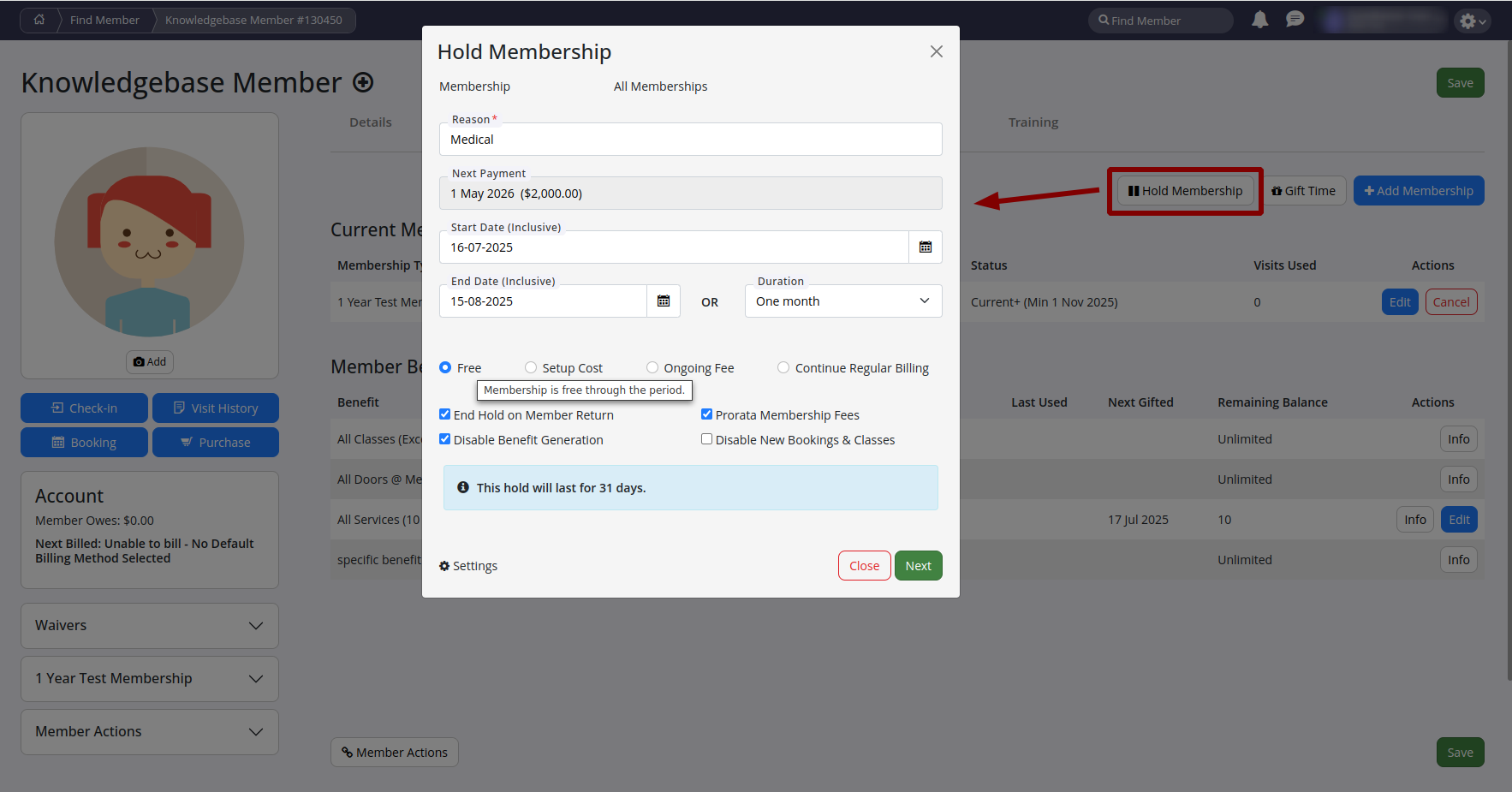
- Complete the fields and options in the Hold Membership form.
- If a member has multiple memberships, check which memberships are included in the hold. A hold applied to one membership does not necessarily affect their other memberships.
- The billing options and hold rules available may depend on your club’s Member Hold configuration.
| Option | Effect |
|---|---|
| Reason | This can be used for reporting and tracking why memberships have been placed on hold. |
| Hold Dates | Sets the start and end dates for the hold. |
| Free | No membership charges will be applied during hold. |
| Setup Cost | A one-off hold fee will be charged when hold is applied. |
| Ongoing Fee | A recurring hold fee will be charged during the hold. Frequency will follow membership’s normal billing schedule. |
| Continue Regular Billing | The member will continue to be charged normal membership fees during hold. |
| End Hold on Member Return | Automatically ends hold when the member returns to the club and swipes in. |
| Prorate Membership Fees | Adjusts membership fees according to the portion of the billing period affected by the hold. |
| Disable Benefit Duration | Prevents membership benefits from continuing to accrue or generate during the hold period. |
| Disable New Bookings & Classes | Prevents new bookings or class bookings that fall within the hold period. |
- Once you have entered the hold details, select Next to preview the hold
- Review the dates, billing and other settings to make sure they are correct
- If everything is correct, confirm the hold
- The hold will then be recorded against the member’s membership and can be viewed in Accounts and Billing > Account History
To learn how members can manage their own holds or to apply a mass hold, see Understanding Member Holds
Common Questions this Covers
- How do I put a member’s membership on hold?
- How do I set the start and end dates for a membership hold?
- How do I choose a reason for a membership hold?
- How does billing work during a membership hold?
- What is the difference between Free, Setup Cost and Ongoing Fee?
- How do I continue regular billing during a hold?
- What happens when a member returns during a hold?
- Can I prorate membership fees during a hold?
- Can I prevent bookings during a hold?
- How do I edit a membership hold?
- How do I delete a membership hold?

 2026 © Treshna Enterprises Ltd.