
How to Pay for Overdue Charges
2 min read
Updated
17 days ago
If a member owes money, this will show in red under their picture on their profile.
When a member owes, this means that there will be some charges on their account which are overdue and have not yet been paid.
These will show under the Charges Awaiting Payment section of the Accounts tab.
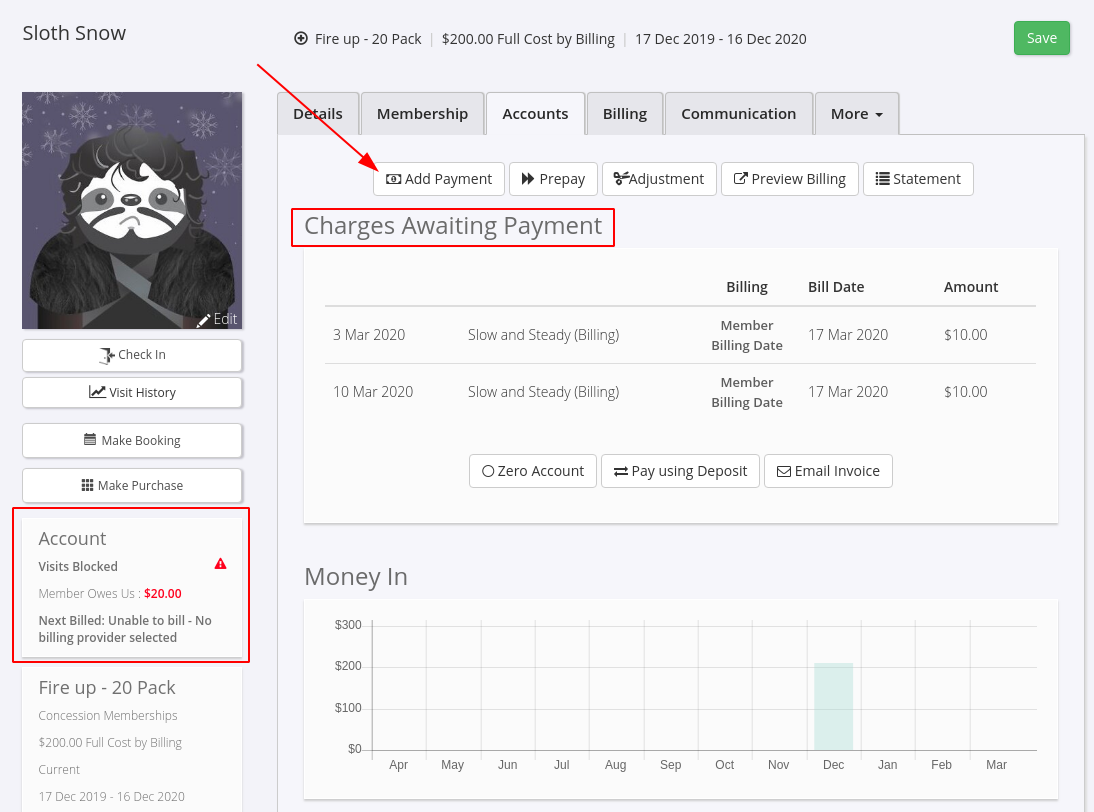
Log a Payment Against Outstanding Charges
- Click Add Payment
- This will pull these charges through to the Point of Sale and add a payment
From the POS, the outstanding charges will show in a list. Choose which charges the member wants to pay for by;
- Select Click to Add. Once you’re happy with charges in the sale the total will show on the right.
- Click the Make Payment button
- Choose the method this member used to pay for the sale.
- Select Complete Sale to finish and you’ll be redirected back to the member’s profile.
- Navigate back to the member’s Accounts tab, and confirm that the charges are now marked as paid and they are no longer owing.
To clear the outstanding charge, that is to take no payment and mark the charge as not needing to be collected, see the article Credit Notes: How to clear a charge
Common Questions this Covers
- How do I pay off overdue member charges
- Where do I see outstanding or unpaid member balances in a profile
- How do I collect payment for overdue invoices using the Point of Sale
- What does “Charges Awaiting Payment” mean in GymMaster
- How do I clear a member’s overdue balance from their account
- Can I take partial payment for overdue charges in GymMaster POS
- How do I mark member charges as paid after taking payment
- Why is a member showing a red overdue balance on their profile
- How do I process overdue payments through a member account
- What is the correct way to handle unpaid member fees in GymMaster
Get started with a free, no-obligation chat, and see how we can help you grow

Awards and recognition
- Deloitte Master of Growth Index 2025
- Deloitte Master of Growth Index 2024
- Software Advice FrontRunners 2023
- GetApp Category Leaders 2023
- Capterra Best Value 2022
- GetApp Best Functionality & Features 2022
- Software Advice Most Recommended 2022
- SoftwareSuggest User Most Likely to Recommend Summer 2022
- Software Advice Best Customer Support 2021
- Deloitte Technology Fast 500 Asia Pacific 2018
 2026 © Treshna Enterprises Ltd.