
Credit Notes - How to Clear a Charge
1 min read
Updated
6 days ago
Sometimes a member won’t need to be charged for something, for example they’ve been away, missed a booking, or there’s been a genuine reason to waive it.
In these cases, use a Credit Note rather than voiding the charge. This removes the balance from the account while keeping a clear record of what happened, so the account history stays accurate and complete.
How to Apply a Credit Note
- Go to the member’s Accounts and Billing tab
- Click the Adjustment button at the top
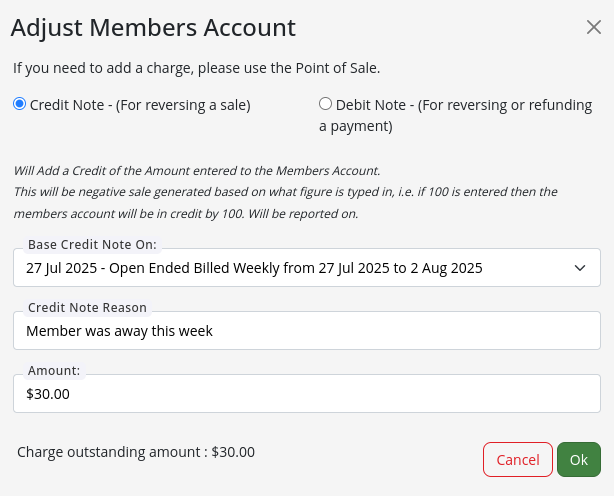
- Choose Credit Note as the adjustment method
- Select the charge you wish to base the credit note on
- Enter the reason for the credit (handy for future reference, and helps your team understand why it was applied)
- Enter the amount you’re crediting
Want to apply a payment? See our article on How to Pay for Overdue Charges
Common Questions this Covers
- How to credit member payment
- How add a credit note to member
Get started with a free, no-obligation chat, and see how we can help you grow

Awards and recognition
- Deloitte Master of Growth Index 2025
- Deloitte Master of Growth Index 2024
- Software Advice FrontRunners 2023
- GetApp Category Leaders 2023
- Capterra Best Value 2022
- GetApp Best Functionality & Features 2022
- Software Advice Most Recommended 2022
- SoftwareSuggest User Most Likely to Recommend Summer 2022
- Software Advice Best Customer Support 2021
- Deloitte Technology Fast 500 Asia Pacific 2018
 2026 © Treshna Enterprises Ltd.
