
‹ Back to Knowledge Base
Getting Started
2
Access Control
16
Accounting
6
Administration
8
Billing
18
Bookings and Schedule
16
Communication
10
Member
8
Memberships and Holds
20
Point of Sale and Stock
4
Prospects
4
Reporting
7
Task and Automation
4
Member App
4
Member Portal
12
Feature Guides
7
Integrations
13
Products and Stock
2
How to Add Booking Availability to the Schedule
2 min read
Updated
14 days ago
When you’re setting up your GymMaster schedule, there are two types of bookings you can create, Services.
Each one works a little differently when it comes to adding them into the schedule.
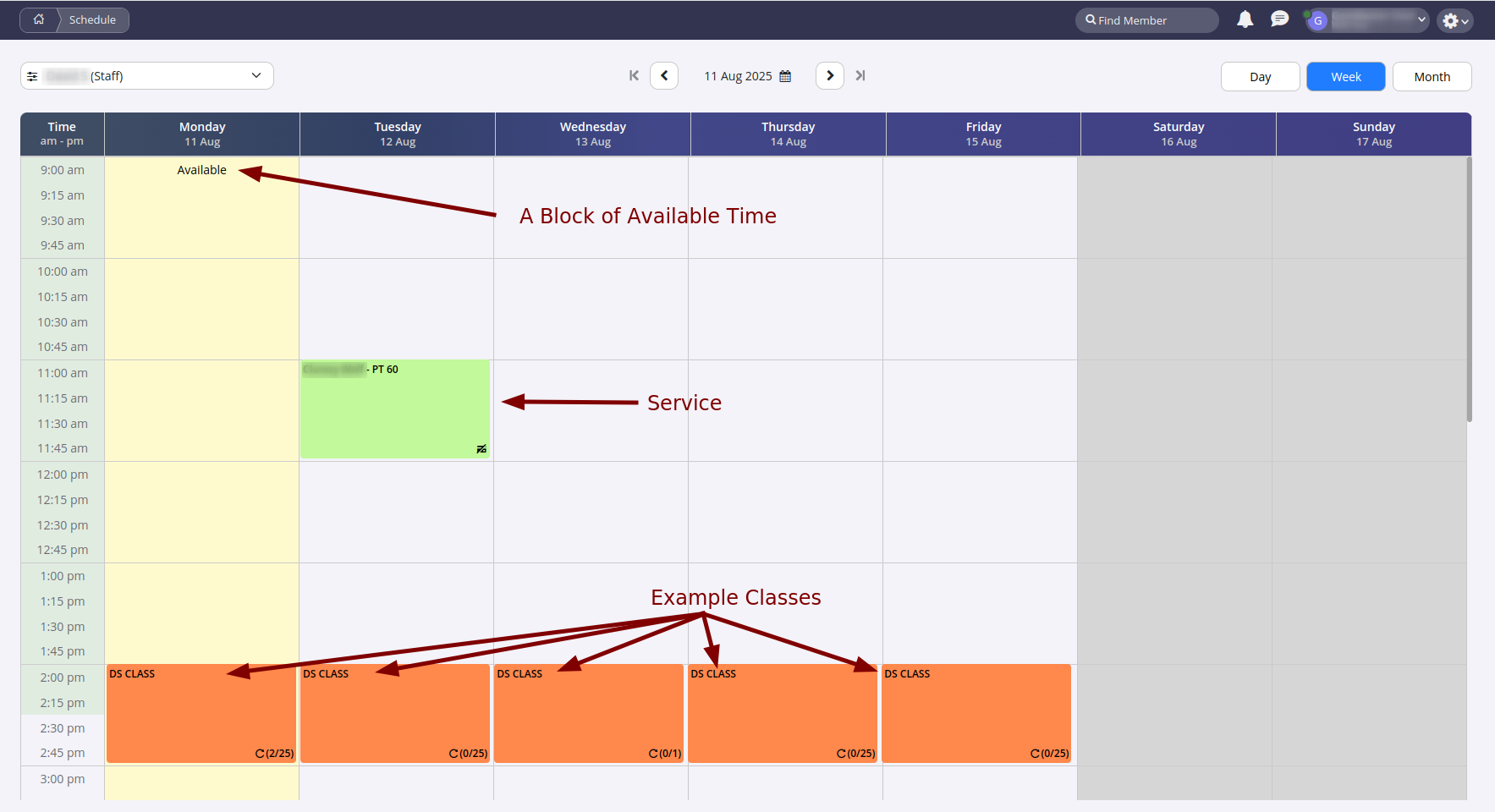
Classes
- Classes are added straight into the schedule without any members booked in at first.
- The idea is that members will be added later, either by staff or by booking themselves in online.
Services
For services, you have two options :
Book a Service with a Member Right Away
- Add the booking into the schedule and choose the member at the same time
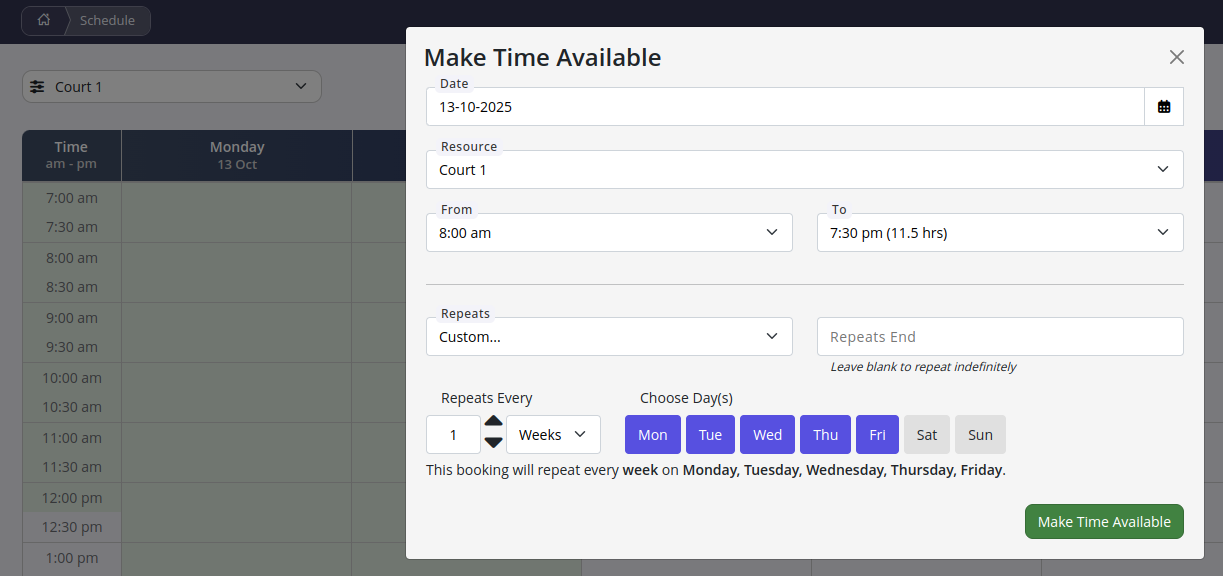
Add Available Time
- This creates open slots in the schedule that members can book online
- When they book, the system will display booking availability based on this
Pro Tip : When adding Available Time, you can now use the custom repeat option to set availability across multiple days at once. This makes creating your schedule much faster and easier to manage.
If you are unsure what the right booking type is for what you are setting up, please refer to our How do I setup Bookings for my Gym? article.
Common Questions this Covers
- How do I add classes to the schedule
- How do I add services to the schedule
- How do I add bookings to the schedule
- How do I make services bookable online
- How do I make classes bookable online
- How do I make bookings bookable online
- How do I add available time for personal training

 2026 © Treshna Enterprises Ltd.