
Schedule Overview
The Schedule is the central hub for managing your club’s classes, services, appointments, and staff availability. It provides a live timetable of everything happening at your club, making it easy to view, manage, and update bookings throughout the day.
From the schedule you can;
Members can view the class timetable through the Member Portal and Member App, then book both classes and services online where enabled.
Take a tour of the Schedule;
Top Bar

Facility / Trainer Schedules
Top left; Drop-down menu
All resources have their own schedule, which can be selected here. Pick the schedule you want to see from the drop-down in the top left. You can view;
- All resource schedules
- Facilities, trainers, a single schedule
- Everything at once
The available options shift depending on whether you’re in day or week view.
Set up your resources in Settings > Bookings and Classes > Facilities and Staff.
Date Navigation
Top centre
The date in the center shows what period you’re looking at.
Use the single arrows to move forward or back one day, week, or month. Double arrows jump ahead or back a full week, month, or year.
Day, Week, Month
Top right
Choose how to look at your schedule.
- Day view lets you see one schedule or multiple schedules side by side.
- Week and month views focus on one schedule at a time, giving you the big picture.
Days, Dates, Resource Name
Top; Blue bar
The blue bar at the top shows day names, dates, or your selected resource schedule, depending on view mode.
Click these headings to jump between views or switch modes quickly.
Colours and Time Intervals
Colours are used to assign availability and time passing.
Time intervals along the side are able to be adjusted, per resource category.
Colours
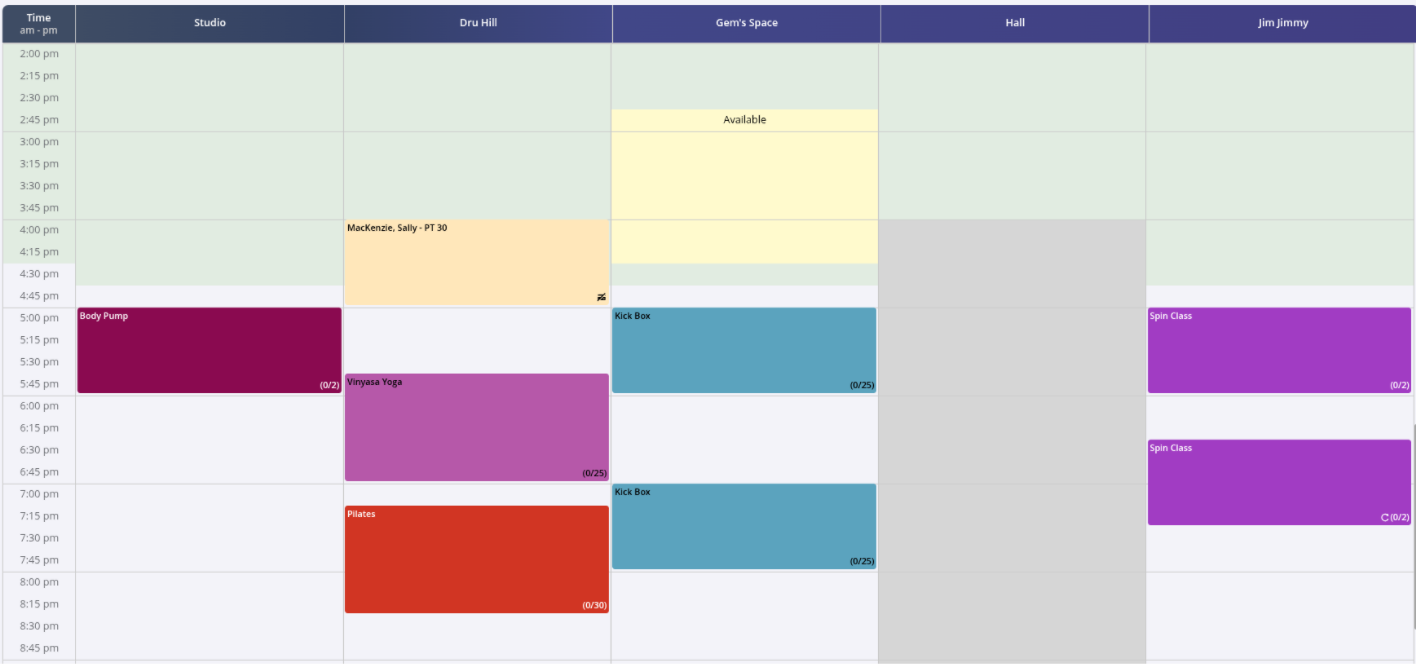
| Colour | Function |
|---|---|
| Off-White | Off-white shows rostered availability of a trainer or facility, and future time that hasn’t happened yet. Classes and services can be added to the schedule during these hours. Note that members cannot book a trainer online during these times; for this see pale yellow below. Edit rostered availability of a resource in Settings > Bookings and Classes > Facilities or Staff. |
| Grey | Grey shows time outside rostered hours. This time is unavailable, and by default, bookings can’t be made here. To override, staff can click a grey block and choose Make Available. Once time has been made available, they can book a class or service onto this time period. Edit rostered availability of a resource in Settings > Bookings and Classes > Facilities or Staff. |
| Pale Yellow | Pale yellow marks manually set availability. Use this to open specific hours for members to book trainers or resources online or let staff schedule classes, services, or meetings during normally unavailable periods. Add available time by clicking a block of time and selecting repeat function to make this available at the same time each week. |
| Green | Green marks time that’s already passed. This is a visual cue only and doesn’t affect bookings or actions. |
| Booking Colours | Each class or service can have its own colour. Choose the colour when creating or editing classes and services in Settings > Bookings and Classes > Services and Classes. |
Time Intervals
Full guide: Change Schedule Time-slot Periods
Time periods run down the left side; classes or bookings can only be booked using the set interval.
In the example above, classes can be scheduled to begin every 15 minutes. The intervals are based on your resource category settings.
Adjust these in Settings > Bookings and Classes > Facility or Staff Categories to match what works for your club.
Common Questions this Covers
- What do the colours in the schedule mean
- What does green represent in the schedule
- What does yellow represent in the schedule
- What does grey represent in the schedule
- How to select or view specific schedule
- How do I read the schedule

 2026 © Treshna Enterprises Ltd.