
How to Use Real-Time Chat
Staff are now able to provide direct personal support, motivation, and updates between staff and members easily using Real-Time Chat. Once Chat has been setup, here’s how you use it, from both the staff and member persecptive;
Staff Perspective
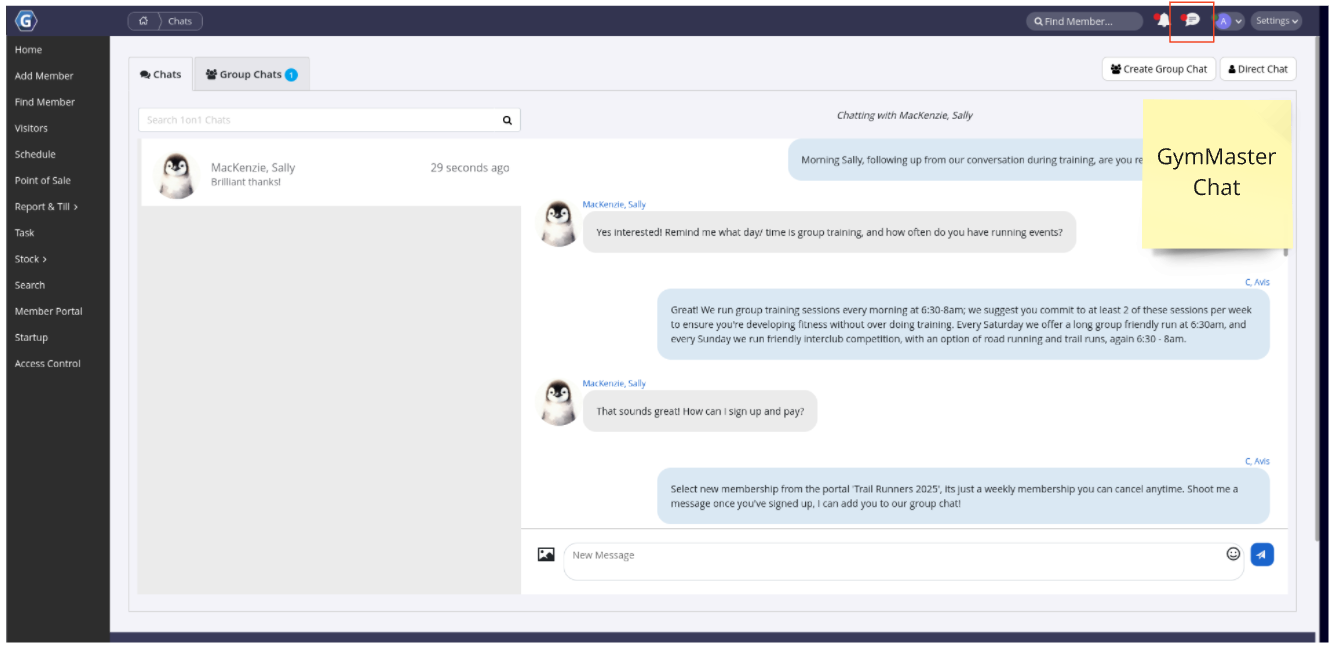
Once enabled, Chat icon will be visible on GymMaster Toolbar; click to navigate to Real-Time Chat.
Staff can initiate and receive staff-staff, staff-member and staff-group chats from within the GymMaster Chat page.
Staff Initiated Chat
By default, two-way chats are initiated by Staff.
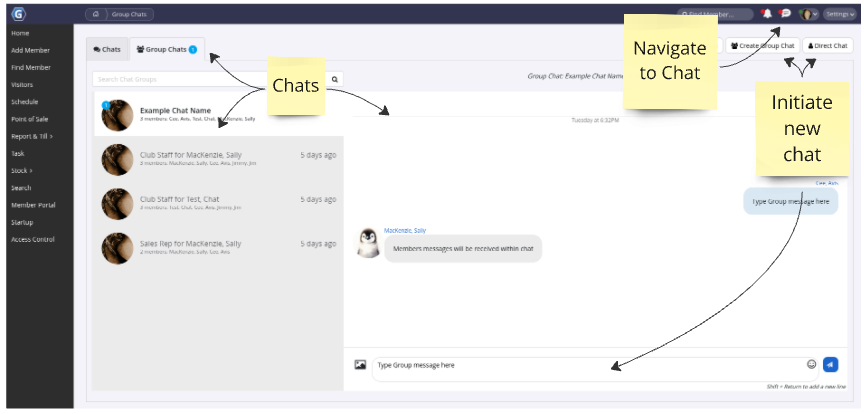
Navigate to Real-Time Chat, using the Chat icon in the Toolbar. Select Direct Chats (one on one) or Group Chats (unlimited) to begin new chat.
Search member/s and or staff name, to add into chat. Type, send and receive messages.
Red dot on chat icon in toolbar indicates unread chat messages
Member Perspective
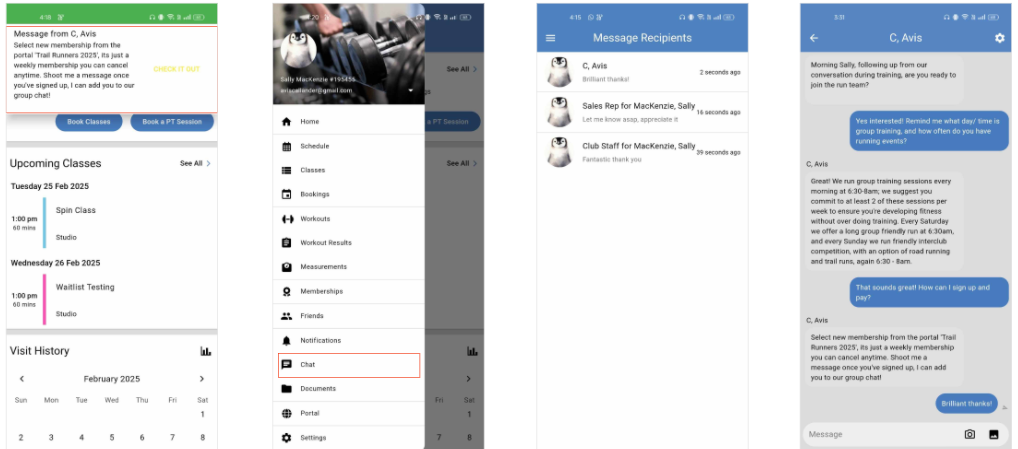
Members will receive chat messages as GymMaster Member Portal app notifications and be able to reply directly via the app.
Members will need to adjust their general settings to allow notifications from GymMaster Member Portal App
Member Initiated Chats
By default, two-way chats can only be initiated by Staff.
However, if enabled under Advanced Configuration > Communication < Real-time chat, Members will have the option to initiate chats with designated staff;
| Chat Option | Description | Staff Configuration |
|---|---|---|
| Assigned Personal Trainer | Members can initiate a one-on-one chat with their assigned Personal Trainer. If a trainer has been assigned, a Personal Trainer chat thread will automatically appear in the member’s chat list. Members can start a conversation at any time, and the trainer will receive notifications while logged into GymMaster. | Assign a trainer via Member Page > Additional Details |
| Assigned Sales Representative | Members can initiate a one-on-one chat with their assigned Sales Representative. If a sales rep has been assigned, a Sales Rep chat thread will automatically appear in the member’s chat list. Members can start a conversation at any time, and the sales rep will receive notifications while logged into GymMaster. | Assign a sales representative via Member Page > Marketing |
| General Messages to Staff | Members can send messages to Club Staff through a shared group chat. A Club Staff chat thread will appear in the member’s chat list, allowing them to start a conversation at any time. Messages are received as a group chat, and any assigned staff member can respond. | Assign staff to receive general member chats via User Administration > Options > General > Include in General Staff Group Chats with Members |

Common Questions this Covers
- How can members message staff directly through the gym app
- Can I send one-on-one and group messages to members from GymMaster
- How do I enable real-time chat between staff and members
- Can members contact their personal trainer or sales representative through the member app
- What is the best way to communicate with members inside GymMaster without using email or SMS

 2026 © Treshna Enterprises Ltd.