
Gift Vouchers
Gift Vouchers allow members, non-members, and staff to purchase and redeem credit within your club.
They are fully integrated across Point of Sale, Member Portal, and Online Shop. Once configured, they can be issued by staff, purchased by members or non-members, and redeemed across multiple purchase types, providing a flexible payment option for your club.
This guide covers everything required to configure, sell, purchase, and redeem Gift Vouchers across all user types.
Staff Perspective
Member Perspective
Casual Shopper Perspective
Configure Gift Vouchers
Staff Perspective
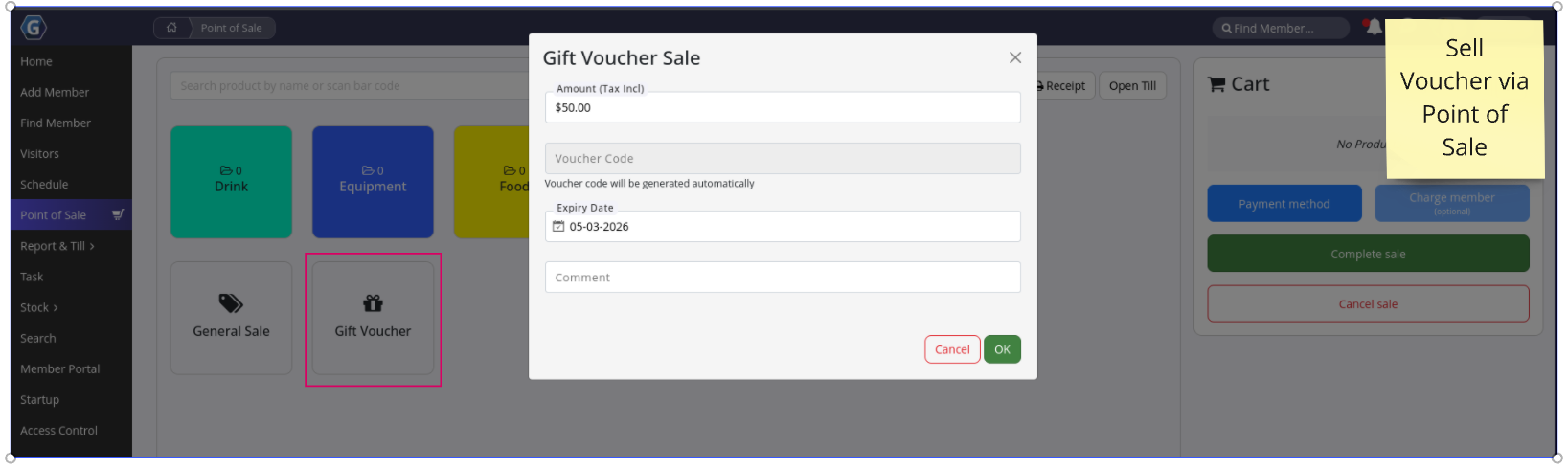
Staff can sell Gift Vouchers directly through the Point of Sale system.
When creating a sale, select the Gift Voucher option, enter the voucher value, and either generate or enter a voucher code. An expiry date and internal comments can also be added if required before completing the transaction.
Once the sale is processed, the voucher is immediately available for use.
Apply Gift Voucher
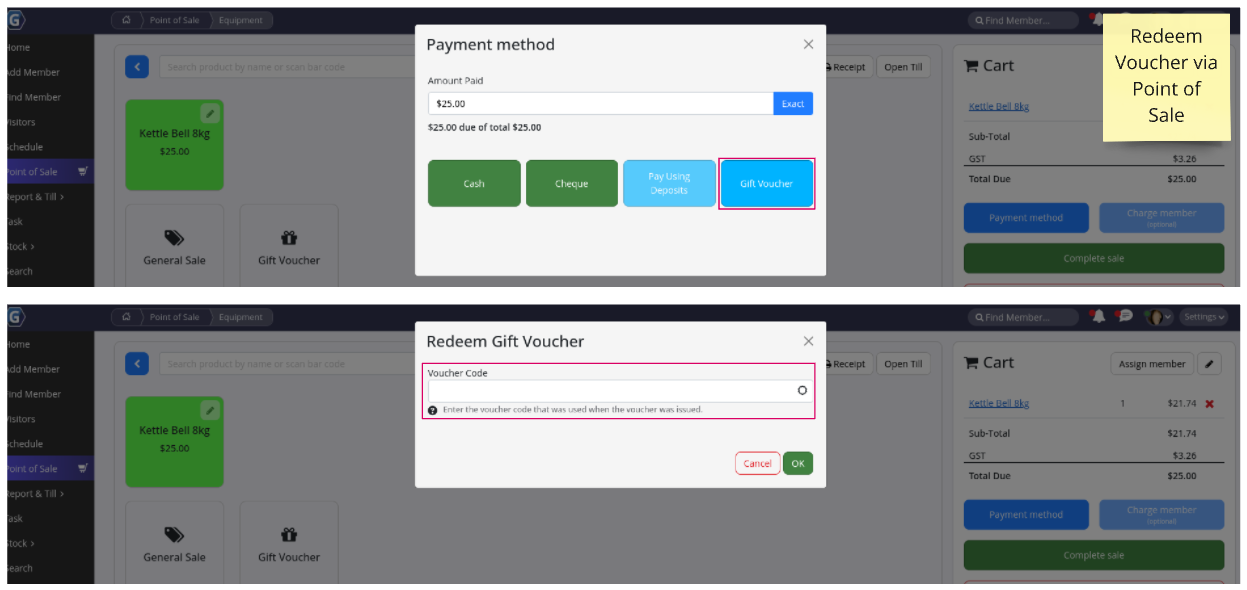
Gift Vouchers can be applied as a payment method during Point of Sale transactions.
When processing a sale, select Make Payment, choose the Gift Voucher option, and enter the voucher code provided by the customer. The system will validate the voucher and apply it to the transaction before completing the sale.
Track Gift Vouchers
All Gift Vouchers can be viewed and managed from Settings > Products > Gift Vouchers.
This area provides a complete overview of all vouchers in the system. Staff can search by voucher code, review voucher status, and filter results based on where vouchers were purchased or redeemed. This makes it easy to track usage and monitor outstanding voucher balances.
Member Perspective
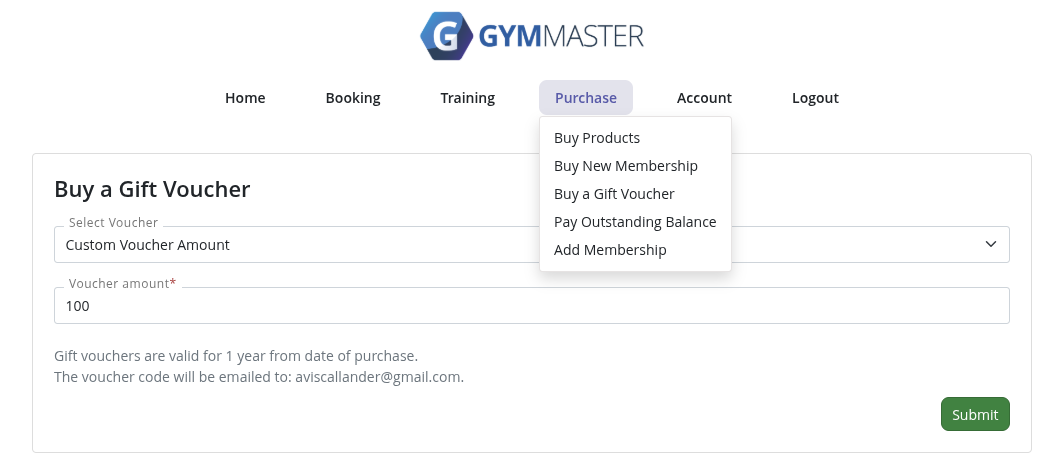
Members can purchase Gift Vouchers directly through the Member Portal.
After logging in, they can navigate to the Purchase menu and select Buy a Gift Voucher. The system will guide them through the checkout process to complete the purchase.
Once purchased, the voucher can be used immediately or sent to a recipient if configured.
Redeeming Gift Voucher as Member
Members can redeem Gift Vouchers when purchasing products through the Member Portal.
During checkout, they simply enter the voucher code in the “Apply a Gift Voucher” field. Once applied, the voucher value is deducted from the total purchase amount, and any remaining balance can be paid using another payment method.
Casual Shopper Perspective
Non-members can purchase Gift Vouchers through the Casual Shop.
They access the club’s Online Shop via the Member Portal page, select their club if required, and choose the option to purchase a Gift Voucher. After entering the desired value and completing payment, the voucher is issued electronically.
Redeeming Gift Voucher as Non-Member
Non-members can also redeem Gift Vouchers when purchasing products through the Online Shop.
At checkout, they enter their voucher code in the “Apply a Gift Voucher” field. The voucher is validated and applied before completing the transaction.
Configure Gift Vouchers
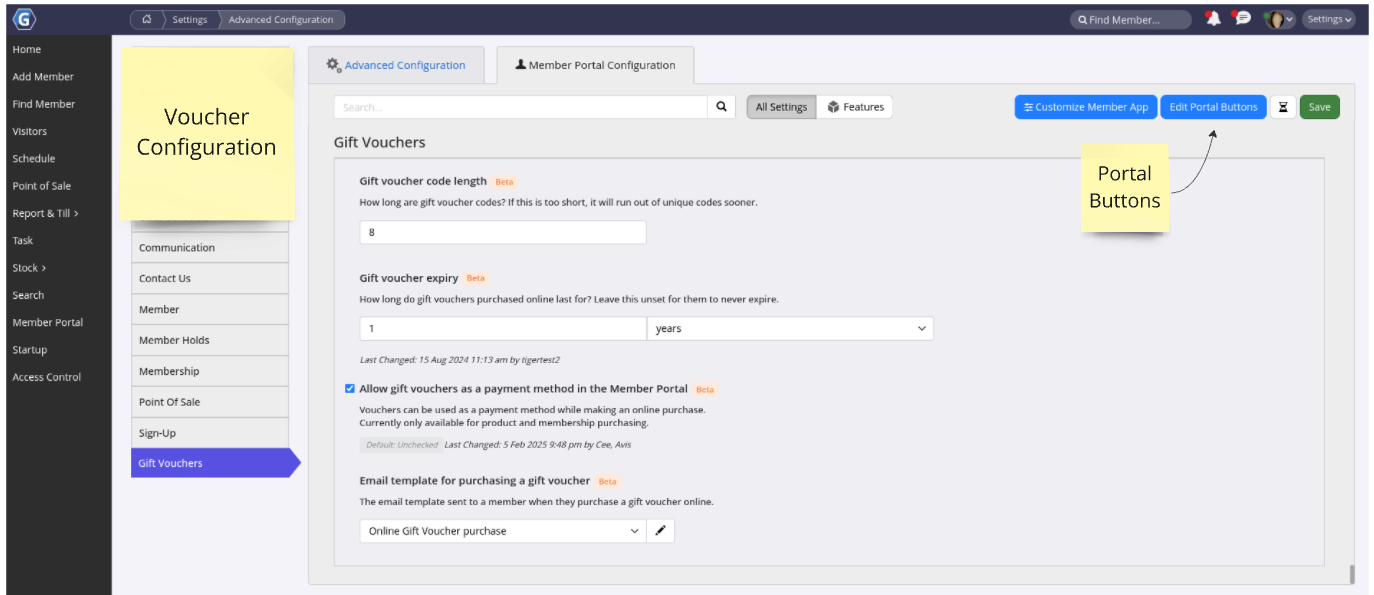
Before Gift Vouchers can be used, they must be enabled and configured within your system. This ensures vouchers can be issued correctly, applied at checkout, and tracked across sales.
All configuration required for Vouchers;
- Advanced Configuration > Point of Sale
- Auto-Generate Gift Voucher Code
- Member Portal Configuration > Portal Buttons
- Buy a Gift Voucher: Enable button
- Member Portal Configuration > Gift Vouchers
- Gift Voucher Code Length
- Gift Voucher Expiry
- Allow Vouchers as a Payment Method in the Member Portal
- Member Portal Configuration > Point of Sale
- Allow non-members to shop online
- Enable Purchasing of a Gift Voucher
- Set Online Shop Button Text
- Set Online Non-Member Shop Tab Title
- Allow non-members to shop online
- Settings > Templates
- Online Gift Voucher Purchase: Edit to suit requirements
- Purchasing a Gift Voucher for a Recipient: Edit to suit requirements
Important: Do not remove placeholder text like [VOUCHER] as it contains key voucher details
When setting up the back end of Gift Vouchers in Advanced Configuration (see below) note only one of these emails can be selected as default
Common Questions this Covers
- How do I create and sell gift vouchers in GymMaster
- Can members buy gift vouchers through the Member Portal
- How do I redeem a gift voucher at Point of Sale
- Can non-members purchase gift vouchers online
- How do I enable gift vouchers in the Member Portal
- Can gift vouchers be used to pay for products online
- How do I automatically generate gift voucher codes in GymMaster
- Where do I edit the gift voucher email templates
- How do I set gift voucher expiry dates and code lengths
- Why can’t members or non-members use gift vouchers online

 2026 © Treshna Enterprises Ltd.