
Setup and Manage Friends on Member Portal
2 min read
Updated
13 days ago
The Friends feature allows members to connect with other members through the GymMaster App, helping build community, accountability, and friendly competition.
Enable Friends and Leaderboards
- Navigate to Member Portal Configuration > Members
- Enable Friends Feature on App
- Navigate to Member Portal Configuration > Customize Member App
- Enable Leaderboard Widget
- Widgets can be rearranged using drag-and-drop to suit your preferred Member App layout.

Add Friends
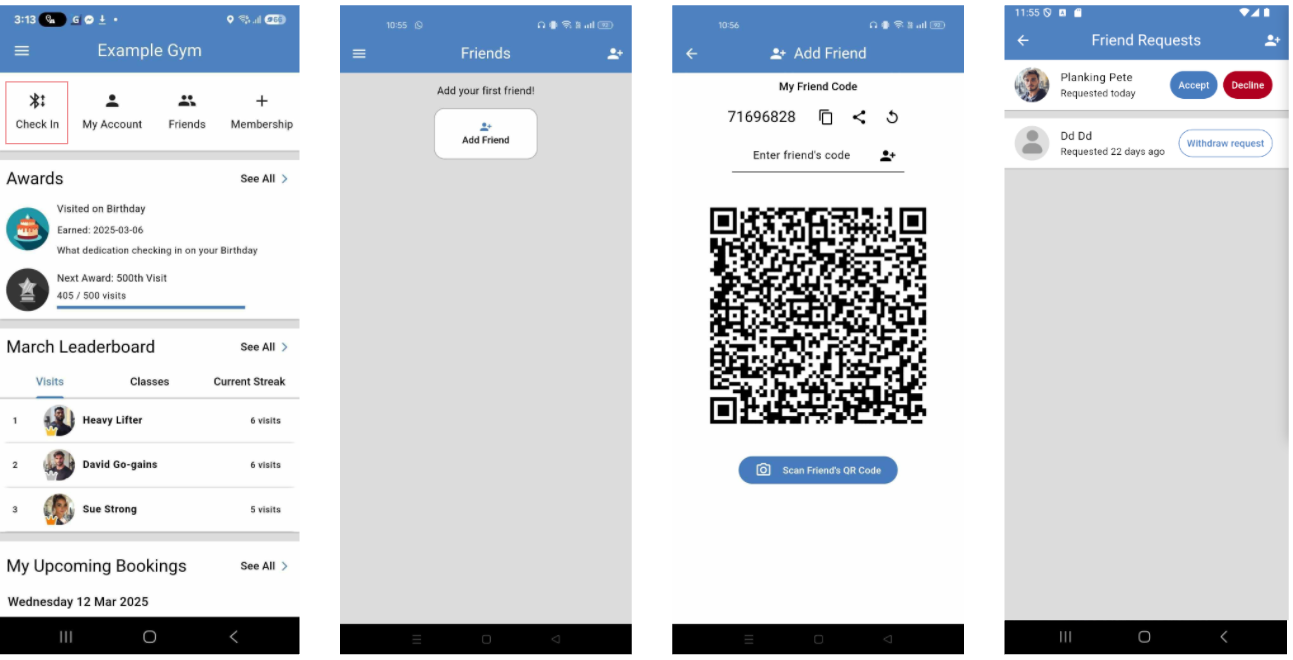
Once enabled, the Friends option becomes available within the GymMaster App, allowing members to send and receive friend requests.
Send a Friend Request
To connect with another member:
- Open Friends
- Select Add Friend
- Review the Terms & Conditions and select Proceed
- Share your Friend Code or QR Code with another member
Alternatively, members can enter a friend’s code manually, or scan a friend’s QR code to send a request.
The receiving member can then choose to accept or decline the request.
Privacy and Security
For added security, Friend QR codes automatically regenerate every five minutes, helping prevent unauthorised friend requests.
Manage Friends
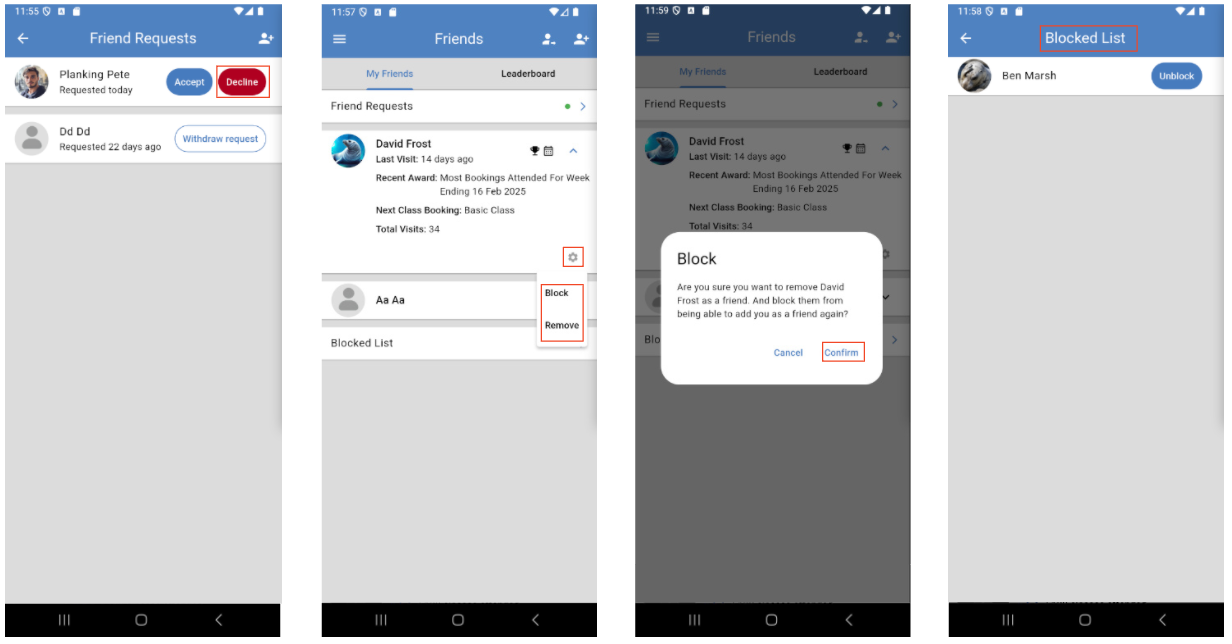
Members remain in full control of their Friends list and can:
- Accept or decline incoming friend requests
- Remove existing friends
- Block members if required
Common Questions this Covers
- How can we build community using GymMaster
- How do members add friends in the GymMaster App
- How do I enable the Friends feature in GymMaster
- Can members connect with each other through the Member App
- How do friend requests work in GymMaster
- How do members manage, remove, or block friends in the GymMaster App
Get started with a free, no-obligation chat, and see how we can help you grow

Awards and recognition
- Deloitte Master of Growth Index 2025
- Deloitte Master of Growth Index 2024
- Software Advice FrontRunners 2023
- GetApp Category Leaders 2023
- Capterra Best Value 2022
- GetApp Best Functionality & Features 2022
- Software Advice Most Recommended 2022
- SoftwareSuggest User Most Likely to Recommend Summer 2022
- Software Advice Best Customer Support 2021
- Deloitte Technology Fast 500 Asia Pacific 2018
 2026 © Treshna Enterprises Ltd.