
Customising Your Member Portal Look
Your Member Portal should feel like a natural extension of your club.
The Portal Editor makes it easy to align the look and feel with your brand, so members feel immediately at home.
Changes made here apply only to the online Member Portal. The Member App has its own navigation and visual settings.
To customise the app experience, follow the Member App setup guide.
Color Scheme
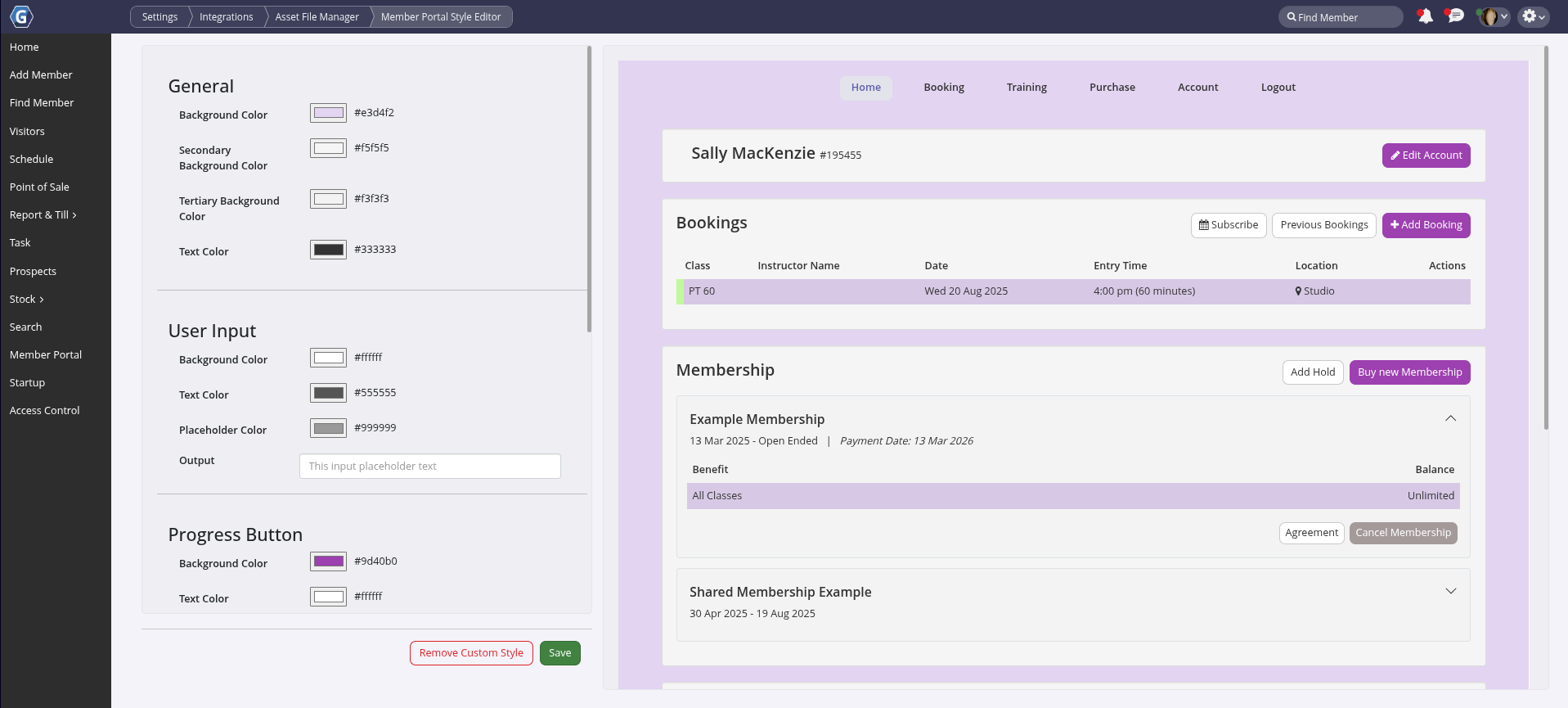
You can quickly bring your club’s branding into the portal by applying custom colours. This is one of the simplest and most effective ways to personalise the Member Portal.
- Navigate to Settings > Integrations > Asset File Manager > Member Portal Style Editor
- From here, you can define colours for backgrounds, buttons, and text
Note: changes made here apply to the online Member Portal only.
To customise colours in the Member App, refer to the Member App guide under Set Up and Allow Access to the Member App.
Portal Menu Account Buttons
Full Guide: Customise your Account Buttons
When members log in to the Member Portal, they’ll see four main menu sections:
- Booking
- Training
- Purchase
- Account
Each of these main menu items contains sub-menu options that you can tailor to suit your club. You can rename items, change their order, add new options, or enable and disable specific entries, while the core functionality of each section remains intact.
To customise the portal menu, go to Settings > Member Portal Configuration and select Edit Portal Buttons in the top-right corner of the page.

Common Questions this Covers
- How do I customise the appearance of my Member Portal
- Can I change the colours and branding of the Member Portal
- How do I make the Member Portal match my club’s brand
- Can I customise the menu and navigation in the Member Portal
- How do I change the buttons and menu options shown in the Member Portal
Get started with a free, no-obligation chat, and see how we can help you grow

Awards and recognition
- Deloitte Master of Growth Index 2025
- Deloitte Master of Growth Index 2024
- Software Advice FrontRunners 2023
- GetApp Category Leaders 2023
- Capterra Best Value 2022
- GetApp Best Functionality & Features 2022
- Software Advice Most Recommended 2022
- SoftwareSuggest User Most Likely to Recommend Summer 2022
- Software Advice Best Customer Support 2021
- Deloitte Technology Fast 500 Asia Pacific 2018
 2026 © Treshna Enterprises Ltd.