
Creating Communication Templates
2 min read
Updated
15 days ago
GymMaster includes a range of pre-built templates.
We recommend reviewing and customising these before creating your own, as they already include many commonly used fields and layouts.
Email Templates
Begin at Settings > Templates
- Create a new template or edit an existing one
- Enter a Template Name
- Select a Category (optional)
- Choose which club(s) can use the template
- Enter an email Subject
- Write or edit the email content
- Insert fields to Personalize Communication Templates
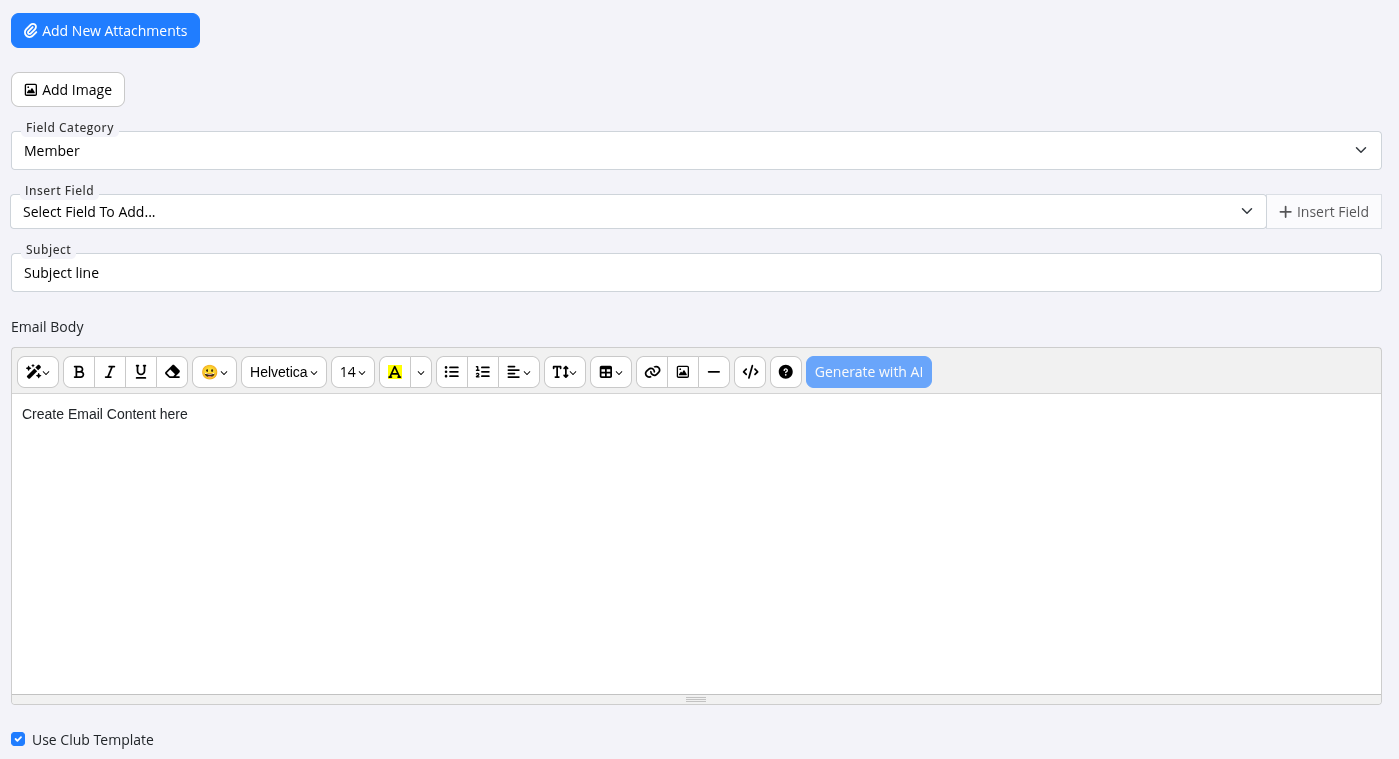
You can also:
-
Add images
-
Apply your Club Email Template design
-
Preview the email before saving
-
Add attachments after the template has been saved
-
Save
SMS Templates
Members using the GymMaster Member App can receive SMS messages as app notifications when configured.
Begin at Settings > Templates
- Create a new template or edit an existing one
- Enter a Template Name
- Select a Category (optional)
- Choose which club(s) can use the template
- Write or edit the SMS message
- Insert fields to Personalize Communication Templates
- Save
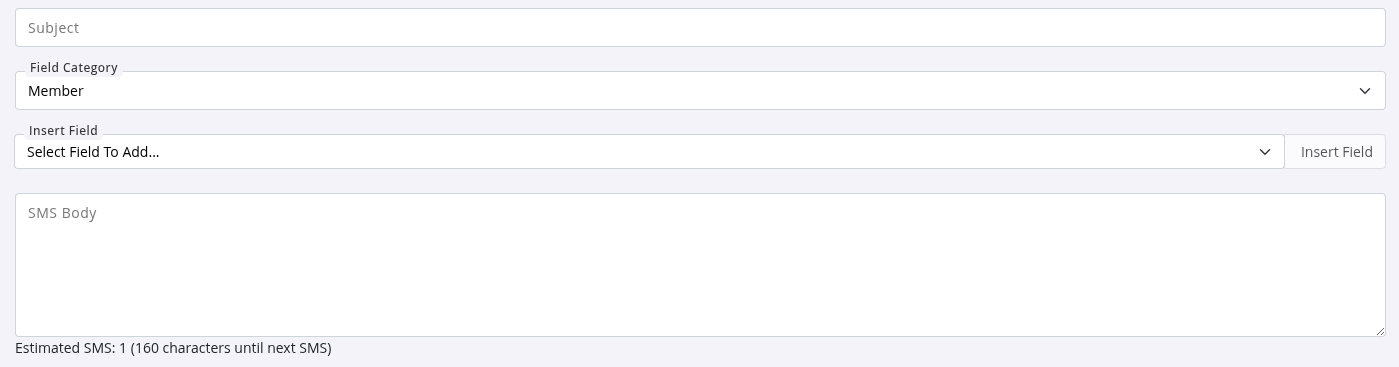
SMS Opt-Out Message
Add an unsubscribe message to the end of SMS communications.
Go to Advanced Configuration > Communication
- Configure the SMS Opt-Out message
- Members can unsubscribe by replying STOP

Once created, you can use Tasks to automatically send emails and SMS templates to your Member and Staff.
Common Questions this Covers
- How do I create emails in GymMaster
- How do I create an SMS message for members
- Where do I edit my email and SMS templates
- How do I add an unsubscribe (STOP) message to SMS
- How do I create communication templates for automated emails and SMS
Get started with a free, no-obligation chat, and see how we can help you grow

Awards and recognition
- Deloitte Master of Growth Index 2025
- Deloitte Master of Growth Index 2024
- Software Advice FrontRunners 2023
- GetApp Category Leaders 2023
- Capterra Best Value 2022
- GetApp Best Functionality & Features 2022
- Software Advice Most Recommended 2022
- SoftwareSuggest User Most Likely to Recommend Summer 2022
- Software Advice Best Customer Support 2021
- Deloitte Technology Fast 500 Asia Pacific 2018
 2026 © Treshna Enterprises Ltd.
