
Configure Point of Sale
Point of Sale (POS) is the hub of your club’s sales, handling everything from casual passes to merchandise.
Once your hardware is set up and connected, you can configure POS within GymMaster to match your business setup, including your currency, products, and accepted payment methods.
Once your hardware is in place and connected, complete the steps below to set up Point of Sale in GymMaster.
Settings
Set your POS preferences for in-club sales and Member Portal transactions.
Go to Advanced Configuration > Point of Sale > POS Settings
- Review and adjust settings under:
- Advanced Configuration
- Member Portal Configuration
- Save
If you are unsure about any setting, this can be reviewed during your onboarding training
Accepted Payment Methods
Define which payment types your club accepts and how they are tracked in GymMaster.
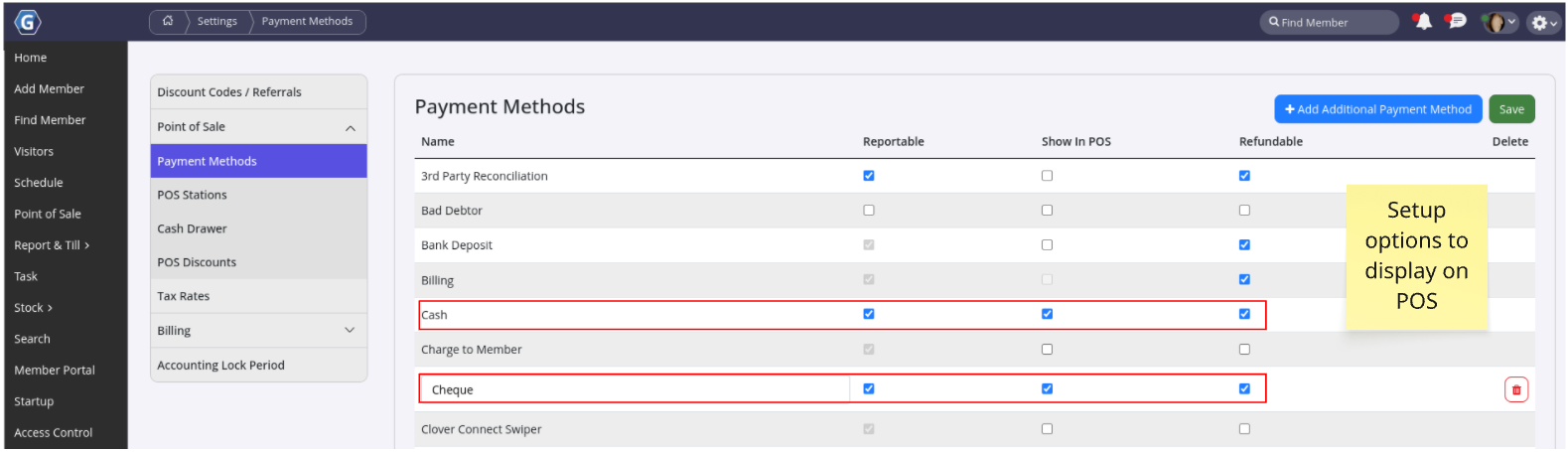
Navigate to Financial Configuration > Point of Sale > Payment Methods
Focus on how each method appears and behaves in Point of Sale:
| Option | Behaviour |
|---|---|
| Show in POS | Selected payment options will display at POS Checkout |
| Reportable | Selected options will be included in financial reporting |
| Refundable | Selected options will display as refund option |
Click Save once complete.
Coins and Notes
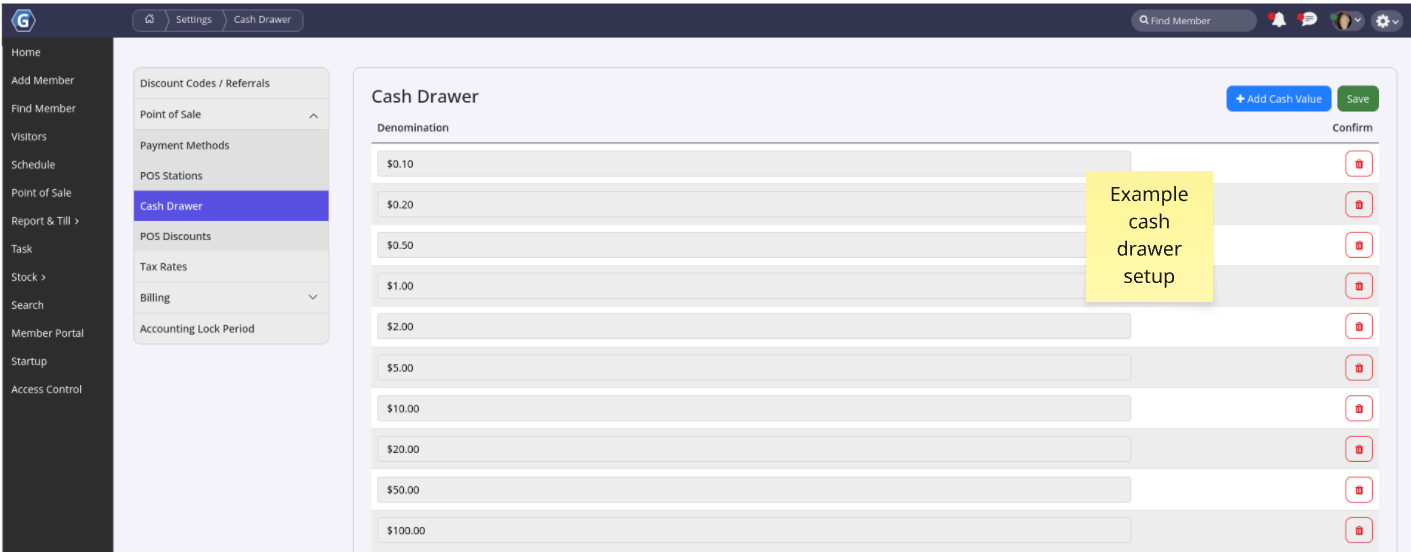
Set up cash denominations used in your cash drawer.
Go to Financial Configuration > Point of Sale > Cash Drawer
- Select Add Cash Value
- Enter one denomination per line (for example
0.20for 20c) - Use Edit or Delete to update entries
- Enter one denomination per line (for example
- Click Save
Your core Point of Sale setup is now complete. Make sure your Tax Settings are configured correctly, then you’re ready to make your first sale.
Additional Options
Here are some additional options related to Point of Sale, discounts, and purchases, and where to configure.
| Options | Action | Configuration |
|---|---|---|
| Products | Add food, drink, or merchandise to Point of Sale | Settings > Products |
| Gift Vouchers | Purchase and redeem vouchers | Gift Vouchers |
| Online Sales | Enable product sales through the Member Portal | Member Portal Configuration > Point of Sale and Portal Buttons |
| POS Discounts | Apply discounts during a sale | Settings > Financial Configuration > Point of Sale > POS Discounts |
| Membership Benefit Discounts | Set product discount amounts per membership | Membership Benefits |
| Promo Codes | Run marketing or seasonal discount campaigns | Settings > Financial Configuration > Discount Codes |
| Intro Pricing | Offer reduced pricing for new members | Settings > Membership Type > Edit > Payment and Fees > Promotional Period |
| Multiple POS | Run POS across multiple sales desks or sites | Settings > Financial Configuration > Point of Sale > POS Stations |
Common Questions this Covers
- How do I set up Point of Sale in GymMaster
- Where do I configure payment methods in POS
- How do I add cash denominations to the cash drawer
- How do I enable discounts in GymMaster POS
- How do I set up multiple POS locations or stations

 2026 © Treshna Enterprises Ltd.