
Key Updates: Use Club Notices
1 min read
Updated
7 days ago
Communication
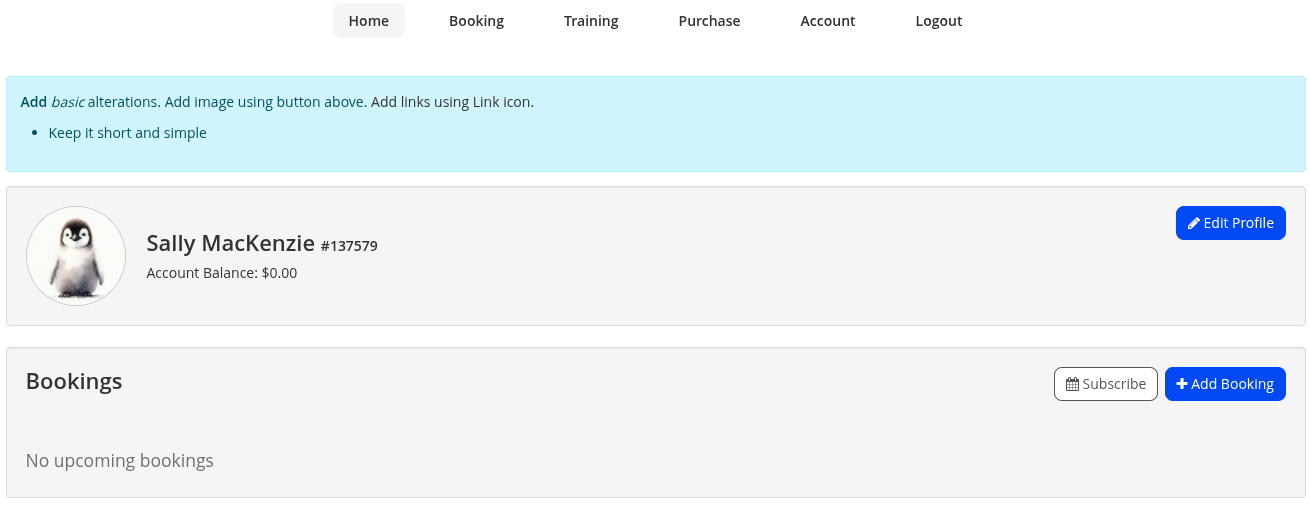
Club Notices appear at the top of the Member Portal and Member App, making them a great way to communicate important updates with your members, such as club closures, upcoming events, or special promotions.
Club Notices are configured per club, allowing each location to display its own message.
Create Club Notice
Begin at Club Details > Member Portal > Club Notices
- Select Edit
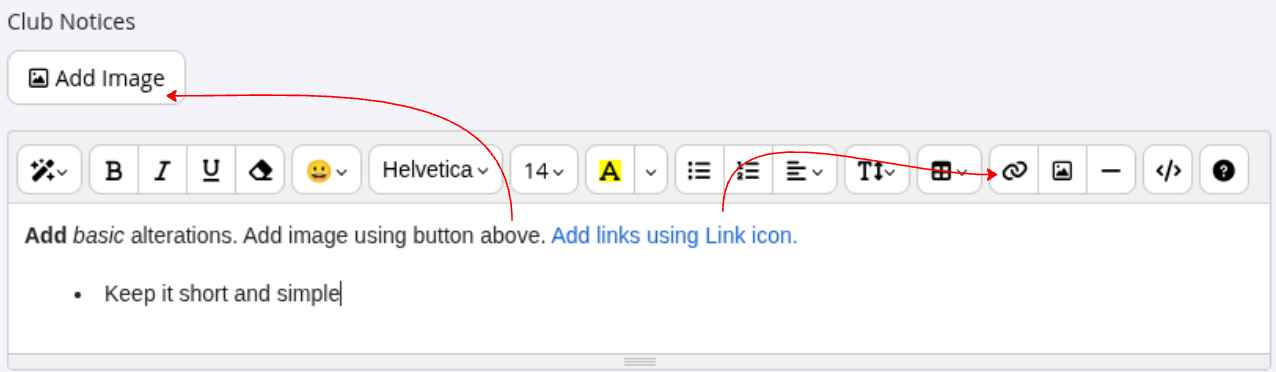
- Add your notice text, images, and any URLs
- Note default background may not be white; select white if required.
- Keep your message short and preview how it appears in the Member Portal and Member App
- Save
- This is how club notice will appear in the Member Portal;
Common Questions this Covers
- How do I create a Club Notice in GymMaster
- How do I display a message in the Member Portal
- How do I show a notice in the Member App
- How do I announce a club closure to members
- How do I promote an event in the Member App
- Can I display different notices for different clubs
- Where do Club Notices appear in the Member Portal
- How do I update the notice members see when they log in
- How do I communicate important updates to members through GymMaster
Get started now for a tour and free no-card gym software trial today

Awards and recognition
- Deloitte Master of Growth Index 2025
- Deloitte Master of Growth Index 2024
- Software Advice FrontRunners 2023
- GetApp Category Leaders 2023
- Capterra Best Value 2022
- GetApp Best Functionality & Features 2022
- Software Advice Most Recommended 2022
- SoftwareSuggest User Most Likely to Recommend Summer 2022
- Software Advice Best Customer Support 2021
- Deloitte Technology Fast 500 Asia Pacific 2018
 2026 © Treshna Enterprises Ltd.
