
Change a Members Payment Date
A common request from members is to shift their billing day so it lines up better with their payday.
Totally fair, & easy to handle in GymMaster.
The members billing cycle will stay the same.
How to Change the Billing Day:
- Go to the member’s Membership tab
- Find the membership that needs the change
- Click Edit on that membership
- You’ll be taken to a page with that membership’s details
(this is where you can adjust the payment schedule)

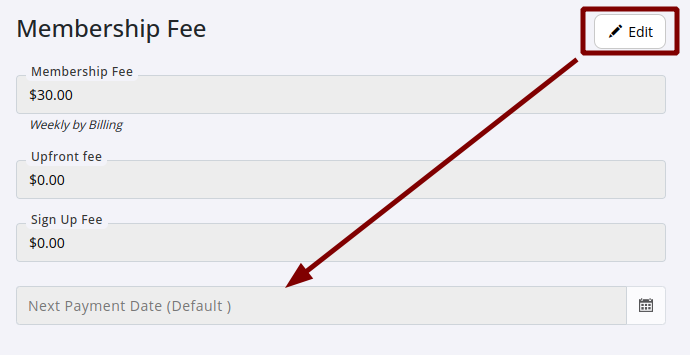
- On the membership details page, navigate to the Membership Fee section
- Click Edit in that section to make changes
- You’ll see a field called Next Payment Date, this is where you can change the member’s billing day
Prorate Adjustment
After updating the Next Payment Date and clicking Save, GymMaster will prompt you to apply a prorate adjustment.
This simply determines whether any charges should be adjusted to cover the gap between the previous and new billing dates. Regardless of your choice, future billing will continue from the updated date.
Preview
Once the change is applied, it’s recommended to verify the setup.
Go to the member’s Accounts and Billing tab and select Preview. This displays the upcoming billing schedule and is the quickest way to confirm the new payment date is correct.
If you’re looking to change how often a member is billed (weekly, monthly, etc.), see our article on Changing a Member’s Membership
Common Questions this Covers
- How do I change the billing date for a member’s recurring membership
- Will changing the billing date affect the member’s charges immediately
- What does prorating do when I change the billing date
- How do I confirm the new billing date is set correctly
- Can I align a member’s billing date with their payday
- Where can I preview the member’s updated billing schedule
Get started with a free, no-obligation chat, and see how we can help you grow

Awards and recognition
- Deloitte Master of Growth Index 2025
- Deloitte Master of Growth Index 2024
- Software Advice FrontRunners 2023
- GetApp Category Leaders 2023
- Capterra Best Value 2022
- GetApp Best Functionality & Features 2022
- Software Advice Most Recommended 2022
- SoftwareSuggest User Most Likely to Recommend Summer 2022
- Software Advice Best Customer Support 2021
- Deloitte Technology Fast 500 Asia Pacific 2018
 2026 © Treshna Enterprises Ltd.