
Apple Developer Account Checklist
Before GymMaster can build, test and submit your branded app to the Apple App Store, you need to set up an Apple Developer account for your business and give our development team access.
Allow approximately 20 minutes to complete enrolment, plus additional time for your D-U-N-S Number and Apple’s approval process.
Before You Start
Make sure you have the following ready before beginning enrolment.
| Requirement | Details |
|---|---|
| Functional business website | Your website must be publicly accessible. A social media page alone is not sufficient. |
| Business email address | Use an email address with the same domain as your website. |
| Contact or support URL | For example, https://www.yourname.com/contact-us/. |
| Company-controlled Apple Account | For example, appdeveloper@yourbusiness.com. |
| Privacy policy | Your existing privacy or data collection policy may be suitable. |
| D-U-N-S Number | Allow 1–5 business days if you need to request one. Check or request a D-U-N-S Number. |
| Legal business name and address | These must match your D-U-N-S record. |
| Business phone number | Apple may call to verify your organisation. |
| Payment card | The annual membership fee is currently US$99 or the local equivalent. |
| **Authorised representative ** | A director, owner or senior officer with legal authority to enter into agreements on behalf of the business. |
Step 1: Enrol Your Business as an Organisation
You must complete this process yourself. GymMaster cannot enrol your business on your behalf.
- Create a company-controlled Apple Account at account.apple.com. Enable two-factor authentication
- Start enrolment at the Apple Developer Program
- Select Organisation as your enrolment type. Do not select Individual or Sole Proprietor
- Enter your business details, including your D-U-N-S Number. Ensure your legal business name and address match your registered records exactly
- Confirm your legal authority. Apple may contact you by phone to verify your organisation and your authority to enrol
- Pay the annual membership fee and complete any additional verification requested by Apple
- Wait for approval. Once your membership is approved, proceed to Step 2
If your business does not have a D-U-N-S Number, start by requesting one. This is a common cause of delays.
Step 2: Allow GymMaster Access
Once your Apple Developer account is approved, invite the GymMaster development team through App Store Connect.
- Sign in to App Store Connect
- Open Users and Access
- Click the + button to add a new user

- Complete details for GymMaster, as in image below;
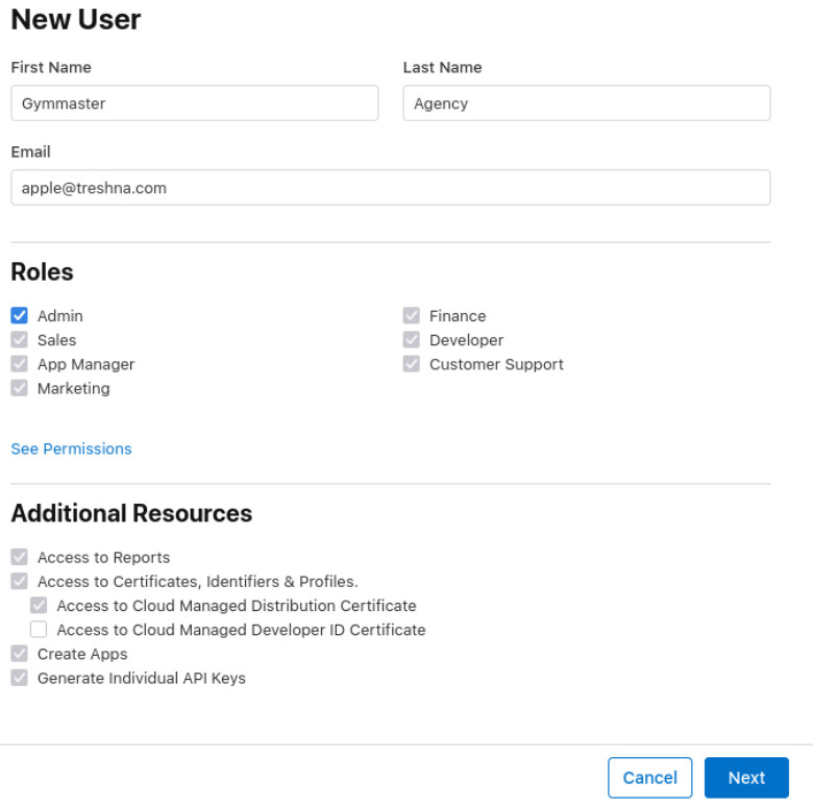
Once you have sent the invitation, contact your GymMaster Customer Care contact to confirm that your account is approved and the invitation has been sent.
Once the required access is available, GymMaster can proceed with preparing and submitting your branded app to the Apple App Store.
Apple must review and approve the app before it becomes available for download.
Important: Do not share your Apple Account password. Access must be provided through Apple’s user invitation process.
Common Questions this Covers
- How do I set up an Apple Developer account for my business
- How do I get my branded GymMaster app on the Apple App Store
- What do I need before enrolling in the Apple Developer Program
- How do I enrol as an organisation rather than an individual
- What is a D-U-N-S Number, and how do I get one
- Why does Apple need my business details and website
- How much does an Apple Developer account cost
- How long does Apple Developer account approval take
- How do I give GymMaster access to my Apple Developer account
- What permissions does GymMaster need to publish my branded app

 2026 © Treshna Enterprises Ltd.