
TV Check-In Display
The TV Check-In Display shows each person who checks in at a door on a TV, monitor or tablet. It updates live. When someone checks in, the screen shows a greeting, their first name and photo. The panel is coloured to show whether entry was granted or denied. After a few seconds the screen goes back to your club logo.
Clubs use this feature to welcome members at the entrance, to wish members a happy birthday, and to let staff and members see at a glance that a check-in was successful. It works with your existing doors and readers. You only need a screen with a web browser.
Enable and Setup
The TV Check-In Display requires two settings to be enabled: one for your site and one for each door that needs a screen.
Enable the Display
1. Enable the feature for your site
Contact GymMaster support and ask them to turn on the setting Enable TV Kiosk Display on your Advanced Configuration > Doors & Readers page.
Once available, enable this option.
2. Enable the display for a door
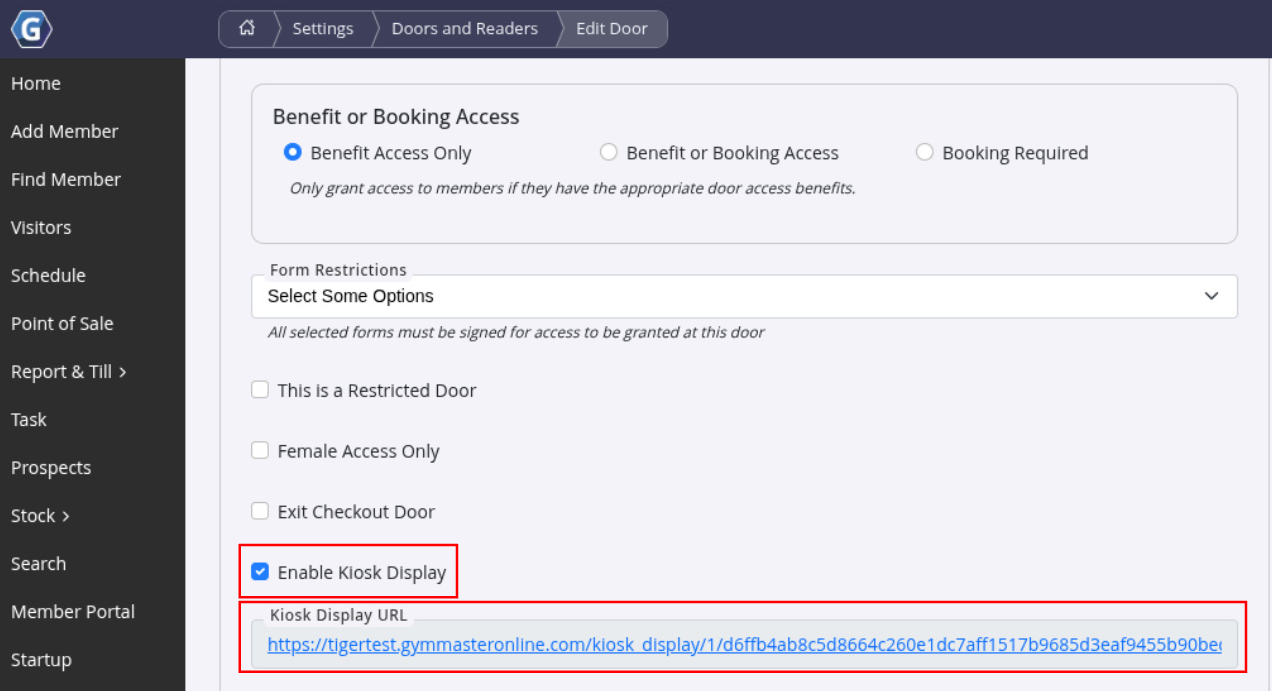
- Go to Settings > Doors and Readers > Select Door
- Select Enable Kiosk Display
- Save
- Copy the Kiosk Display URL
- Permission Required
- URL appears after save
- Open Kiosk URL in the web browser on the TV, smart display, media player or tablet next to the door
- Make the browser full screen, and prevent screen from going into sleep-mode or displaying a screen saver
- Leave the page open. It connects by itself and shows check-ins as they happen. If the connection drops, it reconnects by itself
- Anyone who has the link can watch check-ins at that door from any browser, anywhere
- Treat the URL like a password. Do not share it.
Set the device’s time zone to your club’s time zone. The check-in time on the screen uses the clock settings of the device.
Disable
To turn off a door’s display, untick Enable Kiosk Display on that door and click Save. Its link will stop working.
To disable the feature across your entire site, contact GymMaster support to turn off Enable TV Kiosk Display. This stops all door display links from working.
Things to know about display links:
- The link cannot be changed. If you enable the display again later, the same link is used
- All doors at the same club share the same secret key in their links; only the door number differs
- If a link is exposed, disable the display on every door at that club that doesn’t need one and contact GymMaster support
- A screen that already has the display open may continue showing check-ins until the page reloads or its connection drops. Close or reload the page on the device after disabling it
Viewing changes: Door changes are recorded in the door’s history. Click the Changes button (hourglass icon) on the door page to see who enabled or disabled the display.
What Displays on Screen
The display changes depending on whether someone has checked in.
Idle Screen
When nobody is checking in, the screen displays the first available option in this order:
- 1st - Your uploaded Kiosk Idle Display Screen image
- 2nd - Your club Logo, if no idle image is uploaded
- 3rd - our club name, if no logo is available
To upload an idle image, go to Settings > Club Details > Logos and Graphics and use Kiosk Idle Display Screen. The recommended image size is 1920 x 1080px (16:9). This field only appears after the TV display is enabled for your site.
Check In
When someone checks in, the screen displays their details and uses a coloured panel to indicate the check-in result.
| Panel Colour | Check-in Result | What Displays on Screen |
|---|---|---|
| Green | Entry granted | Member’s photo, first name, greeting, visit count and check-in time |
| Red | Entry denied, or tailgating detected | Entry Denied, and the person’s first name. Unknown key fobs or tags appear without a name |
| Yellow | Entry granted with a warning | Member’s details. For example, when they owe money or have an alert set to show on entry |
| Blue | Entry granted with additional information | Member’s details. May indicate a birthday, new member, rejoin, outstanding tasks or class waitlist |
| Purple | Entry granted for a member under your minor age | Member’s details. Only displayed when Highlight minor check-in is enabled |
Additional display details:
- Photo: The member’s profile photo, or a blank picture if they don’t have one.
- Greeting: Happy Birthday, on the member’s birthday; Welcome, for new members and most other check-ins; or Entry Denied, when entry is refused.
- Name: First name only. Surnames are never displayed.
- Visit count: For memberships with a visit limit, e.g. “Visit 3 of 10”. Otherwise, e.g. “Visit #42”. This counts visits on the member’s current membership.
- Check-in time: The day and time of the check-in.
Each check-in stays on screen for 5 seconds by default, then the display returns to the idle screen.
- Display duration is controlled by Pop up timeout (seconds). This setting is also used for staff check-in pop-ups and the member check-in kiosk page, so changing it affects all three.
- Do not set the timeout to 0, as check-ins will disappear straight away.
- Only one check-in displays at a time. A new check-in replaces the previous one
- The screen does not keep a check-in history. Use the Visitors page to view this
Who Appears on the Screen
Every entry GymMaster logs at that door appears on the display, whether entry is granted or denied.
There is no setting to select which people appear.
| Person | What displays |
|---|---|
| Members | First name, profile photo and visit count |
| Guest | Their own first name and photo. They are not labelled as guests |
| Casual visitors and Day Pass users | Their own member record details |
| Interclub visitors | The name sent by their home club |
| Staff | First name and staff photo |
| Denied Entry | Red panel with Entry Denied, and the person’s first name |
| Unknown Key Fobs | Red panel with Entry Denied, and no name |
Privacy
The screen is designed to show only limited information.
The following information is never displayed:
- Surnames
- Member numbers
- Membership names
- Amounts owed
- Check-in alert messages
- Member notes
- The reason an entry was denied
Staff can still access the full details in their own check-in pop-ups and on the Visitors page.
Things to consider:
- Anyone near the screen can see the first name and photo of each person who checks in
- Panel colours may indicate that someone has been refused entry or has a warning
- Members who don’t want their photo displayed can ask staff to remove their profile photo. A blank picture will appear instead
- Anyone with the Kiosk Display URL can watch check-ins from anywhere. Keep the link private
- Check your local privacy requirements and let members know about the display if needed
Important
- Exit doors: the screen shows every entry logged at that door, including check-outs at an Exit Checkout Door. These also show Welcome,. Turn the display on for entry doors only
- The screen stops if the feature is turned off: if the site setting or the door tick box is turned off while a screen is open, the screen can get stuck on the idle screen. It stays stuck even after the display is turned back on. Reload the page on the device
- The tick box can be cleared by mistake: while the site setting is off, saving a door clears its Enable Kiosk Display tick. If support turns the site setting back on, check that your doors are still ticked
- Check-in time: the time shown comes from the device’s time zone and language settings
- No sound: the screen doesn’t play the check-in sounds that staff pop-ups play
- Multiple Access Points - Each door has its own link and only shows check-ins at that door
- To cover two entrances, turn the display on for both doors and use one screen per door
- For a multi-club site, the idle screen uses the logo, idle image and name of the club that the door belongs to
- Up to 10 display screens can connect from the same internet connection. If you have more, the extra screens won’t connect
- If a screen keeps reloading the page very fast, the page may be refused for a minute
Common Questions this Covers
- How do I show member check-ins on a TV
- How do I set up a welcome screen at the front door
- Where do I find the kiosk display URL
- Can visitors and guests show on the check-in screen
- How long does a check-in stay on the TV screen
- How do I turn off or reset the kiosk display link
- Why has my check-in TV stopped showing members
- Does the check-in display need a staff login

 2026 © Treshna Enterprises Ltd.