
‹ Back to Knowledge Base
Getting Started
5
Access Control
18
Accounting
7
Administration
11
Billing
21
Bookings and Schedule
17
Communication
14
Integrations
23
Member
14
Member App
9
Member Portal
17
Memberships and Holds
25
Point of Sale
7
Products and Stock
6
Prospects
5
Reporting
11
Task and Automation
4
Technical Guides
3
Favorite Reports
2 min read
Updated
16 days ago
Favorite Reports makes it easier to access the reports you use regularly without having to search through the full list each time. You can save reports as personal favourites or, if you have admin access, make them available as favourites for all staff.
There are two options:
- My Favorites (♥) – Saves the report to your personal favorites.
- Company Favorites (★) – Makes the report a favorite for all staff.
Use My Favorites to keep your own frequently used reports handy.
Use Company Favorites to highlight important reports that staff across the club regularly need.
You can favorite the same report using both options.
| Feature | My Favorites (♥) | Company Favorites (★) |
|---|---|---|
| Saves reports for quick access | ✓ | ✓ |
| Visible to you | ✓ | ✓ |
| Visible to other staff | ✗ | ✓ |
| Admin access required | ✗ | ✓ |
Add a Report to Favorites
- Navigate to Reports & Till > Standard Reports
- Find and open the report you want to save
- Locate the Favorite buttons in the bottom-right corner of the report
- Select the appropriate option:
- Heart (♥) – My Favorites: Adds the report to your personal favorites
- Star (★) – Company Favorites: Adds the report to the company favorites, making it available to all staff. Admin access required
- Click again to remove icon.
- The selected icon will indicate that the report has been added to your favorites. Click again to remove icon.
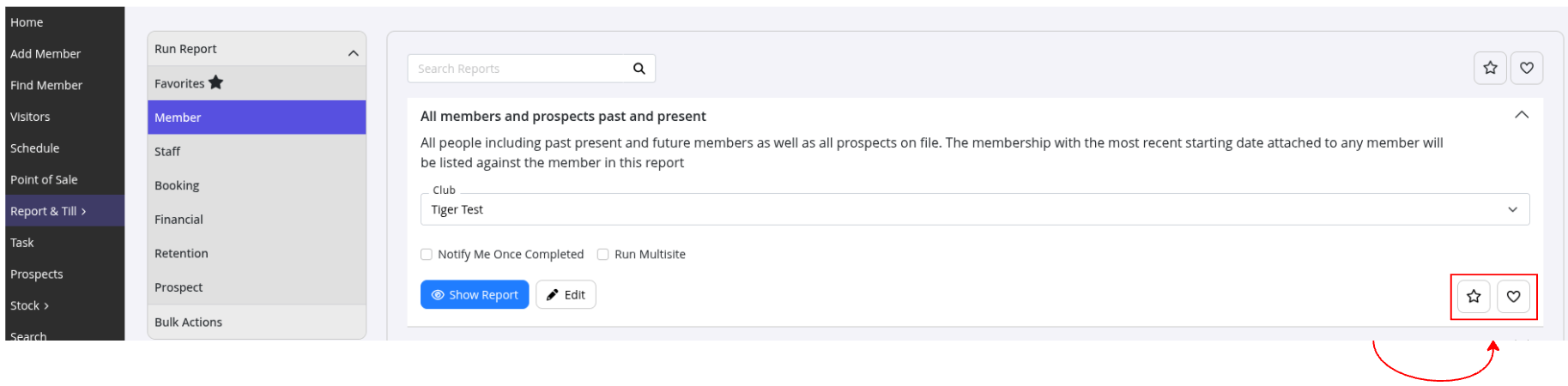
You can favorite as many reports as you need.
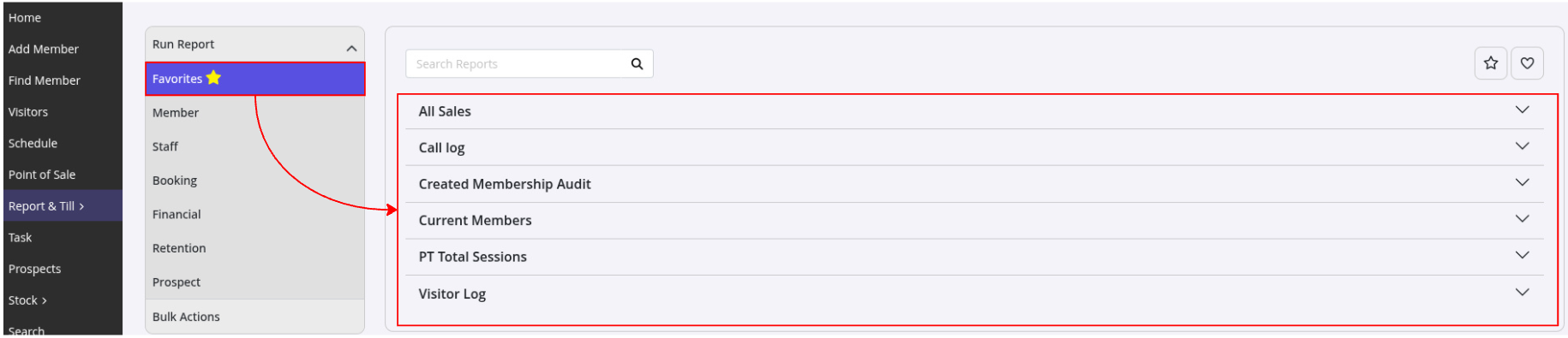
- When you come back to reports, your tagged reports will be found under Reports > Standard Reports > Favorites
Common Questions This Covers
- How do I save a report for quick access
- What is the difference between My Favorites and Company Favorites
- How do I share favourite reports with all staff
- Who can add reports to Company Favourites
- Where can I find my favorite reports
- How do I view all my saved reports
Get started with a free, no-obligation chat, and see how we can help you grow
Awards and recognition
- Deloitte Master of Growth Index 2025
- Deloitte Master of Growth Index 2024
- Software Advice FrontRunners 2023
- GetApp Category Leaders 2023
- Capterra Best Value 2022
- GetApp Best Functionality & Features 2022
- Software Advice Most Recommended 2022
- SoftwareSuggest User Most Likely to Recommend Summer 2022
- Software Advice Best Customer Support 2021
- Deloitte Technology Fast 500 Asia Pacific 2018
 2026 © Treshna Enterprises Ltd.