
‹ Back to Knowledge Base
Getting Started
2
Access Control
16
Accounting
6
Administration
8
Billing
18
Bookings and Schedule
16
Communication
10
Member
8
Memberships and Holds
20
Point of Sale and Stock
4
Prospects
4
Reporting
7
Task and Automation
4
Member App
4
Member Portal
12
Feature Guides
7
Integrations
13
Products and Stock
2
How to Create a Family/Shared Membership
2 min read
Updated
17 days ago
GymMaster supports shared memberships, which are useful when one membership is purchased by a primary member, and then shared with others.
A common use case is a family, where one parent purchases the membership, and the other family members are added as shared members.
Setup a Shared (Family) Membership
- Go to : Settings > Membership Types
- Add Membership Type
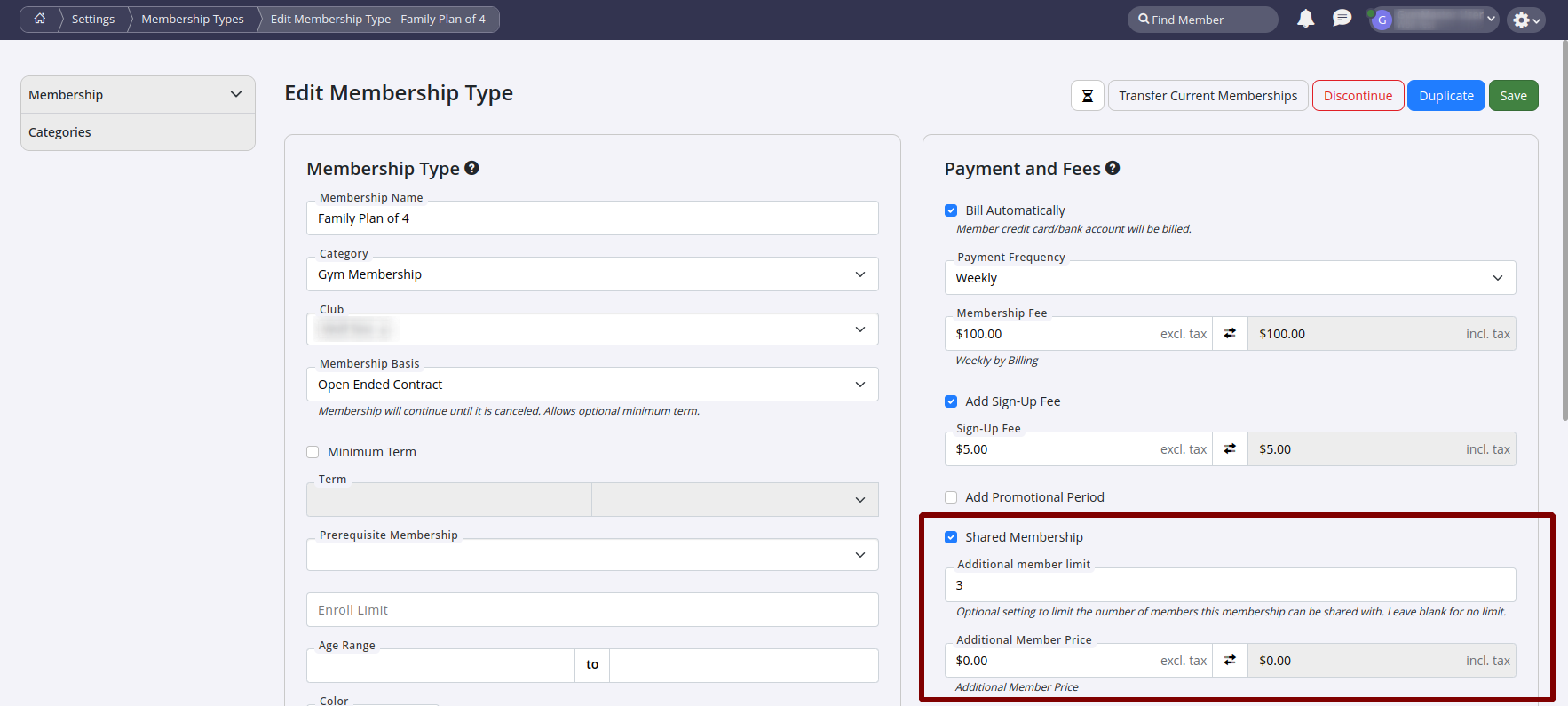
- Under the Membership Details, tick the box Shared Membership
- Once enabled, you’ll be able to set :
- Additional Member Limit – how many extra members can share this membership.
- Additional Member Price – the cost per additional member (can be set to $0.00 if you don’t charge extra)
Using the Family Membership
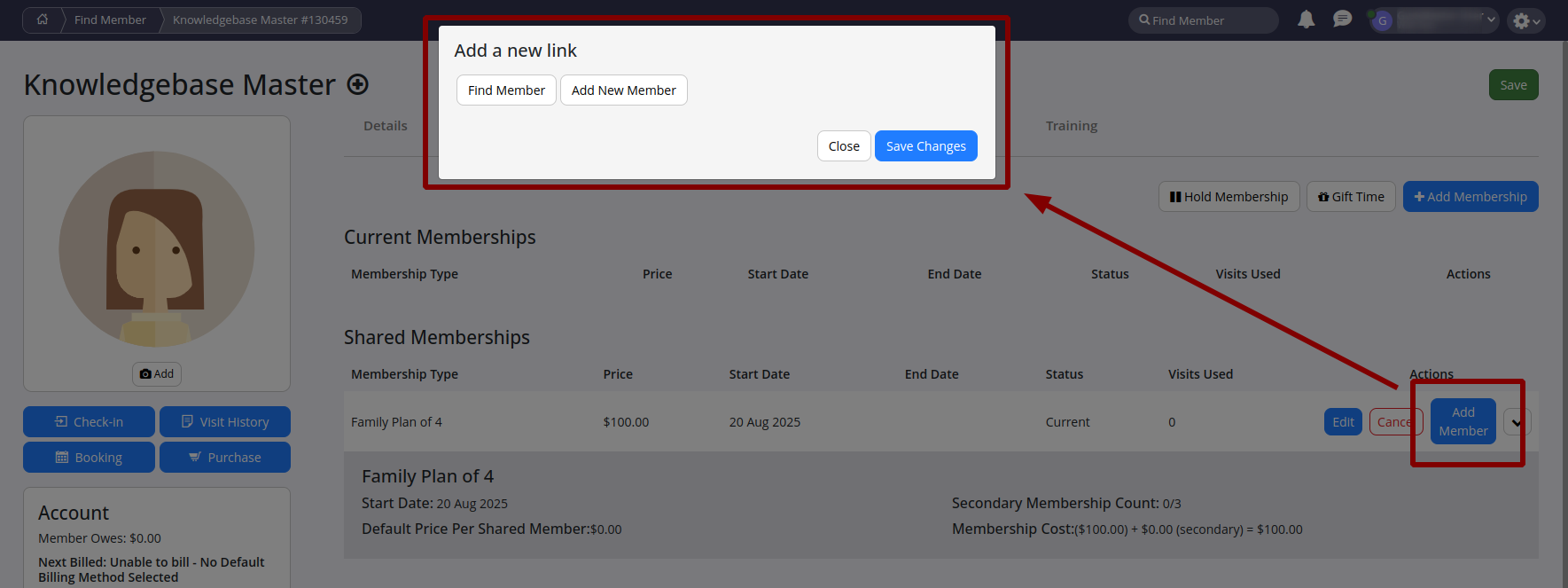
When this membership type is assigned to a member, an “Add Member” button will appear.
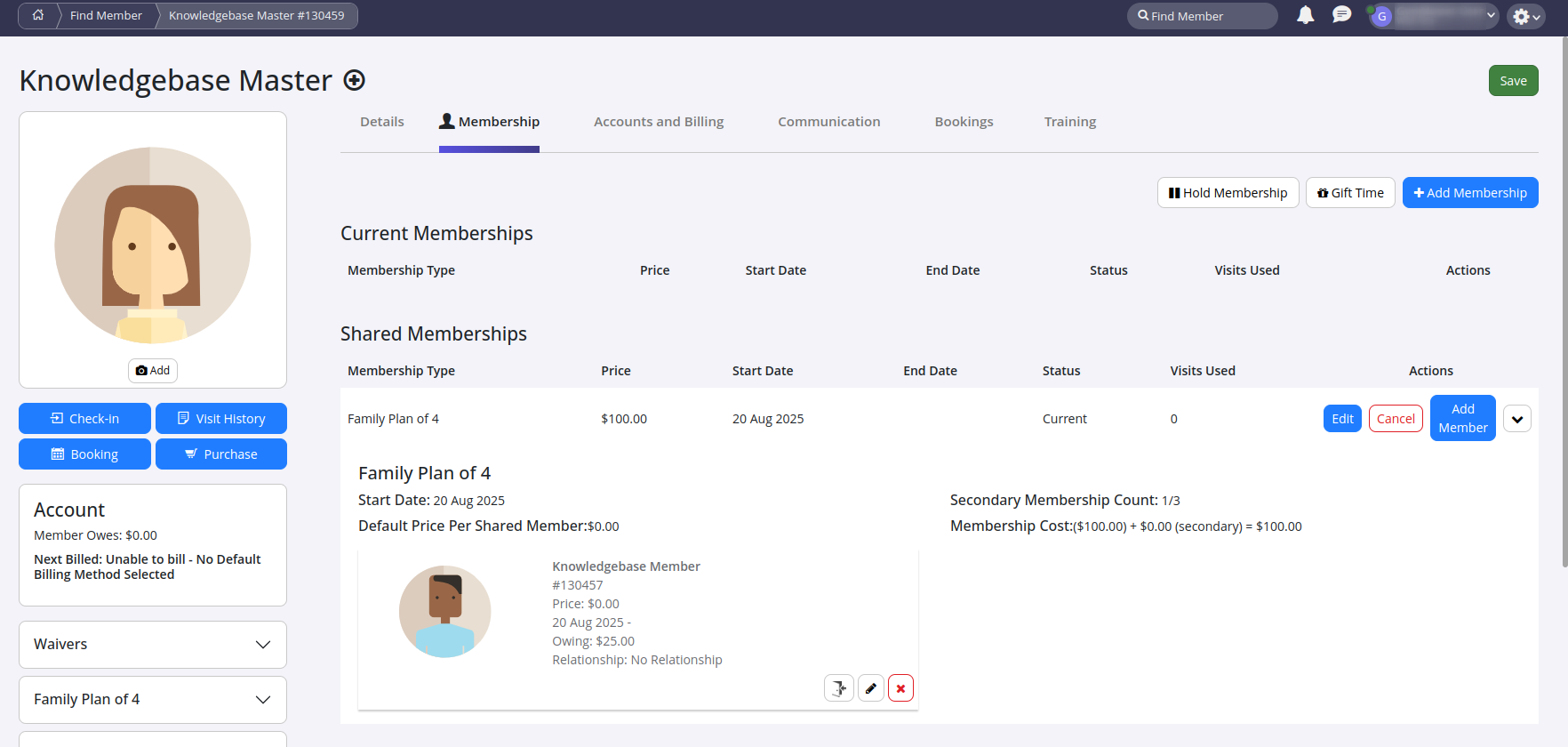
- Use this to add the other family members who will share the membership.
- All shared members will then receive the same membership benefits.
Also see our Have a member pay for another article, if you only need to set up a payment relationship, not a shared membership.
Common Questions this Covers
- How do I set up a family or shared membership in GymMaster
- Can multiple people use the same membership in GymMaster
- How do I add family members to an existing membership
- What does “Shared Membership” mean in GymMaster
- How do I charge extra members on a shared or family membership

 2026 © Treshna Enterprises Ltd.