
Customize Dashboard
1 min read
Updated
9 days ago
Tailor your Dashboard to display the information that matters most to your club.
Begin at: Home > Customize.
From here, you can:
Dashboard
Tailor dashboard tabs by selecting Manage Dashboard Categories, then configure each tab to suit your needs.
You can:
- Add, remove, and rearrange report graphs
- Adjust settings for a wide range of metrics, including Billing, Payments, Attendance, Cancellations, Prospects, and more
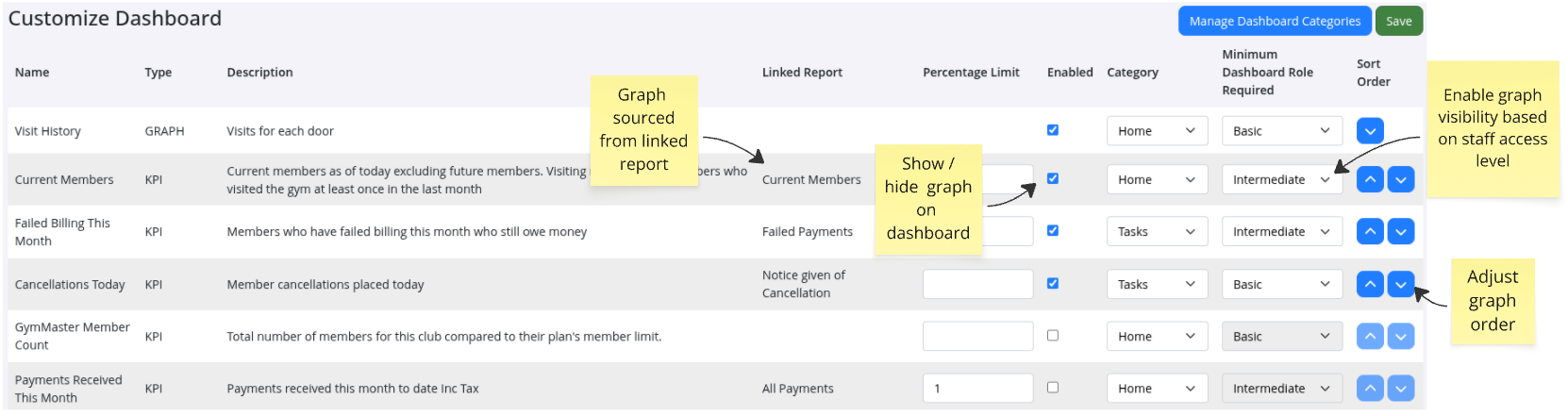
Widgets
Key graphs can be customized to suit the needs of your club.
Work through each as required.

Staff Access
You can also control who sees what, by managing Dashboard access per staff role.
Dashboard permissions let you tailor each staff member’s view based on their responsibilities.
Assign access levels to ensure your team sees only what they need — and nothing more.
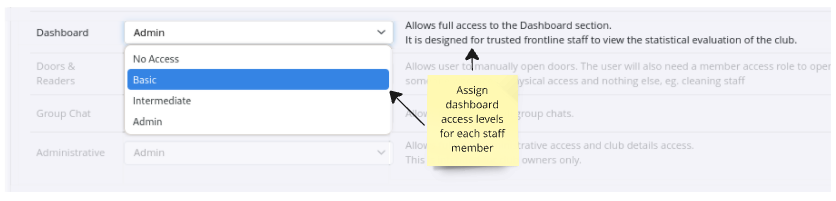
How to Set Dashboard Access:
- Go to User Administration
- Select the staff member, then click their Permissions tab
- Choose from four predefined access levels:
- No Access
- Basic
- Intermediate
- Admin
- Hover over each level to view a short description of what it includes
- Click Save
Common Questions this Covers
- How do I customize home dashboard
- Can I change what shows on the home dashboard
- How do I edit dashboard graphs
- How do I rearrange dashboard graphs
- How do I set staff dashboard access

 2026 © Treshna Enterprises Ltd.