
Tailgating Cameras Offline
Troubleshooting Home > Tailgating Cameras Offline
The Gatekeeper cannot communicate with the cameras. The cause is usually the power or the network.
- GymMaster shows "Tailgating Cameras Offline".
Caution: Do not change the settings or the IP addresses of the cameras.
8 steps. Do them in sequence.
-
Step 1
Check the cameras in GymMaster
- In GymMaster, go to Settings > Doors & Readers and edit the door.
- Make sure that Detect Tailgating is ticked.
- Click Check Cameras, then Preview.
Do this check again after each step.
-
Step 2
Examine the camera power
Use PoE or a power adapter, not both.
- PoE: 12W-15W for each port. Make sure that the switch has power and the cameras are in its PoE ports.
- Power adapter: 12V DC, 1A, with a 5.5 mm x 2.1 mm barrel plug (centre positive).
As a test, use a power adapter instead of PoE.
A preview that is distorted or broken can also show that the camera does not get sufficient power.

-
Step 3
Examine the camera cables
- Make sure that each cable is fully connected at the camera and at the router or switch.
- Make sure that the port light is on. If it is off, replace the cable or use a different port.
-
Step 4
Make sure that the Ethernet cable has an Internet connection
- Disconnect the Ethernet cable from the Gatekeeper or the camera.
- Connect it to a different device, for example a laptop. Make sure that Wi-Fi is off on that device.
If the other device also has no Internet connection, the problem is in your network. Speak to your IT team or your Internet Service Provider (ISP).
-
Step 5
Connect the cameras and the Gatekeeper to the same router
Connect the cameras and the Gatekeeper to the same router or switch. A guest network or a different VLAN can stop them from communicating.
-
Step 6
Find if a camera was reset or has an IP address conflict
Each camera has a fixed IP address and password that the Gatekeeper uses. The camera goes offline if:
- Someone reset the camera with its reset button, or changed its IP address or password.
- A different device on your network uses the same IP address. For example, CCTV or alarm cameras that you added.
Do not try to set up the camera again yourself. Contact GymMaster Support. Tell us if a camera was reset, or if you added devices to your network.
-
Step 7
Restart the Gatekeeper software
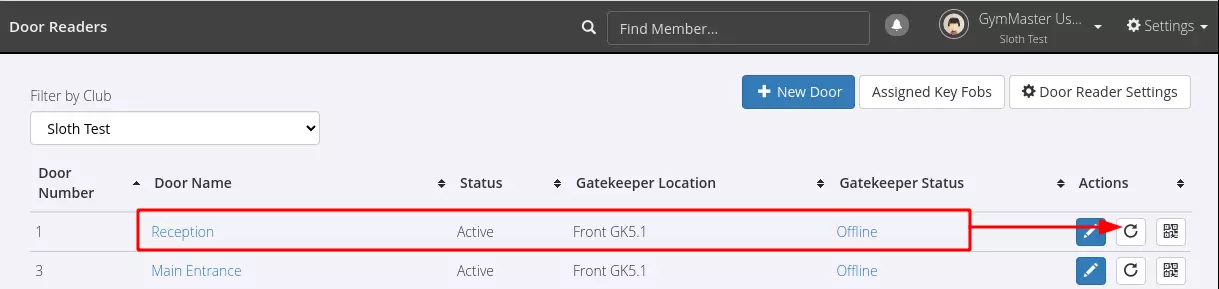
This makes the Gatekeeper get the latest data from GymMaster again.
You need: admin access in GymMaster.
- In GymMaster, go to Settings > Doors & Readers and find the door.
- Click Restart Software.
If GymMaster shows “Unable to restart software because the Gatekeeper is Offline”, see Gatekeeper offline.
If the restart fixes the problem, the camera network on the Gatekeeper did not start correctly.
-
Step 8
Examine the settings of your router
Important: Router settings are different for each model. For help, speak to your IT team or your Internet Service Provider (ISP).
-
Reboot the router.
-
Open the router settings. Type the router IP address (usually 192.168.1.1) in a web browser. The address and the password are usually on a label on the router.
-
Make sure that the router or firewall does not block the Gatekeeper or the cameras. Look at the blacklist, the firewall, and security features such as “advanced security” or blocking by country. The Gatekeeper must have outgoing access to:
Address Port Your GymMaster site, for example yourgym.gymmasteronline.com 443 gktunnel.gymmasteronline.com 22, 443 seahorse.gymmaster.com (tailgating video) 443 clients3.google.com 80 Time servers (NTP) UDP 123 -
Make sure that the network does not block the DNS servers 8.8.8.8 (Google) and 1.1.1.1. Contact your IP provider to unblock these servers.
-
Make sure that “AP isolation” or “client isolation” is off.
-
Make sure that the router gives IP addresses with DHCP. If your modem gives only fixed IP addresses, turn on DHCP, or connect the Gatekeeper to a router that has DHCP.
-

 2026 © Treshna Enterprises Ltd.